# Workforce App (Mobile)
The **Workforce App (Mobile)** is a simple demonstration application provided by ONEWEB to help users learn and practice **mobile application development** using **Page Designer** and **Microflow Designer**.
This tutorial focuses on building a basic mobile workforce application that connects a mobile user interface with backend data through Microflows.\
It is intended as a **hands‑on learning example** for developers who are new to mobile UI design and backend integration in ONEWEB.
***
### Tutorial Objectives
In this tutorial, you will learn how to:
* Create **master tables and master data** in the `ERP_ONEWEB` schema using SQL (PostgreSQL)
* Design **mobile user interfaces** using the drag‑and‑drop capabilities of **Page Designer**
* Create **Microflows** to retrieve data from the database
* Integrate **Microflows with Mobile UI pages**
* View and interact with **dynamic backend data at runtime** in a mobile application
By completing this tutorial, you will understand the end‑to‑end flow from **data layer → backend logic → mobile UI**.
***
### What You Will Build
The Workforce App demonstrates a simple mobile use case where users can:
* Access workforce‑related information from a mobile device
* View data retrieved dynamically from a backend database
* Interact with UI components that are powered by Microflows
This example reflects common enterprise mobile app patterns, such as employee listings, task views, or operational dashboards.
***
### Key ONEWEB Components Used
This tutorial uses the following ONEWEB features:
* **Database Layer**
* PostgreSQL
* ERP\_ONEWEB schema
* Master tables and master data
* **Page Designer**
* Mobile page layouts
* Drag‑and‑drop UI components
* Mobile‑optimized navigation and presentation
* **Microflow Designer**
* Backend logic to query data
* Database integration via Microflow
* Data delivery to mobile UI
***
### Learning Flow
The tutorial is structured to guide you step‑by‑step through:
1. Preparing database tables and sample data
2. Designing mobile UI pages using Page Designer
3. Creating Microflows to retrieve workforce data
4. Binding Microflows to mobile UI components
5. Running the application to view dynamic results
Each step builds on the previous one, reinforcing practical understanding of how ONEWEB components work together.
***
### Sample Mobile User Interface
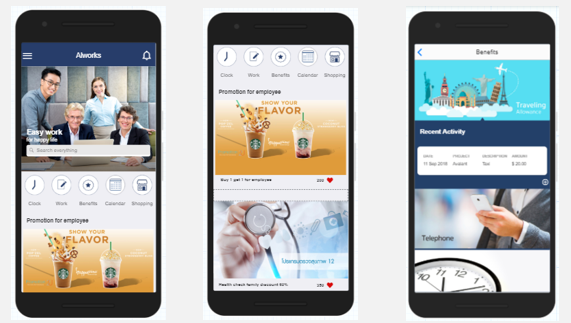
The following screenshot shows an example of the mobile UI created in this tutorial:
This interface is built entirely using **Page Designer** and connected to backend data using **Microflows**.
***
### Who Should Use This Tutorial
This tutorial is ideal for:
* Developers new to **mobile development in ONEWEB**
* Users learning **Page Designer and Microflow Designer together**
* Teams building internal workforce or operational mobile apps
* Anyone looking for a simple, end‑to‑end mobile example
No advanced knowledge is required beyond basic familiarity with ONEWEB concepts.
***
### Summary
The **Workforce App (Mobile)** tutorial provides a practical introduction to building mobile applications on the ONEWEB platform.
Through this example, you will learn how to:
* Prepare backend data
* Design mobile‑friendly UI pages
* Implement Microflows for data access
* Connect UI and backend logic seamlessly
This tutorial serves as a foundational example for developing **enterprise mobile applications** using ONEWEB.
---
# Agent Instructions: Querying This Documentation
If you need additional information that is not directly available in this page, you can query the documentation dynamically by asking a question.
Perform an HTTP GET request on the current page URL with the `ask` query parameter:
```
GET https://docs.onewebstack.com/tutorials-examples/workforce-app-mobile.md?ask=
```
The question should be specific, self-contained, and written in natural language.
The response will contain a direct answer to the question and relevant excerpts and sources from the documentation.
Use this mechanism when the answer is not explicitly present in the current page, you need clarification or additional context, or you want to retrieve related documentation sections.