# Web Pages

When designing **Web Pages**, Page Designer provides a comprehensive set of **menu controls** on the left side and top bar of the design canvas.\
These controls allow users to add components, manage layout, configure behavior, style appearance, and preview responsive web pages.

***

#### Left‑Side Menu Controls (Web Pages)

For Web Pages, Page Designer provides **7 main menu icons** on the left side of the editor.

The available menu controls are:

<table><thead><tr><th width="111">Ico</th><th>Menu</th><th>Description</th></tr></thead><tbody><tr><td><img src="https://docs.oneweb.tech/oneweb/~gitbook/image?url=https%3A%2F%2F2015371994-files.gitbook.io%2F%7E%2Ffiles%2Fv0%2Fb%2Fgitbook-x-prod.appspot.com%2Fo%2Fspaces%252FMpDjHWFRUtZ5nJcSfVXd%252Fuploads%252FOvbR2YJna8iQjElIDvnq%252F0%3Falt%3Dmedia&#x26;width=300&#x26;dpr=3&#x26;quality=100&#x26;sign=d7bb68c8&#x26;sv=2" alt=""></td><td><strong>Add Components</strong></td><td>Add UI components to the page</td></tr><tr><td><img src="https://docs.oneweb.tech/oneweb/~gitbook/image?url=https%3A%2F%2F2015371994-files.gitbook.io%2F%7E%2Ffiles%2Fv0%2Fb%2Fgitbook-x-prod.appspot.com%2Fo%2Fspaces%252FMpDjHWFRUtZ5nJcSfVXd%252Fuploads%252FGLHDmW2T9pJH5xuK1OgW%252Fimage.png%3Falt%3Dmedia%26token%3D15613975-d166-47c5-8e01-e25843588866&#x26;width=300&#x26;dpr=3&#x26;quality=100&#x26;sign=d8dc3bac&#x26;sv=2" alt=""></td><td><strong>UI Kits</strong></td><td>Use reusable, custom, or external UI components</td></tr><tr><td><img src="https://docs.oneweb.tech/oneweb/~gitbook/image?url=https%3A%2F%2F2015371994-files.gitbook.io%2F%7E%2Ffiles%2Fv0%2Fb%2Fgitbook-x-prod.appspot.com%2Fo%2Fspaces%252FMpDjHWFRUtZ5nJcSfVXd%252Fuploads%252FmFJNE8am5KgauyAMH4Ud%252F1%3Falt%3Dmedia&#x26;width=300&#x26;dpr=3&#x26;quality=100&#x26;sign=678a7438&#x26;sv=2" alt=""></td><td><strong>Open Tools</strong></td><td>Configure logic, data flow, and behavior</td></tr><tr><td><img src="https://docs.oneweb.tech/oneweb/~gitbook/image?url=https%3A%2F%2F2015371994-files.gitbook.io%2F%7E%2Ffiles%2Fv0%2Fb%2Fgitbook-x-prod.appspot.com%2Fo%2Fspaces%252FMpDjHWFRUtZ5nJcSfVXd%252Fuploads%252FooRvy6e173tXsx5cEL76%252Fimage.png%3Falt%3Dmedia%26token%3D9604cf78-6c58-4453-bb94-ffddbb6199c8&#x26;width=38&#x26;dpr=3&#x26;quality=100&#x26;sign=80b62b9c&#x26;sv=2" alt=""></td><td><strong>Pages</strong></td><td>Manage pages within the application</td></tr><tr><td><img src="https://docs.oneweb.tech/oneweb/~gitbook/image?url=https%3A%2F%2F2015371994-files.gitbook.io%2F%7E%2Ffiles%2Fv0%2Fb%2Fgitbook-x-prod.appspot.com%2Fo%2Fspaces%252FMpDjHWFRUtZ5nJcSfVXd%252Fuploads%252FLRjBenRwNJ0c7ONe9Byc%252Fimage.png%3Falt%3Dmedia%26token%3D02dd3ce2-7eea-415d-9d0c-f218259218d4&#x26;width=42&#x26;dpr=3&#x26;quality=100&#x26;sign=960891f2&#x26;sv=2" alt=""></td><td><strong>Structure</strong></td><td>View hierarchical structure of page layout</td></tr><tr><td><img src="https://docs.oneweb.tech/oneweb/~gitbook/image?url=https%3A%2F%2F2015371994-files.gitbook.io%2F%7E%2Ffiles%2Fv0%2Fb%2Fgitbook-x-prod.appspot.com%2Fo%2Fspaces%252FMpDjHWFRUtZ5nJcSfVXd%252Fuploads%252FB8q2IDSByqEPGfDBVytS%252F2%3Falt%3Dmedia&#x26;width=300&#x26;dpr=3&#x26;quality=100&#x26;sign=41ccfccd&#x26;sv=2" alt=""></td><td><strong>Upload Image</strong></td><td>Upload and manage images</td></tr><tr><td><img src="https://docs.oneweb.tech/oneweb/~gitbook/image?url=https%3A%2F%2F2015371994-files.gitbook.io%2F%7E%2Ffiles%2Fv0%2Fb%2Fgitbook-x-prod.appspot.com%2Fo%2Fspaces%252FMpDjHWFRUtZ5nJcSfVXd%252Fuploads%252FReeyOkVmbbV62edQ8t3t%252F3%3Falt%3Dmedia&#x26;width=300&#x26;dpr=3&#x26;quality=100&#x26;sign=1f481a2a&#x26;sv=2" alt=""></td><td><strong>Manage Icon</strong></td><td>Upload and manage icons</td></tr></tbody></table>

***

### Add Components

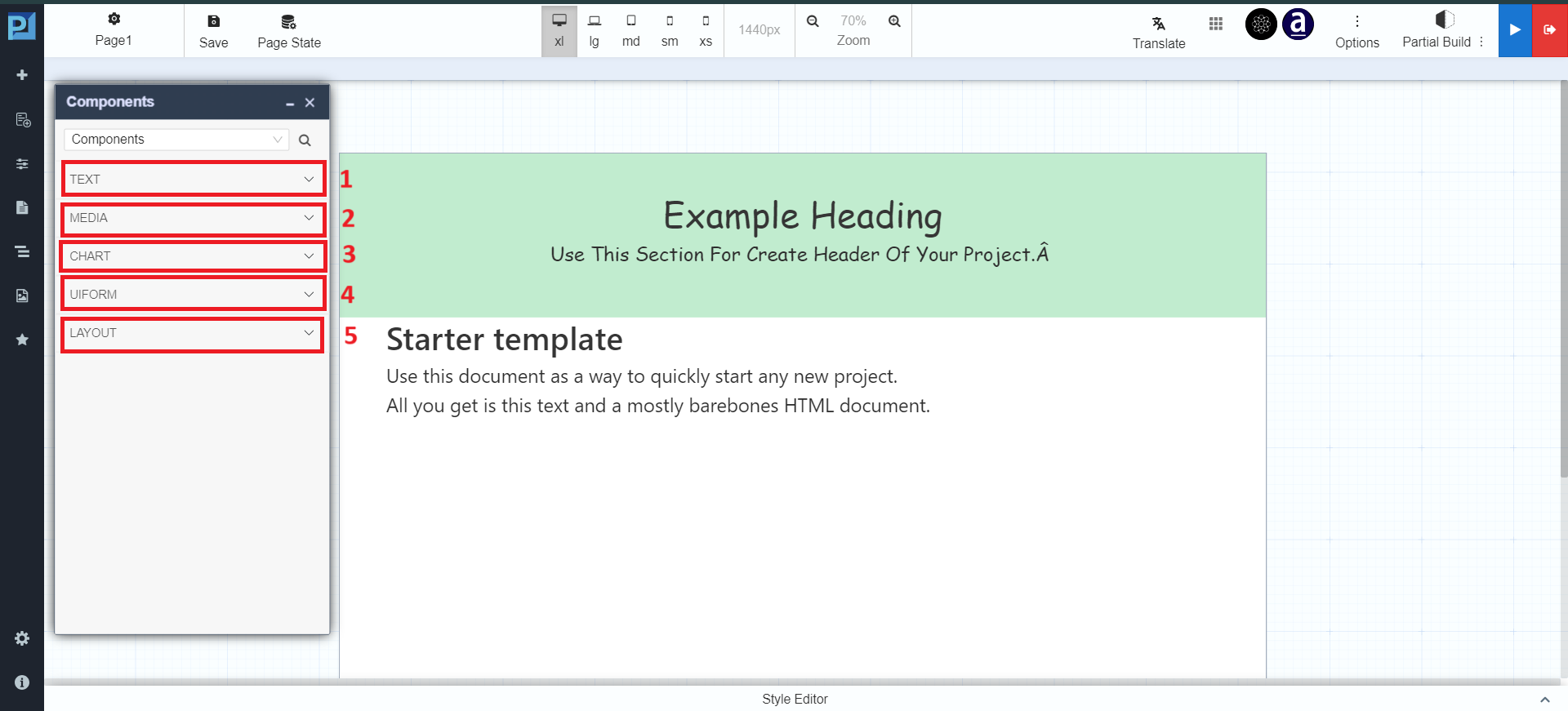
Click the **Add Components** icon ![](https://docs.oneweb.tech/oneweb/~gitbook/image?url=https%3A%2F%2F2015371994-files.gitbook.io%2F%7E%2Ffiles%2Fv0%2Fb%2Fgitbook-x-prod.appspot.com%2Fo%2Fspaces%252FMpDjHWFRUtZ5nJcSfVXd%252Fuploads%252FOvbR2YJna8iQjElIDvnq%252F0%3Falt%3Dmedia\&width=300\&dpr=3\&quality=100\&sign=d7bb68c8\&sv=2) to open the Components panel.

The Components panel appears on the properties panel section.

<figure><img src="https://2015371994-files.gitbook.io/~/files/v0/b/gitbook-x-prod.appspot.com/o/spaces%2FMpDjHWFRUtZ5nJcSfVXd%2Fuploads%2FhrK5u3W1uUCHJxmXYhtt%2Fadd-component.png?alt=media" alt=""><figcaption></figcaption></figure>

#### Component Categories

**TEXT**

* Paragraph
* Simple Text
* Heading
* Label
* Span

**MEDIA**

* Image
* QR Code

**CHART**

* Line Chart
* Bar Chart
* Pie Chart

**UIFORM**

* Textbox
* Textarea
* Combo Box
* Form
* Button
* Submit
* Radio
* Checkbox
* Progress Bar

**LAYOUT**

* Container
* Embed
* Panel
* Table
* Grid / Row
* Tabs
* Card
* Accordion
* Carousel
* Modal

***

### UI Kits

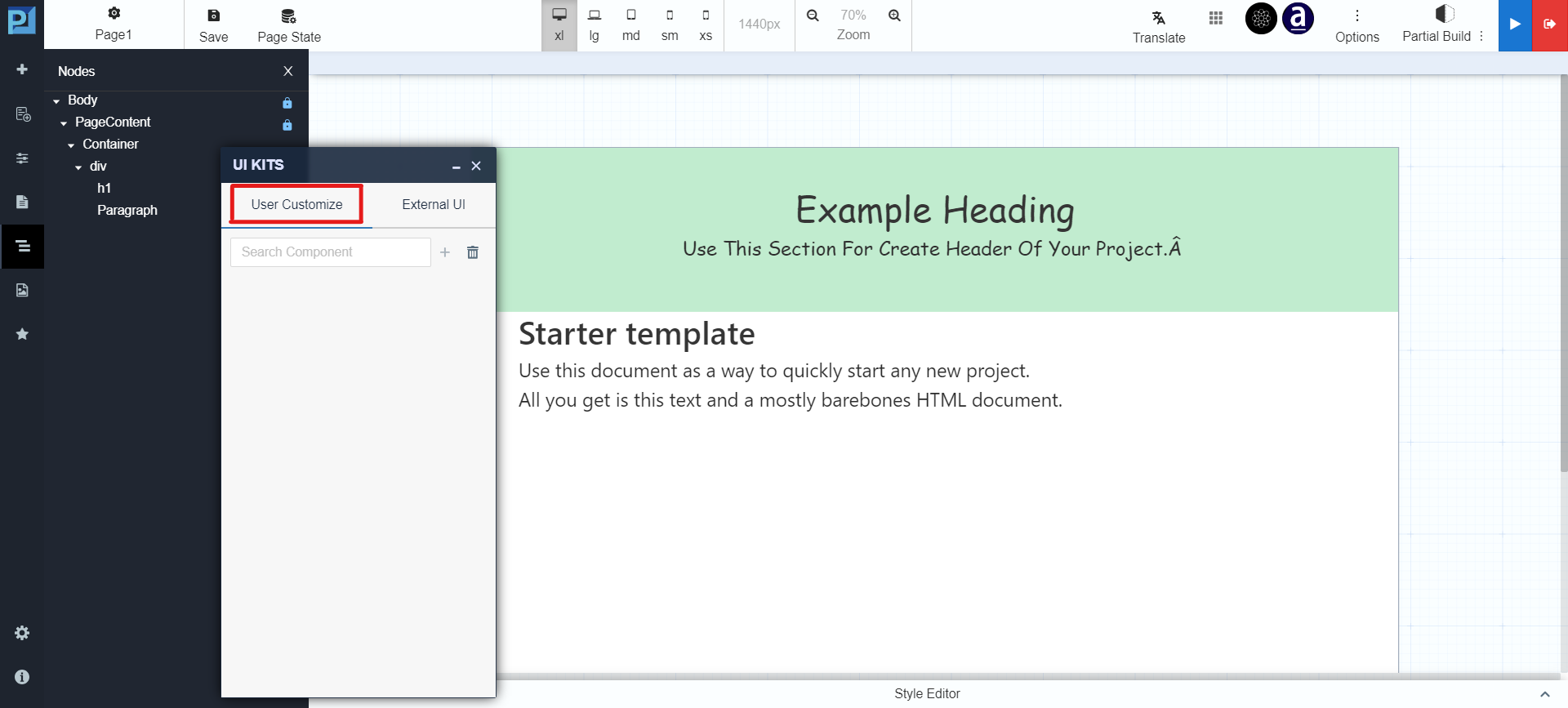
Click the **UI Kits** icon![](https://docs.oneweb.tech/oneweb/~gitbook/image?url=https%3A%2F%2F2015371994-files.gitbook.io%2F%7E%2Ffiles%2Fv0%2Fb%2Fgitbook-x-prod.appspot.com%2Fo%2Fspaces%252FMpDjHWFRUtZ5nJcSfVXd%252Fuploads%252FGLHDmW2T9pJH5xuK1OgW%252Fimage.png%3Falt%3Dmedia%26token%3D15613975-d166-47c5-8e01-e25843588866\&width=300\&dpr=3\&quality=100\&sign=d8dc3bac\&sv=2) to open reusable UI component libraries.

#### User Customize UI Kits

Allows users to create reusable custom components.

<figure><img src="https://2015371994-files.gitbook.io/~/files/v0/b/gitbook-x-prod.appspot.com/o/spaces%2FMpDjHWFRUtZ5nJcSfVXd%2Fuploads%2F3GOMYhFH4UQ9evXvjq8R%2Fimage.png?alt=media" alt=""><figcaption></figcaption></figure>

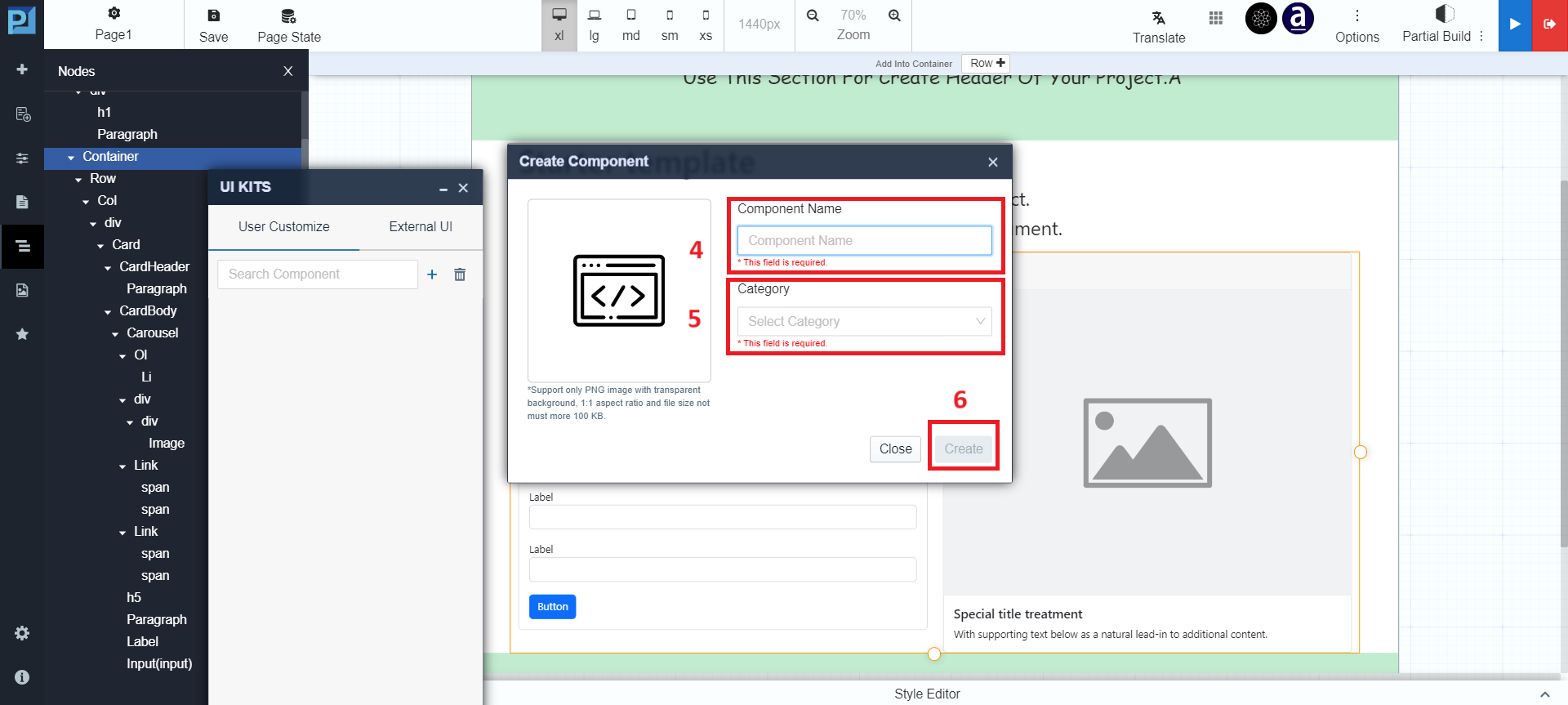
Add a component to UI Kits using the ![](https://docs.oneweb.tech/oneweb/~gitbook/image?url=https%3A%2F%2F2015371994-files.gitbook.io%2F%7E%2Ffiles%2Fv0%2Fb%2Fgitbook-x-prod.appspot.com%2Fo%2Fspaces%252FMpDjHWFRUtZ5nJcSfVXd%252Fuploads%252FOvbR2YJna8iQjElIDvnq%252F0%3Falt%3Dmedia\&width=300\&dpr=3\&quality=100\&sign=d7bb68c8\&sv=2) **icon**:

Define component details in the Create Component panel:

<figure><img src="https://2015371994-files.gitbook.io/~/files/v0/b/gitbook-x-prod.appspot.com/o/spaces%2FMpDjHWFRUtZ5nJcSfVXd%2Fuploads%2FaFJh9cieiRPBroxniPQM%2FUIKit-UC3.png?alt=media" alt=""><figcaption></figcaption></figure>

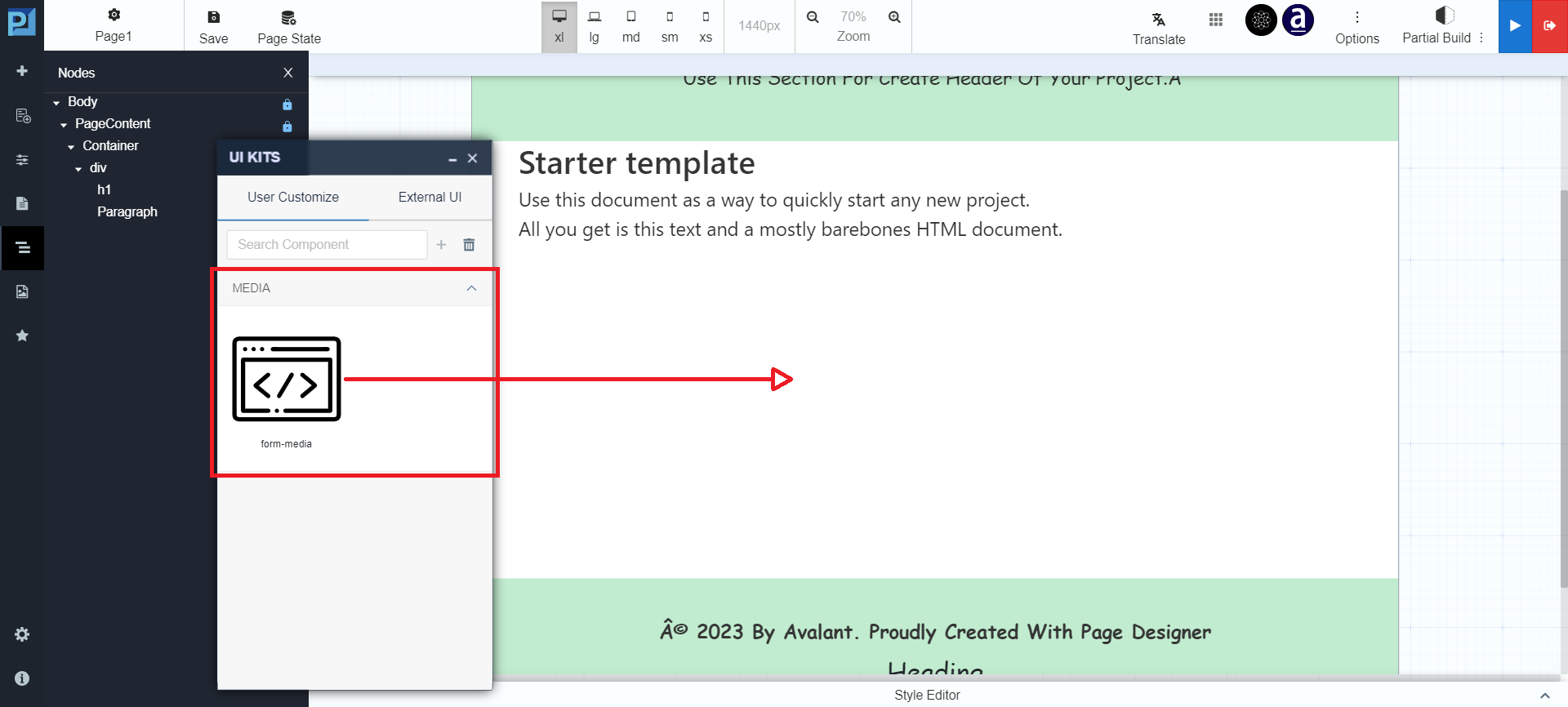
The saved component can then be reused by drag & drop:

<figure><img src="https://2015371994-files.gitbook.io/~/files/v0/b/gitbook-x-prod.appspot.com/o/spaces%2FMpDjHWFRUtZ5nJcSfVXd%2Fuploads%2F72YOb8GAVuXTyvwc0to7%2FUIKit-UC4.png?alt=media" alt=""><figcaption></figcaption></figure>

***

### Open Tools

Open Tools provides dynamic and behavioral configuration.

<figure><img src="https://2015371994-files.gitbook.io/~/files/v0/b/gitbook-x-prod.appspot.com/o/spaces%2FMpDjHWFRUtZ5nJcSfVXd%2Fuploads%2FsaQtJfSDitTsonanG4kw%2Fadd-component2.png?alt=media" alt=""><figcaption></figcaption></figure>

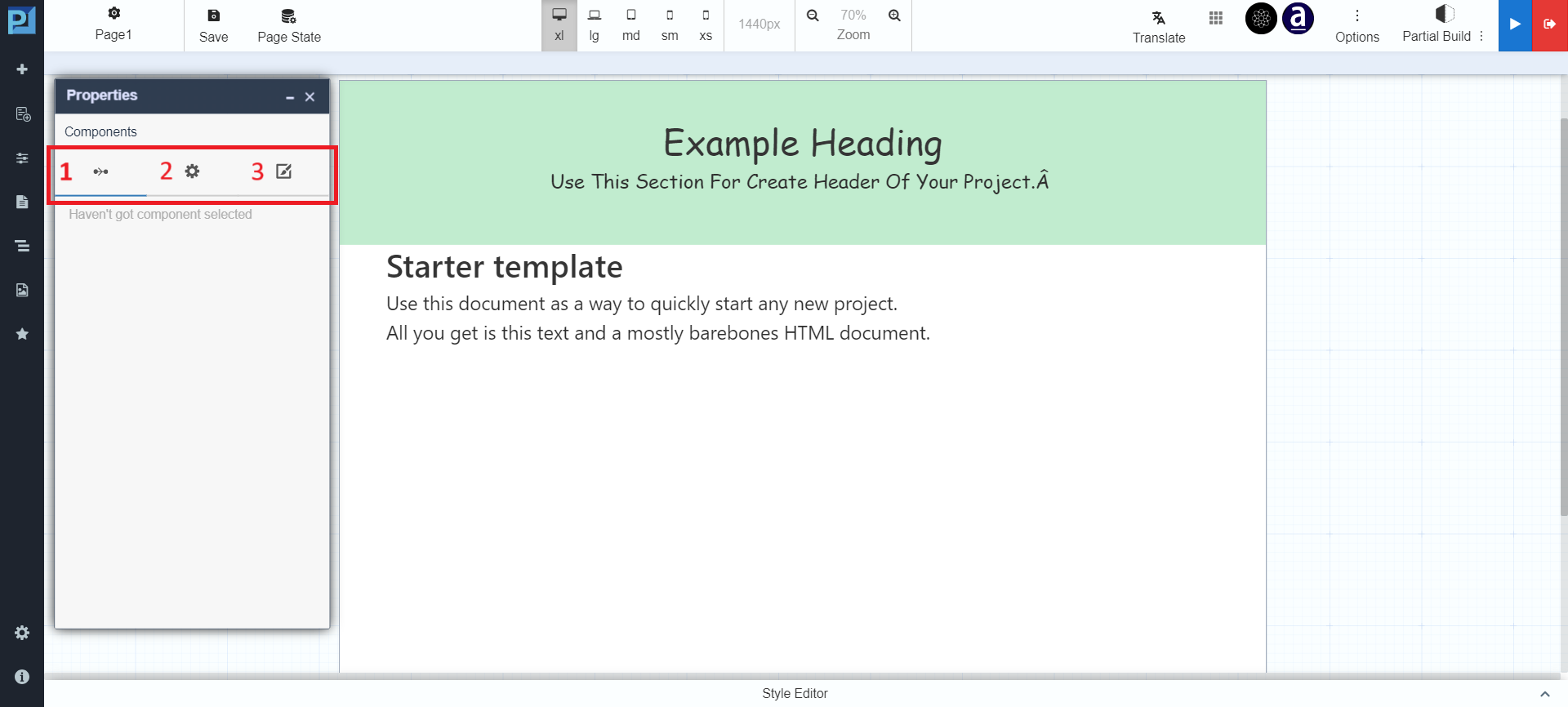
Key tabs include:

* **Data Flow (Microflow / JavaScript)**
* **Properties (ID, title, CSS, directives)**
* **Style (appearance, layout, links)**

***

### Pages

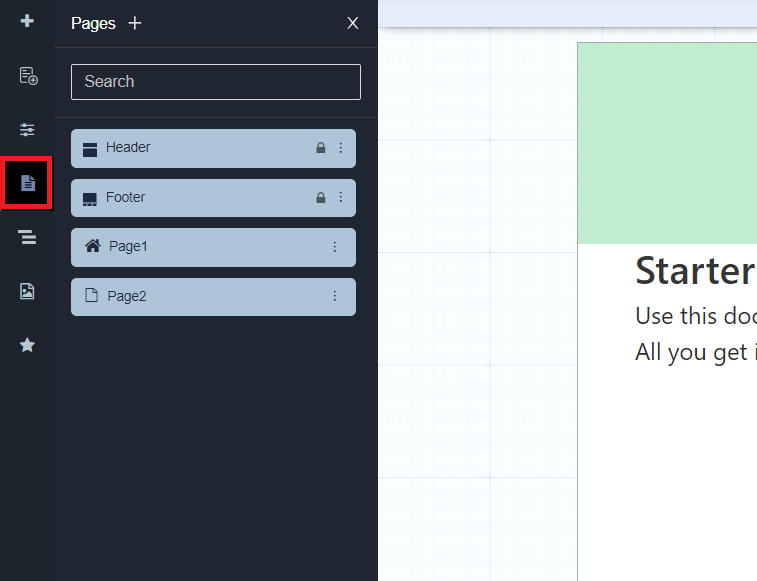
The Pages menu lists all pages in the application.

<figure><img src="https://2015371994-files.gitbook.io/~/files/v0/b/gitbook-x-prod.appspot.com/o/spaces%2FMpDjHWFRUtZ5nJcSfVXd%2Fuploads%2Fxlfg7ytmhjRYcM2wgHQW%2FPages.png?alt=media" alt=""><figcaption></figcaption></figure>

Users can:

* Search pages by name
* Create new pages
* Close the pages panel

***

### Structure

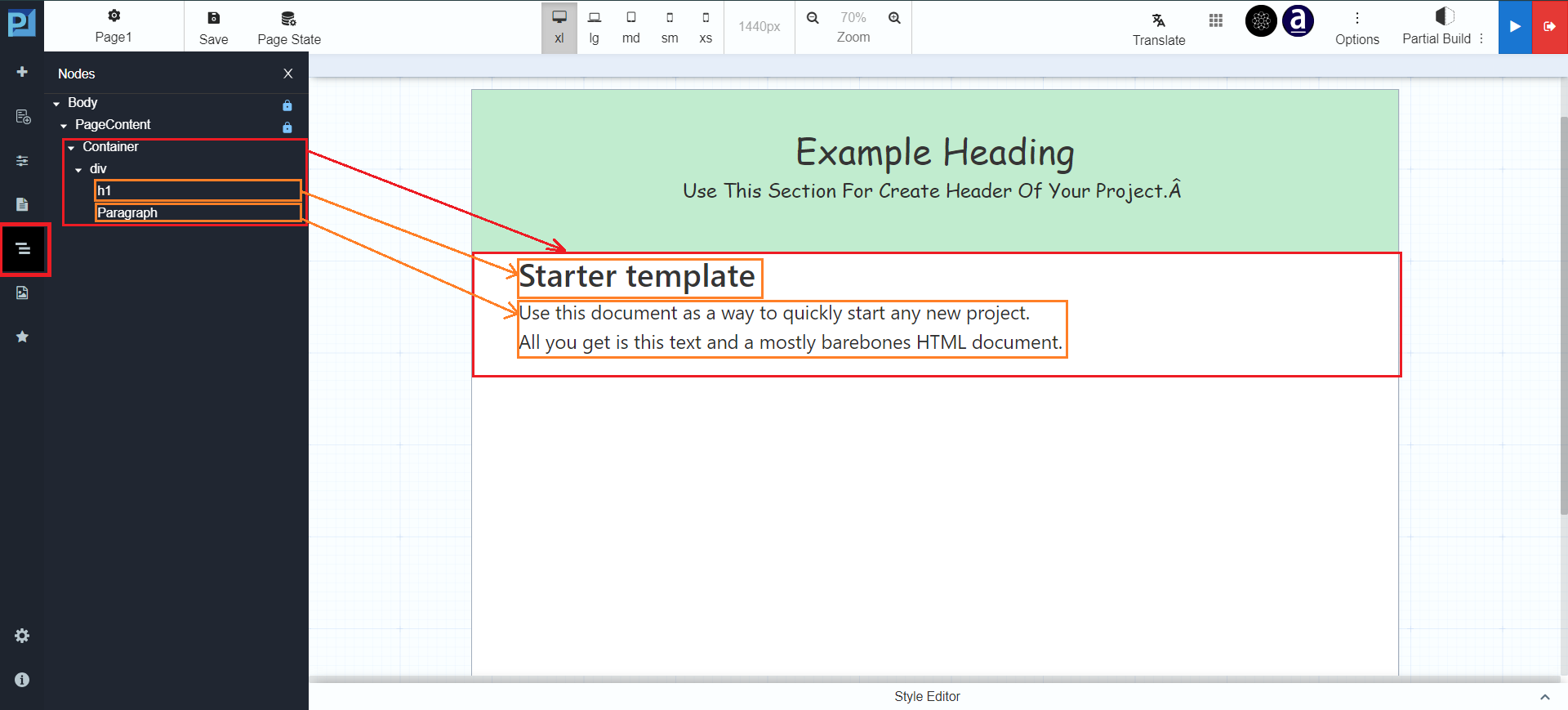
Structure displays the hierarchical arrangement of components on the page.

<figure><img src="https://2015371994-files.gitbook.io/~/files/v0/b/gitbook-x-prod.appspot.com/o/spaces%2FMpDjHWFRUtZ5nJcSfVXd%2Fuploads%2F12cTXuyMsJsDUULrasb1%2Fstructure.png?alt=media" alt=""><figcaption></figcaption></figure>

***

### Upload Image

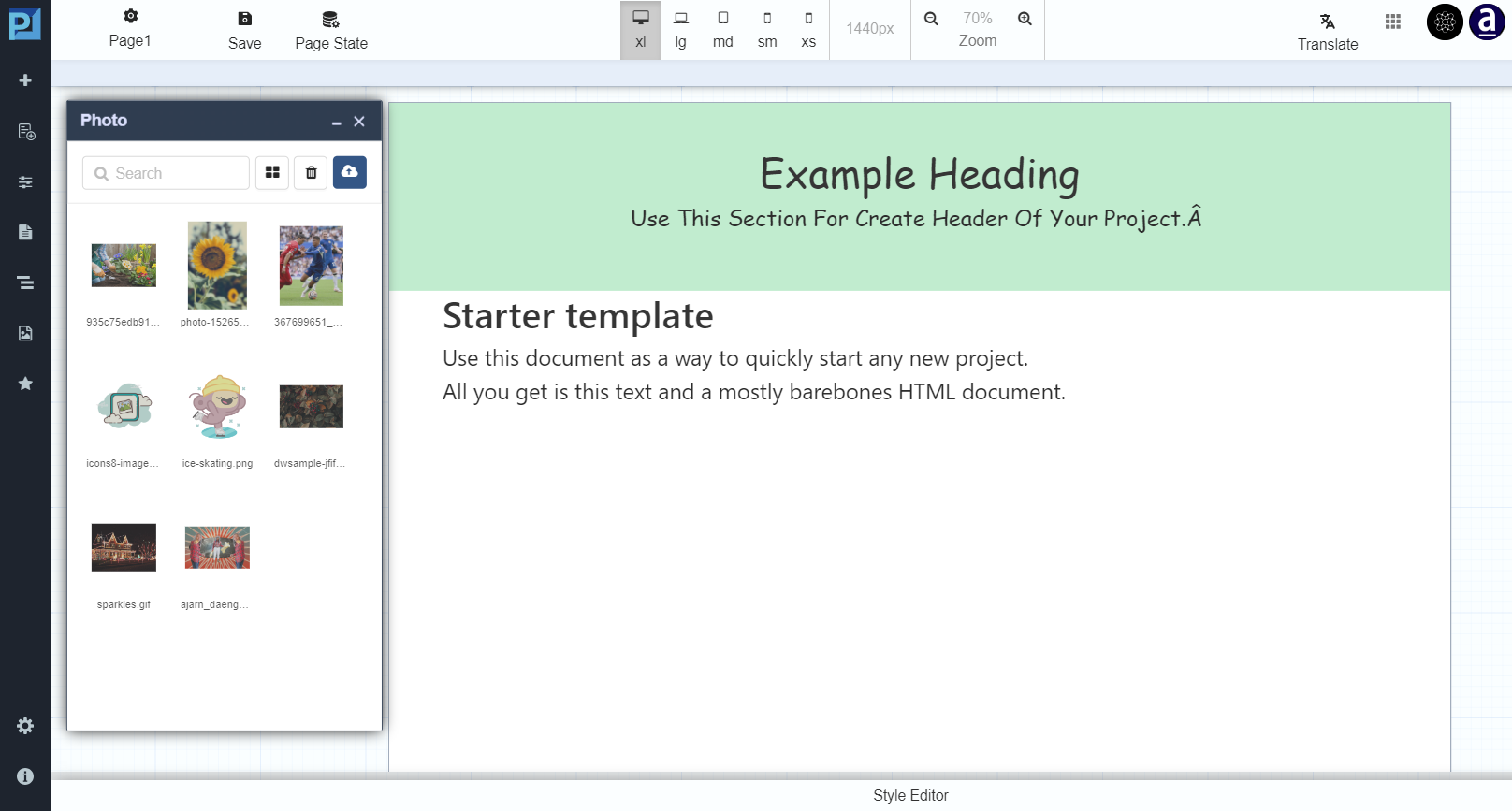
Upload Image allows uploading or dragging images into Page Designer.

<figure><img src="https://2015371994-files.gitbook.io/~/files/v0/b/gitbook-x-prod.appspot.com/o/spaces%2FMpDjHWFRUtZ5nJcSfVXd%2Fuploads%2FGeQThusYrjjHfkgEECjN%2Fimage.png?alt=media" alt=""><figcaption></figcaption></figure>

***

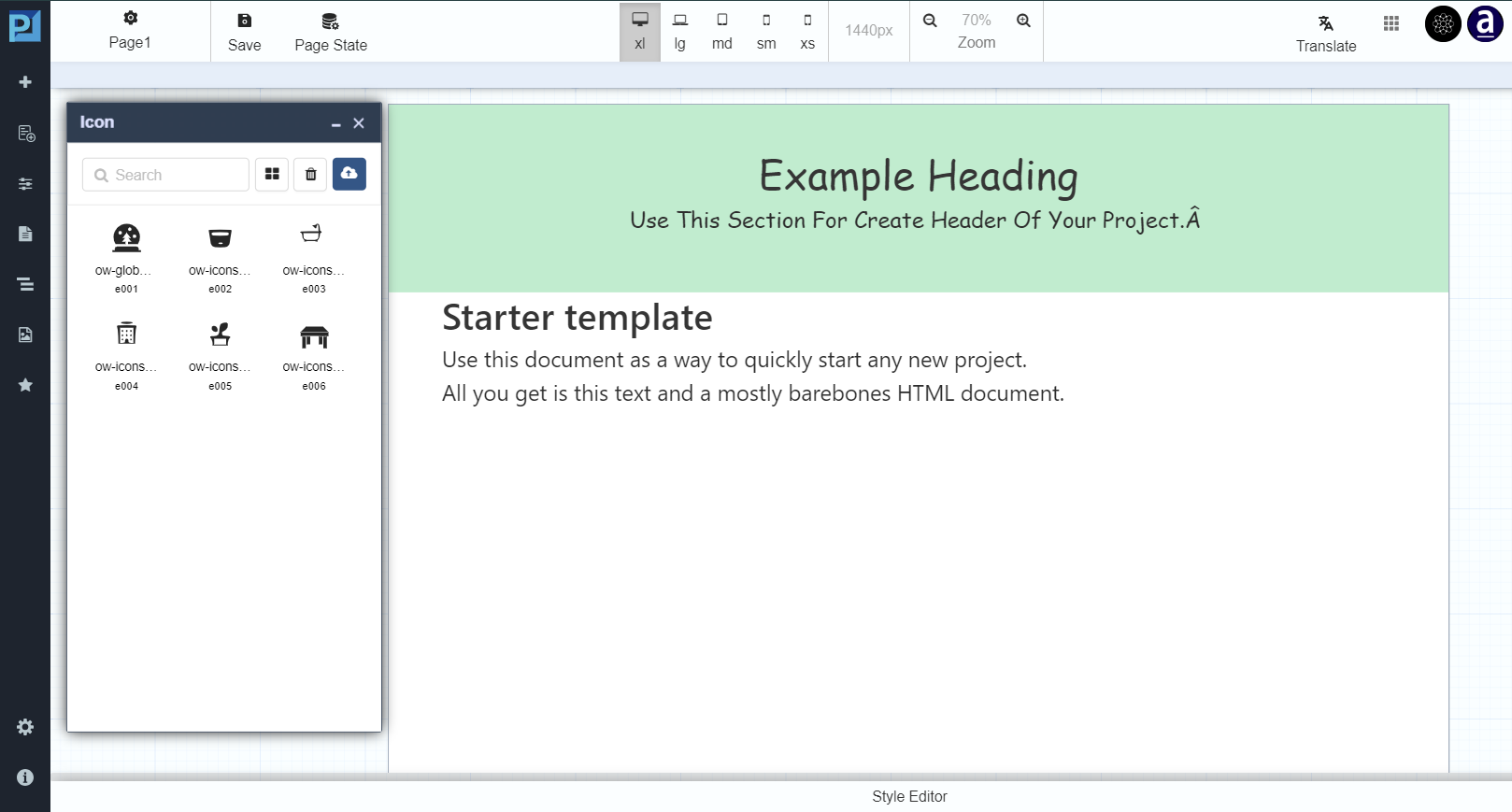
### Manage Icon

Manage Icon allows adding reusable icons.

<figure><img src="https://2015371994-files.gitbook.io/~/files/v0/b/gitbook-x-prod.appspot.com/o/spaces%2FMpDjHWFRUtZ5nJcSfVXd%2Fuploads%2FdbfZDSRMapkJQhUAIJVN%2Fimage.png?alt=media" alt=""><figcaption></figcaption></figure>

***

### Summary

This **Web Pages** section describes all menu controls available under\
**Menu Controls on Pages → Web Pages**.

These controls allow users to:

* Build layouts visually
* Add structured UI components
* Configure logic and data flow
* Style and preview responsive web pages


---

# Agent Instructions: Querying This Documentation

If you need additional information that is not directly available in this page, you can query the documentation dynamically by asking a question.

Perform an HTTP GET request on the current page URL with the `ask` query parameter:

```
GET https://docs.onewebstack.com/oneweb-platform-th/designer-reference/page-designer/menu-controls-on-pages/web-pages.md?ask=<question>
```

The question should be specific, self-contained, and written in natural language.
The response will contain a direct answer to the question and relevant excerpts and sources from the documentation.

Use this mechanism when the answer is not explicitly present in the current page, you need clarification or additional context, or you want to retrieve related documentation sections.