# Upload
The **Upload** field is an input component used to **attach and upload files** as part of a Smart Form.\
It allows users to select files from their local machine and upload them to the ONEWEB server, with optional persistence and search capabilities.
The Upload field is commonly used when documents or files must be **associated with business records**.
***
### Purpose of Upload Field
The Upload field is designed to:
* Allow users to upload and attach files
* Store file references associated with entity records
* Support document‑driven business processes
* Enable searching and filtering by uploaded file metadata
#### Typical Use Cases
* Uploading invoices or receipts
* Attaching supporting documents
* Uploading images or scanned files
* Submitting forms with file attachments
***
### Adding and Configuring an Upload Field
To add an Upload field:
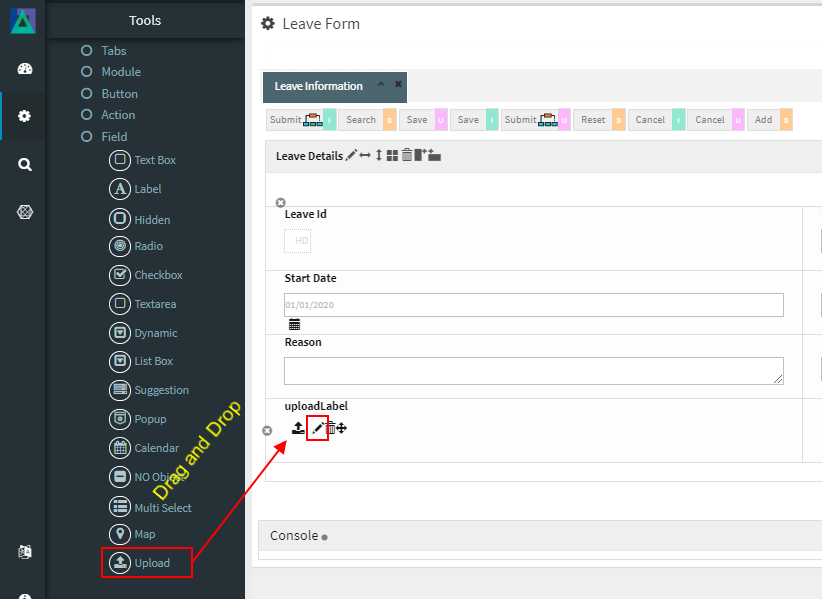
1. Drag the **Upload** field into a Module layout
2. Click the **Edit (pencil) icon** on the field
3. The **Upload Configuration** window opens
***
### Upload Configuration Properties
#### 1️. Core Identification
| Property | Mandatory | Description |
| --------- | --------- | ---------------------------------- |
| **MF ID** | Yes | System‑generated unique identifier |
***
#### 2️. File Storage Settings
| Property | Description |
| ----------------- | ------------------------------------------- |
| **Upload Path** | Server path where uploaded files are stored |
| **Max File Size** | Maximum allowed file size (default: 256) |
> **Note**\
> The unit of `Max File Size` depends on system configuration (commonly KB or MB).
***
#### 3️. Database Mapping
| Property | Description |
| ------------- | ------------------------------------------------------- |
| **Field\_ID** | Database field used to store file reference or metadata |
***
#### 4️. Display & Search Configuration
| Property | Description |
| --------------------- | -------------------------------------------------------- |
| **ShowFieldName** | Label displayed on the screen (auto‑generated supported) |
| **SearchCriteria** | Enables field as search criteria |
| **ShowSearch** | Displays file information in search results |
| **SearchFromTo** | Enables range‑based search |
| **SearchPreLike** | Enables wildcard `%XXX` search |
| **SearchLike** | Enables wildcard `XXX%` search |
| **SearchIgnoreCase** | Case‑insensitive search |
| **JoinSearchTable** | Used when JOIN SQL is required |
| **SearchFieldGroup** | Horizontal position in search criteria |
| **SearchCriteriaSeq** | Vertical position in search criteria |
| **ShowSearchSeq** | Order in search results |
***
#### 5️. UI & Behavior Flags
| Property | Description |
| --------------- | ----------------------------------------- |
| **Alignment** | Text alignment: Left / Center / Right |
| **OnlyGuiFlag** | UI‑only field (no database persistence) |
| **ViewFlag** | Displays field in read‑only / view mode |
| **KeepHistory** | Persists history of uploaded file changes |
| **FilterFlag** | Filters records in 1‑Many Modules |
| **Authen** | Applies IAM‑based authorization |
| **MergeFlag** | Field spans across multiple columns |
***
#### 6️. Validation Rules (Validate Code)
Validation logic applied before saving.
| Code | Description |
| -------------------- | -------------------------------------------------- |
| `CHECK_NULL` | Prevents saving when no file is uploaded |
| `CHECK_INTEGER` | Integer validation (rarely used) |
| `CHECK_DECIMAL` | Decimal validation |
| `CHECK_EMAIL_FORMAT` | Email format check (not commonly used with Upload) |
***
### Security & Authorization
When **Authen** is enabled:
* Upload visibility and access are controlled by ONEWEB IAM
* Useful for role‑based access to sensitive documents
Ensure proper authorization rules are configured when handling confidential files.
***
### Usage Guidelines
* Define a secure and valid **Upload Path**
* Restrict **Max File Size** to prevent abuse
* Validate uploaded files according to business rules
* Store only file references in the database when possible
* Use IAM authorization for sensitive documents
* Avoid allowing uploads where not necessary
***
### Summary
The **Upload** field enables file attachment and document handling within ONEWEB Smart Forms.
Key points:
* Supports uploading and attaching files
* Configurable storage path and file size limits
* Integrates with search, validation, and IAM
* Can persist file references or operate as UI‑only
* Essential for document‑centric business processes
When configured correctly, the Upload field provides a **secure, flexible, and user‑friendly mechanism** for managing file attachments in enterprise applications.
---
# Agent Instructions: Querying This Documentation
If you need additional information that is not directly available in this page, you can query the documentation dynamically by asking a question.
Perform an HTTP GET request on the current page URL with the `ask` query parameter:
```
GET https://docs.onewebstack.com/oneweb-platform-th/designer-reference/app-designer/entity/create-new-entity/fields/upload.md?ask=
```
The question should be specific, self-contained, and written in natural language.
The response will contain a direct answer to the question and relevant excerpts and sources from the documentation.
Use this mechanism when the answer is not explicitly present in the current page, you need clarification or additional context, or you want to retrieve related documentation sections.