# Create Your First Smart Form
To create a **Smart Form** on the ONEWEB platform, you must first create an **Application**.\
Starting from version **4.0.19.10**, applications can be created **only through AppSpace**.
Once the application is created, you can create a Smart Form inside it.\
After initiating form creation, ONEWEB automatically redirects you to **App Designer**, where the Smart Form is designed and configured.
This section walks you through the basic steps to create your **first Smart Form application**.
***
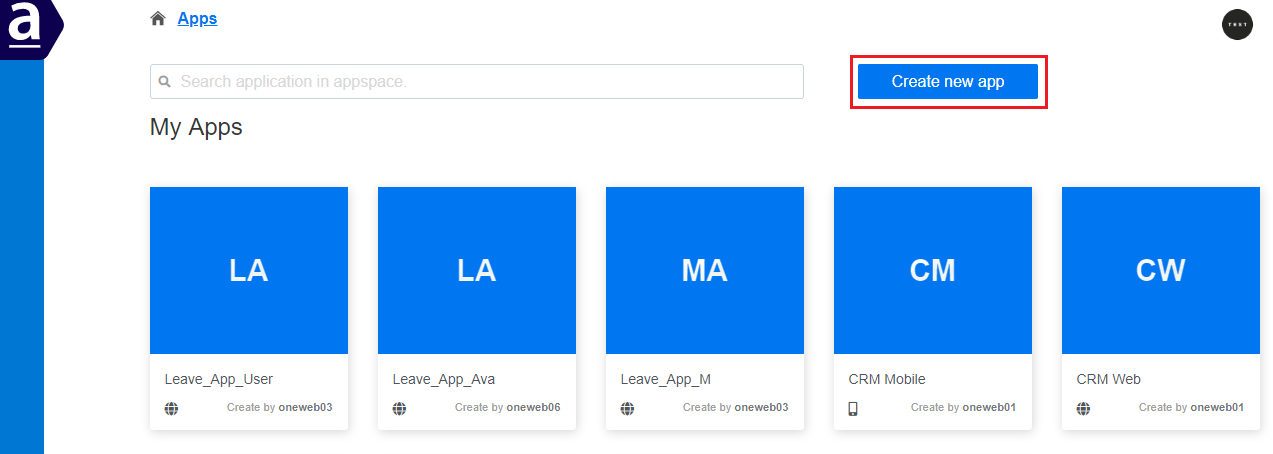
#### Step 1: Log in to AppSpace
Log in to **AppSpace** using your ONEWEB credentials.\
AppSpace is the central place for managing applications and accessing design components.
***
#### Step 2: Create a New Application
1. In AppSpace, click the **Create New App** button.
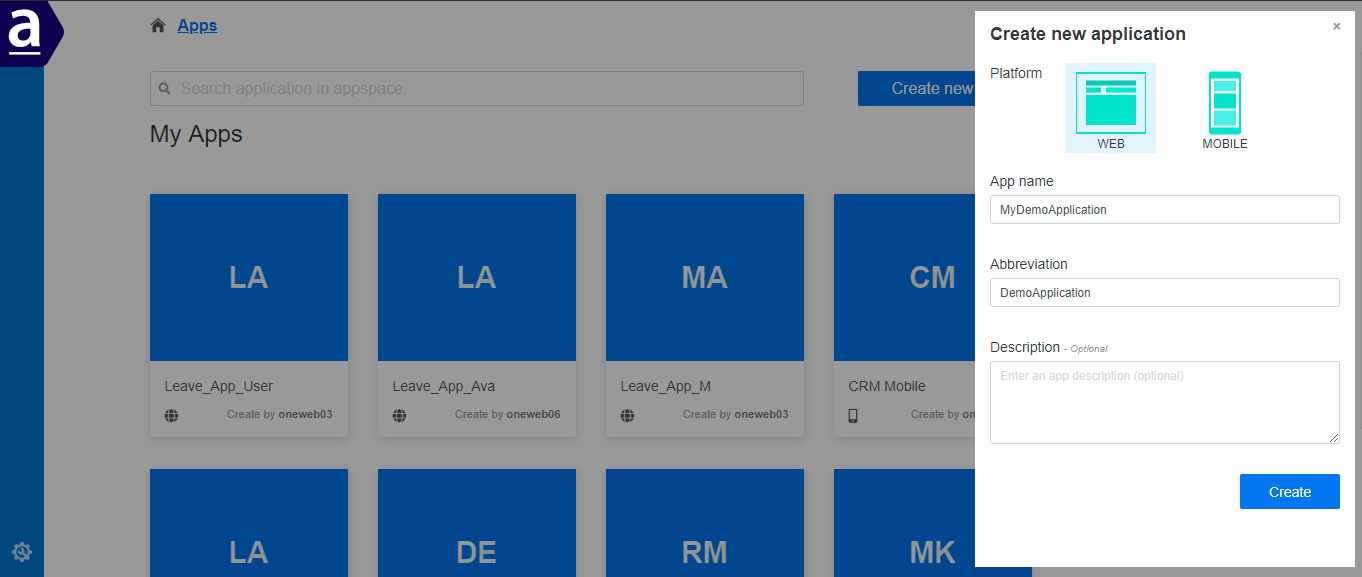
2. When prompted to select a platform, choose **WEB** for a Smart Form web application.
3. Enter the required application details (such as application name and description).
4. Click **Create** to start the application creation process.
***
#### Step 3: Confirm Application Creation
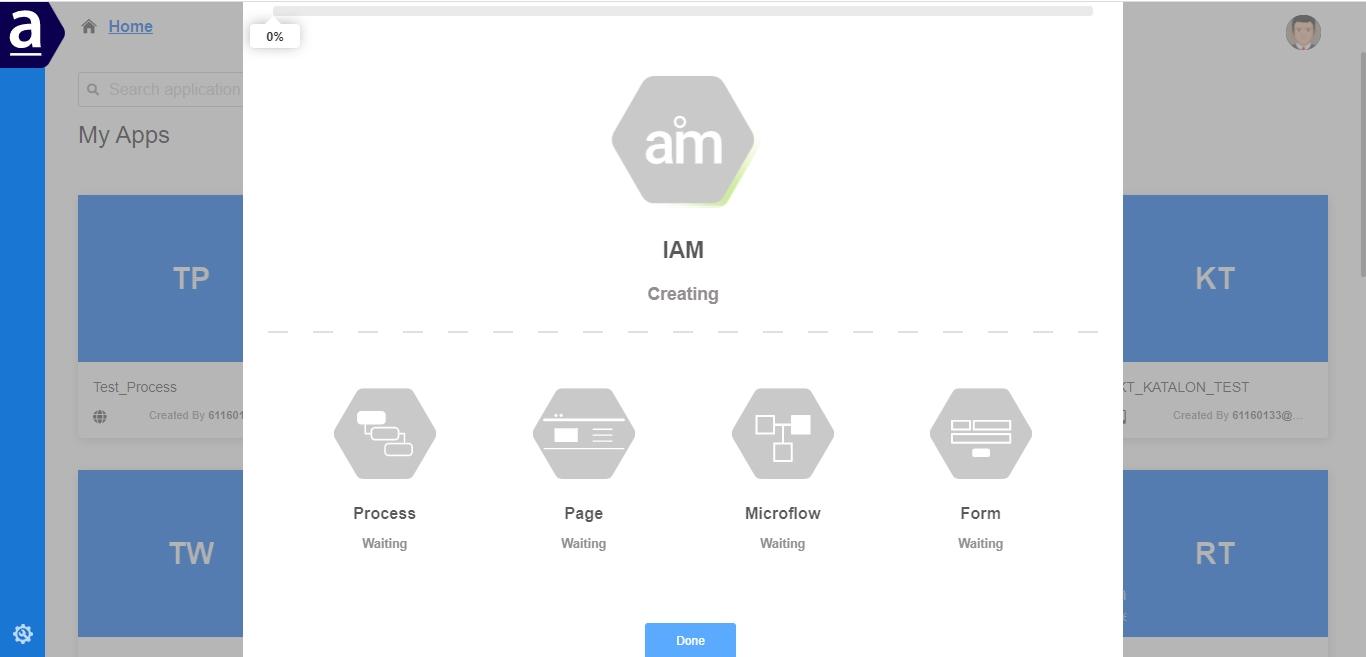
* AppSpace displays the application creation status.
* When the status reaches **100%**, the application has been created successfully.
* Click **Done** to close the status window.
***
#### Step 4: Open the Application
* Click on the **application icon** to open your newly created app.
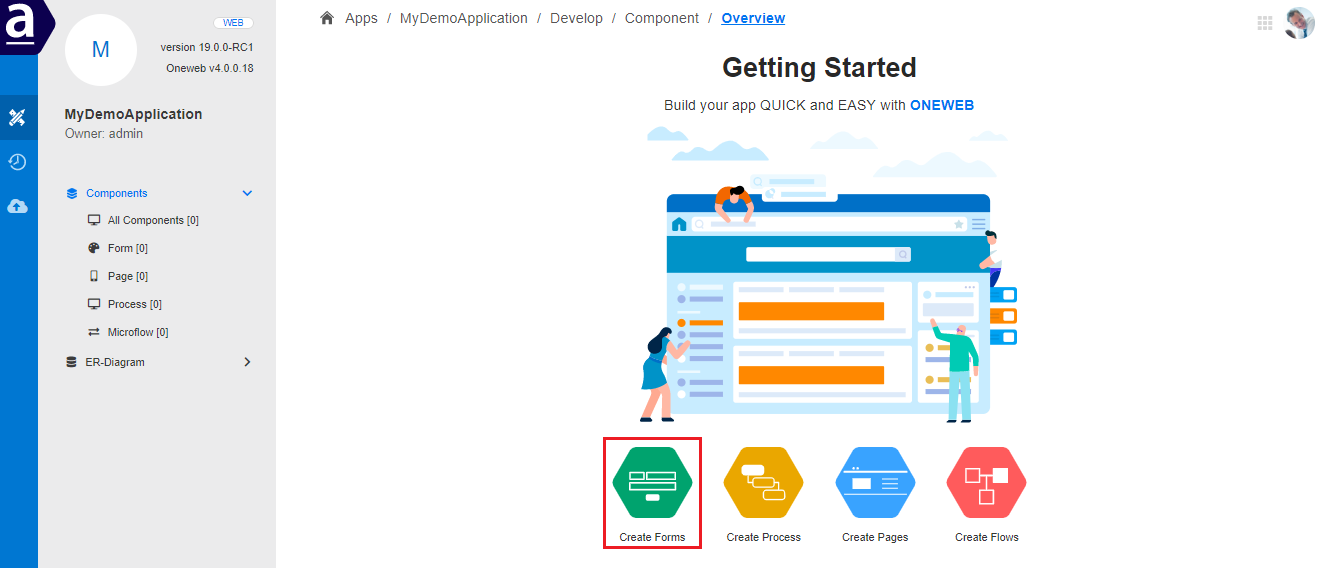
* The system redirects you to the **Components page** of the application.
***
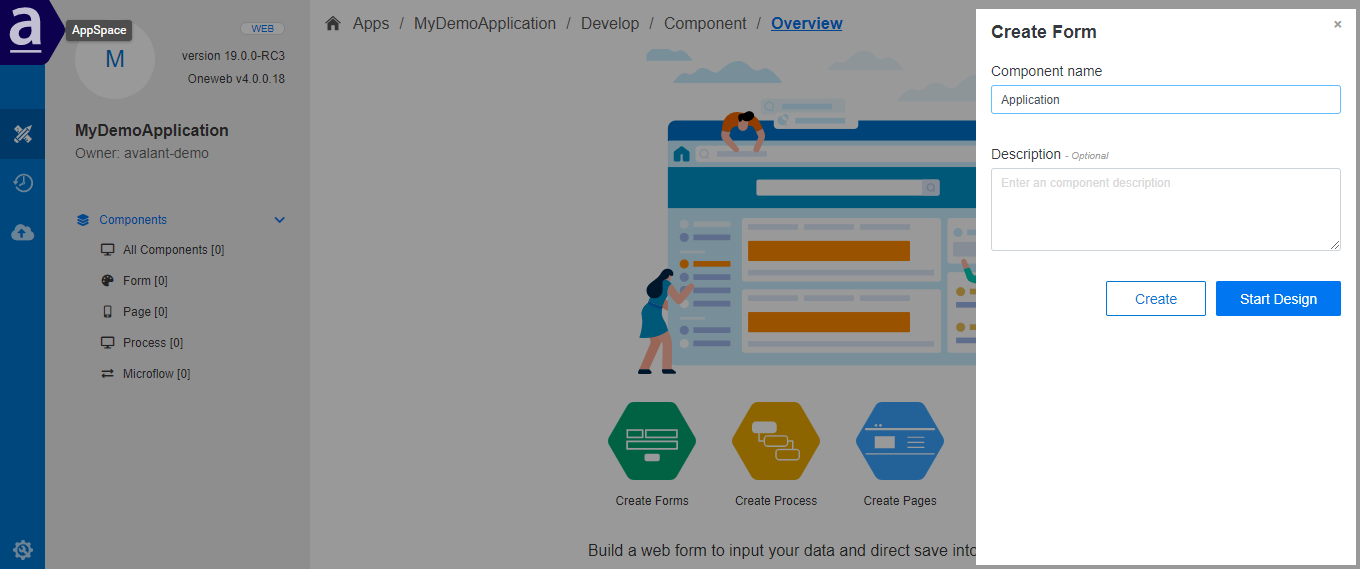
#### Step 5: Create a Smart Form
1. On the Components page, click the **Create Forms** icon.
2. Enter the **Form Name**.
3. Click **Start Design**.
At this point, ONEWEB redirects you to **App Designer**, where you can begin designing your Smart Form by:
* Defining or selecting an Entity
* Adding modules and fields
* Applying rules, validation, and layout configuration
***
#### What Happens Next
Once inside **App Designer**, you can:
* Design the structure of your Smart Form
* Configure entities, modules, and fields
* Preview the form instantly
* Integrate the form with processes if required
This completes the initial setup required to start building Smart Forms on ONEWEB.
***
#### Design Tip
As part of **Smart Form best practices**:
* Define your **Entity** clearly before adding fields
* Start with a **simple layout** (Single Tab)
* Validate and preview frequently while designing
---
# Agent Instructions: Querying This Documentation
If you need additional information that is not directly available in this page, you can query the documentation dynamically by asking a question.
Perform an HTTP GET request on the current page URL with the `ask` query parameter:
```
GET https://docs.onewebstack.com/oneweb-platform-th/building-apps/ui-page-designer/ux-ui-components/smart-forms/create-your-first-smart-form.md?ask=
```
The question should be specific, self-contained, and written in natural language.
The response will contain a direct answer to the question and relevant excerpts and sources from the documentation.
Use this mechanism when the answer is not explicitly present in the current page, you need clarification or additional context, or you want to retrieve related documentation sections.