# Page Navigation

**Page Navigation** defines how users move between pages and content within an application.\
ONEWEB **Page Designer** provides several built‑in navigation techniques that make it easy to link pages, structure content, and design intuitive navigation flows for both **web** and **mobile** applications.

This section introduces the common navigation patterns supported by Page Designer and explains when to use each one.

***

### Hyperlink Navigation

#### External Website Link

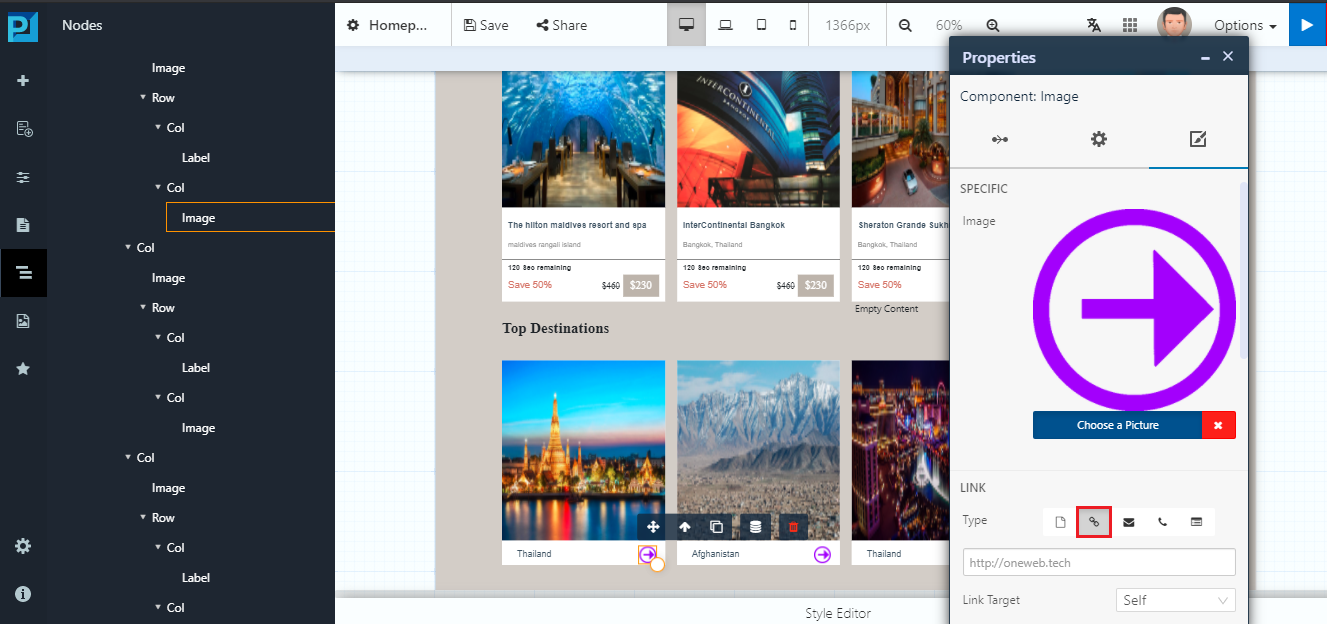
Use **Hyperlink** navigation to link a page element to an **external website**.

**How it works**

1. Select the component you want to make clickable
2. Open the **Style** tab
3. Choose the **Link type** option
4. Enter the external URL

<figure><img src="https://2015371994-files.gitbook.io/~/files/v0/b/gitbook-x-prod.appspot.com/o/spaces%2FMpDjHWFRUtZ5nJcSfVXd%2Fuploads%2FAUQiclkJbnEQSlqHB7GA%2Fimage.png?alt=media" alt=""><figcaption></figcaption></figure>

<p align="center"><em>Configure hyperlink to an external website</em></p>

**Typical use cases**

* Redirecting users to external portals
* Linking to documentation or third‑party services

***

### Navigate to Another Page (Within Application)

Use this navigation type to link one page to **another page inside the same application**.

**How it works**

1. Select the target component
2. Open the **Style** tab
3. Choose **Link type → Page**
4. Select the destination page

This method keeps users within the application context.

***

#### Passing Parameters Between Pages

Page Designer allows you to **pass query parameters** when navigating between pages.

**How it works**

* Click the **Query Parameter** button
* Define key–value pairs to pass data to the target page
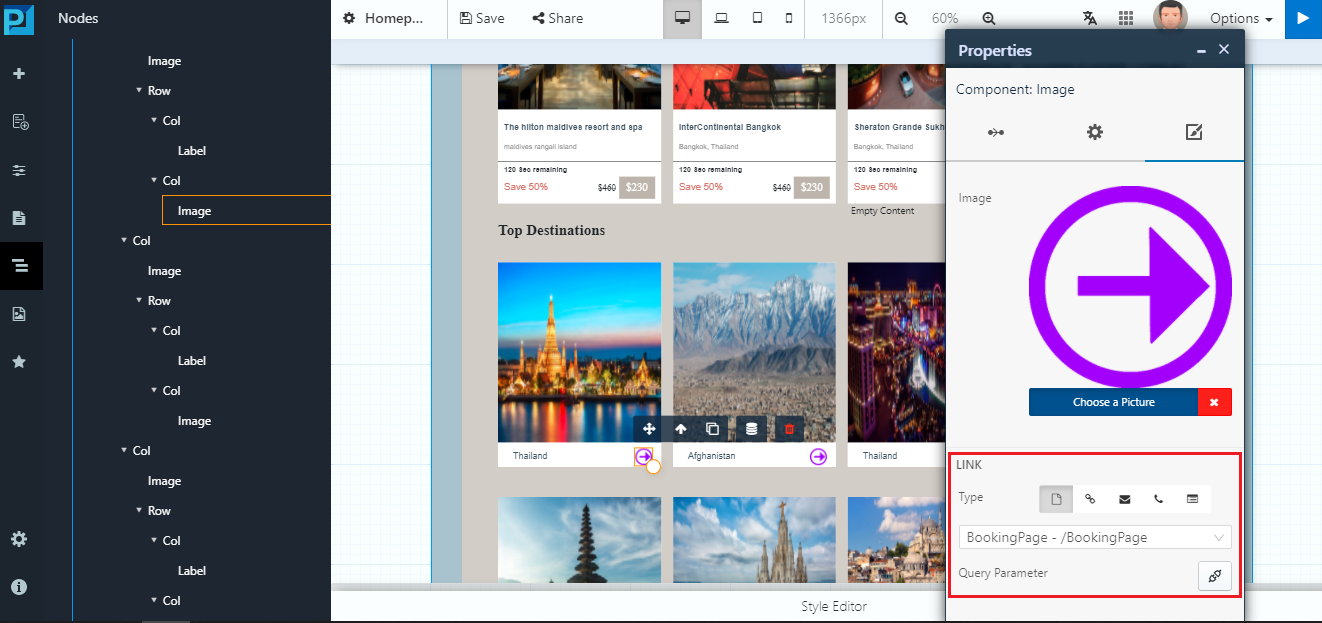
<figure><img src="https://2015371994-files.gitbook.io/~/files/v0/b/gitbook-x-prod.appspot.com/o/spaces%2FMpDjHWFRUtZ5nJcSfVXd%2Fuploads%2FdH5eYVLa5shVCBagqCQG%2Fimage.png?alt=media" alt=""><figcaption></figcaption></figure>

<p align="center"><em>Configure page parameters</em></p>

**Typical use cases**

* Passing IDs between pages
* Context‑based navigation (detail pages, drill‑down views)

***

### Tab Navigation (Web)

For web applications, Page Designer provides a **Tab** component to organize content into sections within the same page.

#### Create Tab Navigation

1. Drag the **Tab** component from the menu
2. Drop it into the page canvas
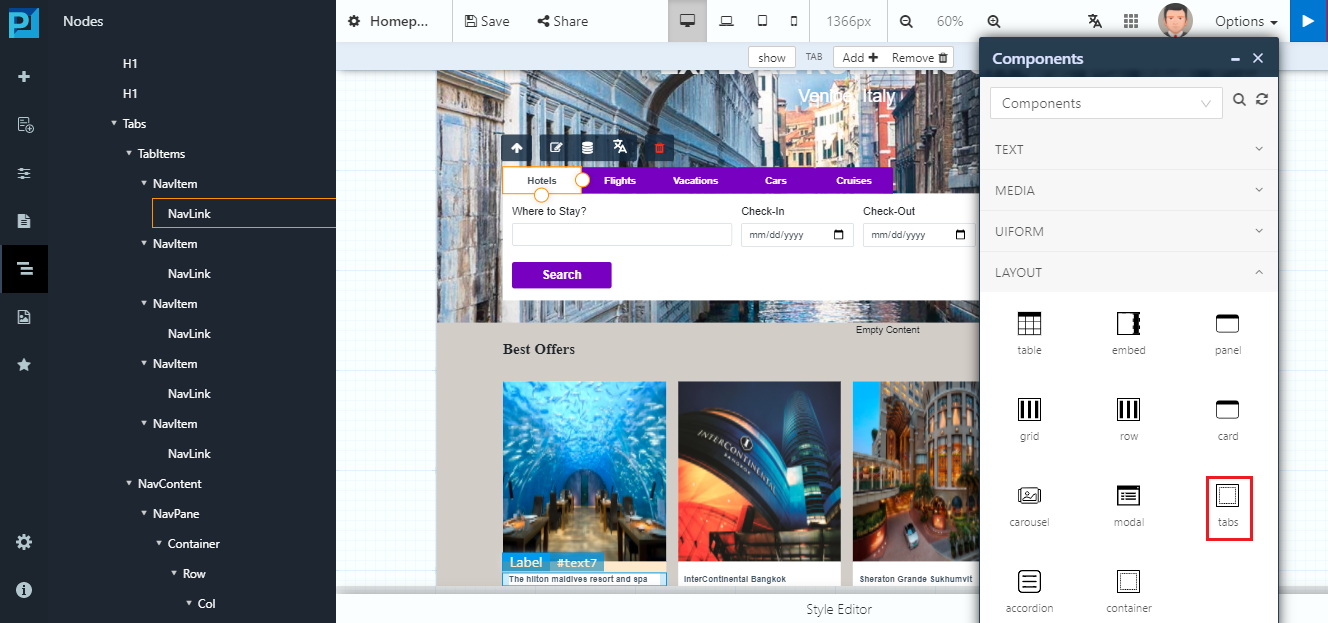
<figure><img src="https://2015371994-files.gitbook.io/~/files/v0/b/gitbook-x-prod.appspot.com/o/spaces%2FMpDjHWFRUtZ5nJcSfVXd%2Fuploads%2FVlObBM6L1fQFvpnTRqdw%2Fimage.png?alt=media" alt=""><figcaption></figcaption></figure>

<p align="center"><em>Add Tab component to page</em></p>

#### Manage Tabs

When selecting a tab:

* Click **Show** to view tab content
* Click **Add** to create a new tab
* Click **Remove** to delete a tab
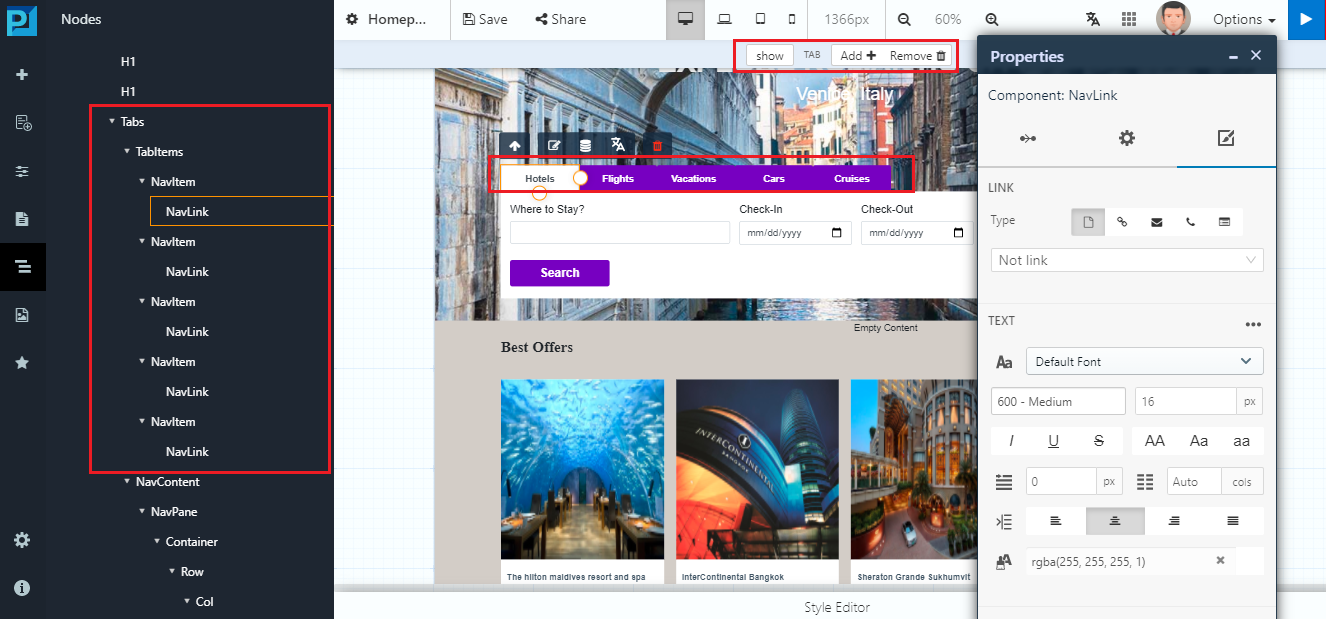
<figure><img src="https://2015371994-files.gitbook.io/~/files/v0/b/gitbook-x-prod.appspot.com/o/spaces%2FMpDjHWFRUtZ5nJcSfVXd%2Fuploads%2FyZWFNwTDmeh6OxjZpPfi%2Fimage.png?alt=media" alt=""><figcaption></figcaption></figure>

<p align="center"><em>Tab management menu</em></p>

**Typical use cases**

* Dashboards
* Sectioned content without page reload
* Organizing related UI blocks

***

### Tab Navigation (Mobile)

Page Designer also supports **Tab‑based navigation for mobile applications**.

#### Create Mobile Tab Navigation

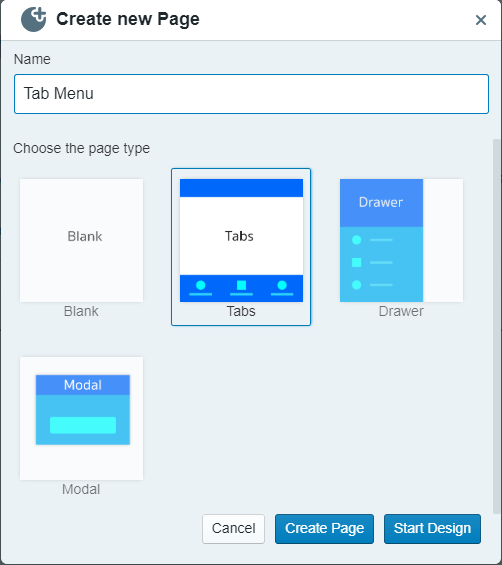
1. Create a **new page**
2. Choose the **Tab template** as the page type
<figure><img src="https://2015371994-files.gitbook.io/~/files/v0/b/gitbook-x-prod.appspot.com/o/spaces%2FMpDjHWFRUtZ5nJcSfVXd%2Fuploads%2FgWl3kbUWU00Oz5ym2V8P%2Fimage.png?alt=media" alt=""><figcaption></figcaption></figure>

<p align="center"><em>Select Tab template for mobile page</em></p>

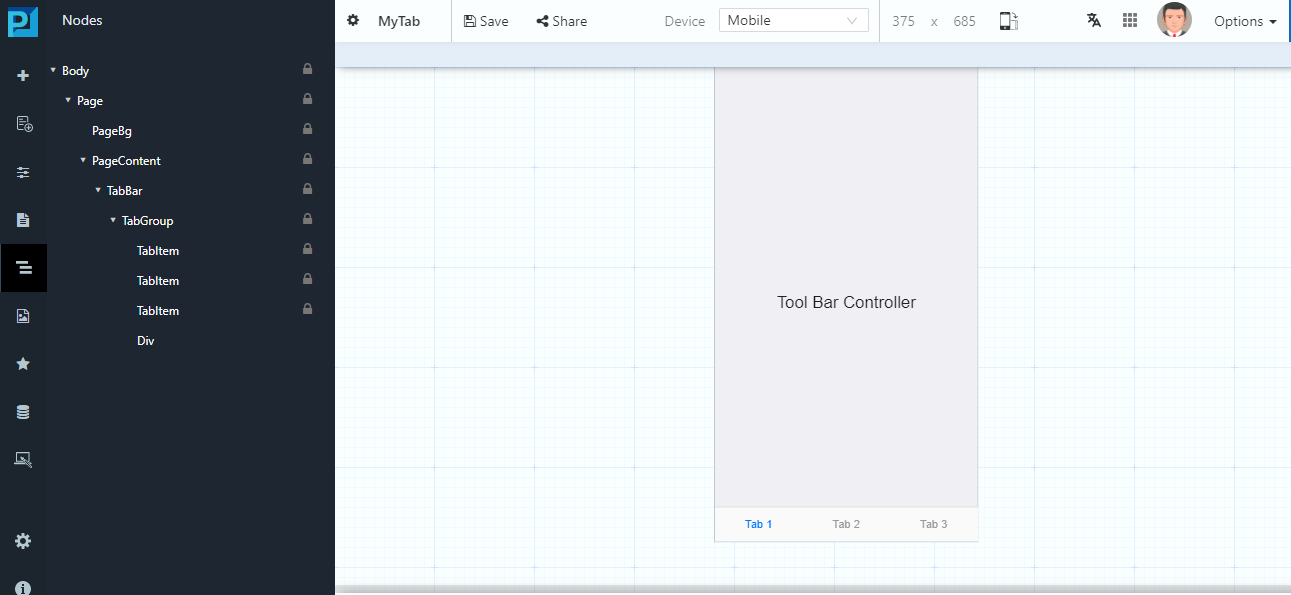
The system automatically generates a **default tab menu page**.
<figure><img src="https://2015371994-files.gitbook.io/~/files/v0/b/gitbook-x-prod.appspot.com/o/spaces%2FMpDjHWFRUtZ5nJcSfVXd%2Fuploads%2Fv03sdMhzkngYOxd3KBcQ%2Fimage.png?alt=media" alt=""><figcaption></figcaption></figure>

<p align="center"><em>Generated mobile tab menu</em></p>

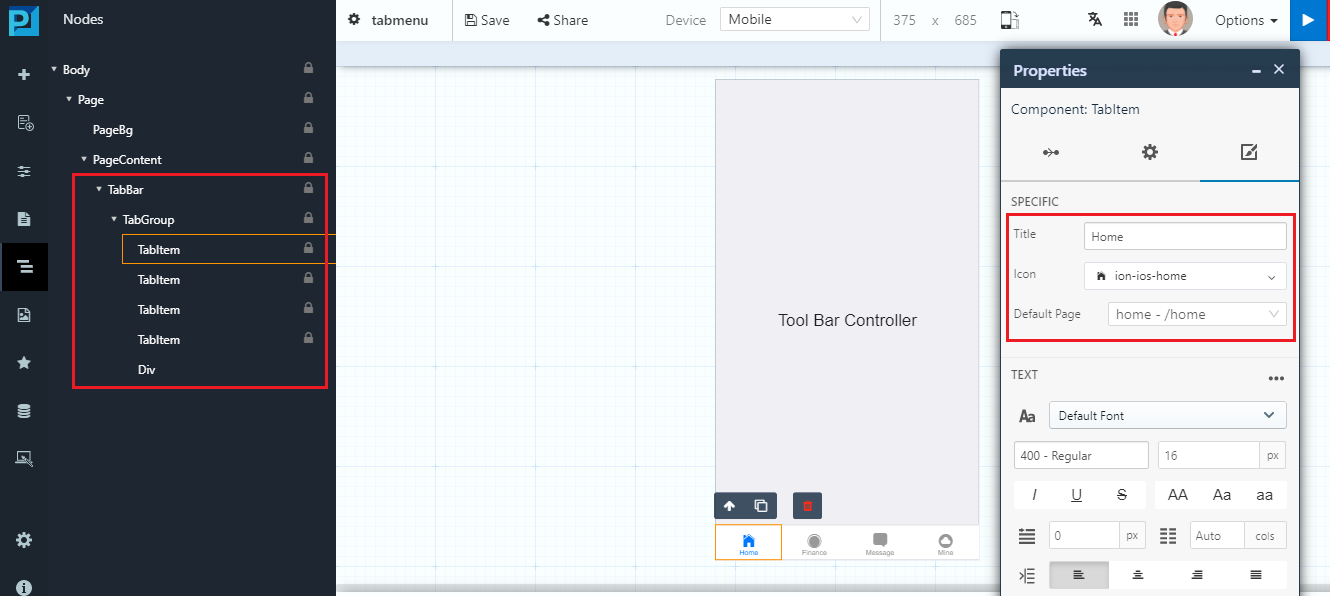
Users can then configure:

* Tab labels
* Target pages for each tab

*Configure mobile tabs*
<figure><img src="https://2015371994-files.gitbook.io/~/files/v0/b/gitbook-x-prod.appspot.com/o/spaces%2FMpDjHWFRUtZ5nJcSfVXd%2Fuploads%2FlVyolRpHy2MA94Uwyuvx%2Fimage.png?alt=media" alt=""><figcaption></figcaption></figure>

***

### Menu Navigation (Mobile – Drawer Menu)

For mobile applications, Page Designer provides a **Drawer Menu** pattern.

#### Create Mobile Menu Navigation

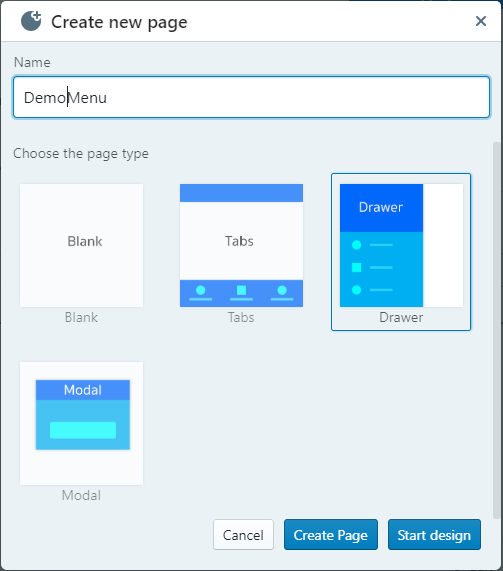
1. Create a **Menu Page**
2. Choose the **Drawer template**

<figure><img src="https://2015371994-files.gitbook.io/~/files/v0/b/gitbook-x-prod.appspot.com/o/spaces%2FMpDjHWFRUtZ5nJcSfVXd%2Fuploads%2FlJcaO15ApWGxFPg9HSc4%2Fimage.png?alt=media" alt=""><figcaption></figcaption></figure>

<p align="center"><em>Select Drawer template</em></p>

The system generates a **default menu layout**.
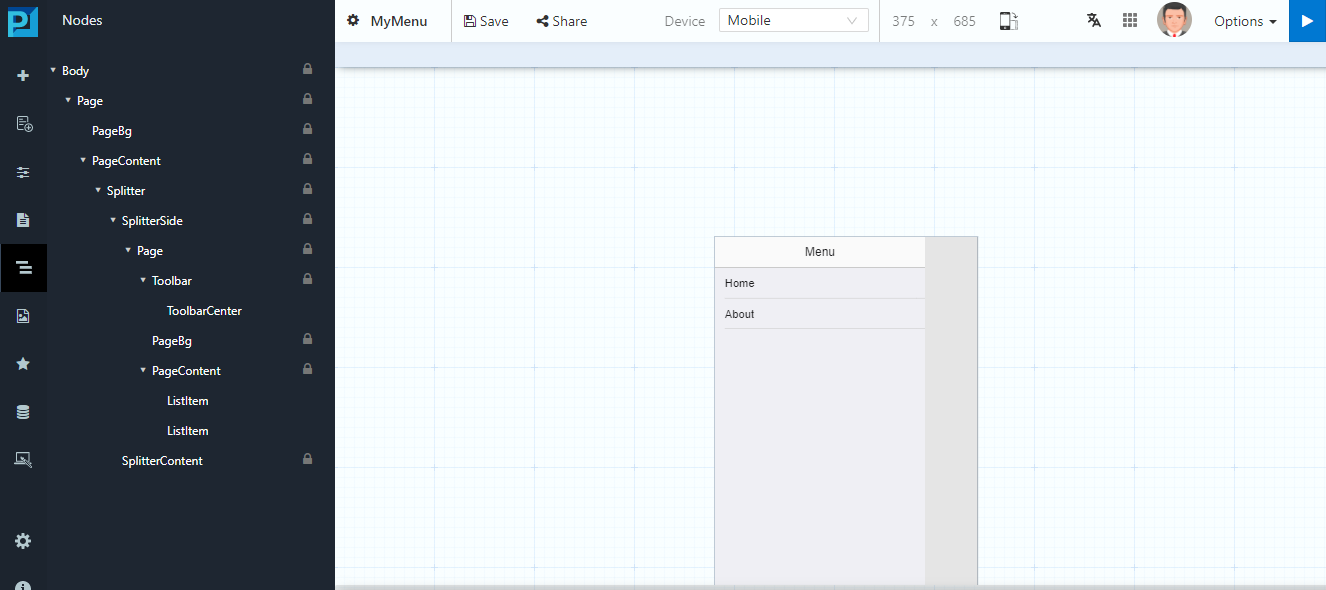
<figure><img src="https://2015371994-files.gitbook.io/~/files/v0/b/gitbook-x-prod.appspot.com/o/spaces%2FMpDjHWFRUtZ5nJcSfVXd%2Fuploads%2FwjvobhQkgFebeSCdAFng%2Fimage.png?alt=media" alt=""><figcaption></figcaption></figure>

<p align="center"><em>Default drawer menu</em></p>

Users can:

* Edit menu items
* Change labels and layout
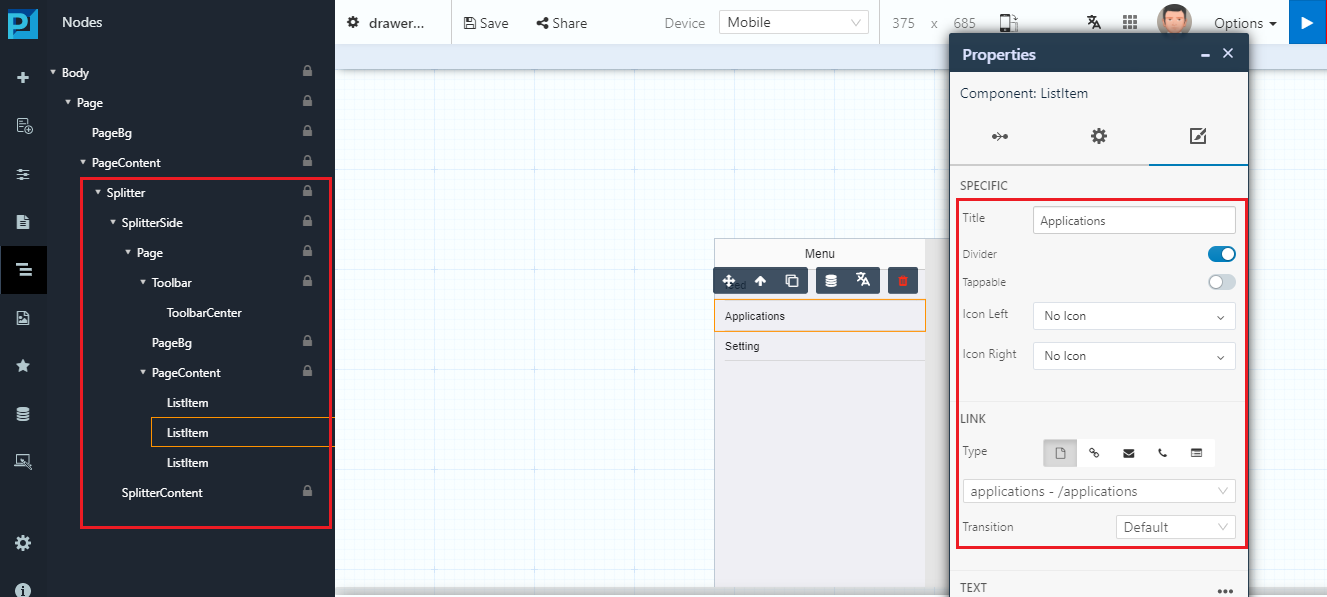
<figure><img src="https://2015371994-files.gitbook.io/~/files/v0/b/gitbook-x-prod.appspot.com/o/spaces%2FMpDjHWFRUtZ5nJcSfVXd%2Fuploads%2F1uyqr3U1NEVWOKnrH0RE%2Fimage.png?alt=media" alt=""><figcaption></figcaption></figure>

<p align="center"><em>Customize menu contents</em></p>

***

#### Set Default Landing Page

To define the landing page:

1. Select the **Splitter** component
2. Configure:
   * **Default Page**
   * **Swipe Side**
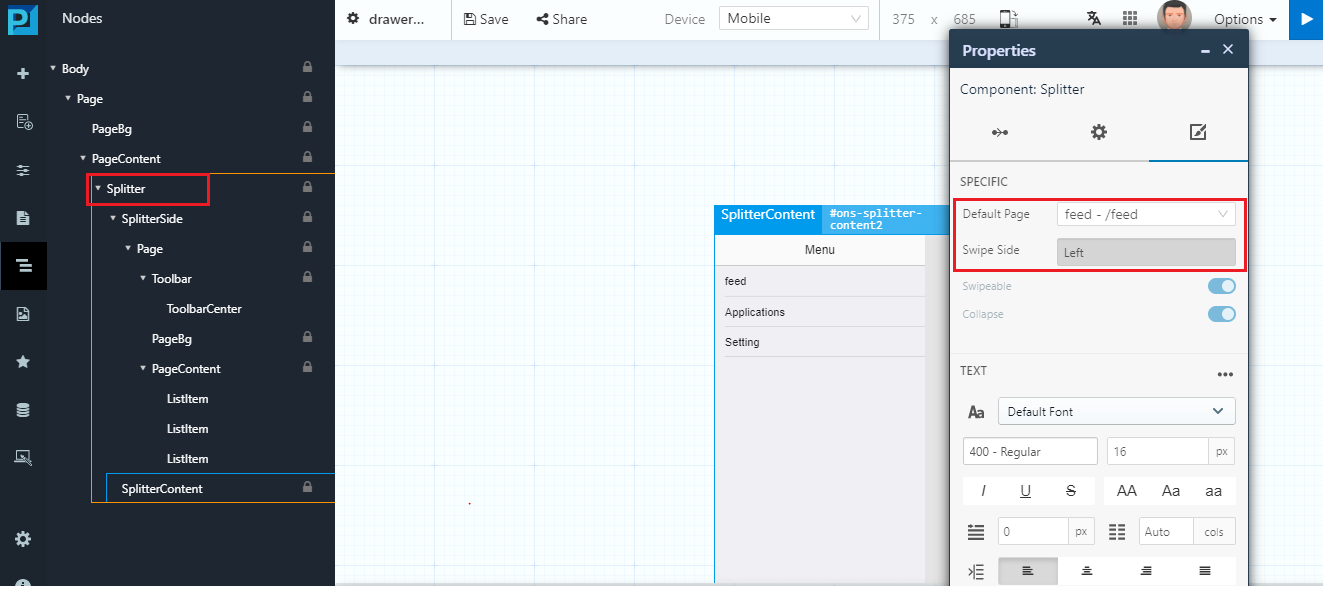
<figure><img src="https://2015371994-files.gitbook.io/~/files/v0/b/gitbook-x-prod.appspot.com/o/spaces%2FMpDjHWFRUtZ5nJcSfVXd%2Fuploads%2FK99Aer2WikKnD8OEhxGk%2Fimage.png?alt=media" alt=""><figcaption></figcaption></figure>

<p align="center"><em>Set default landing page</em></p>

Then configure each menu item to link to its target page.
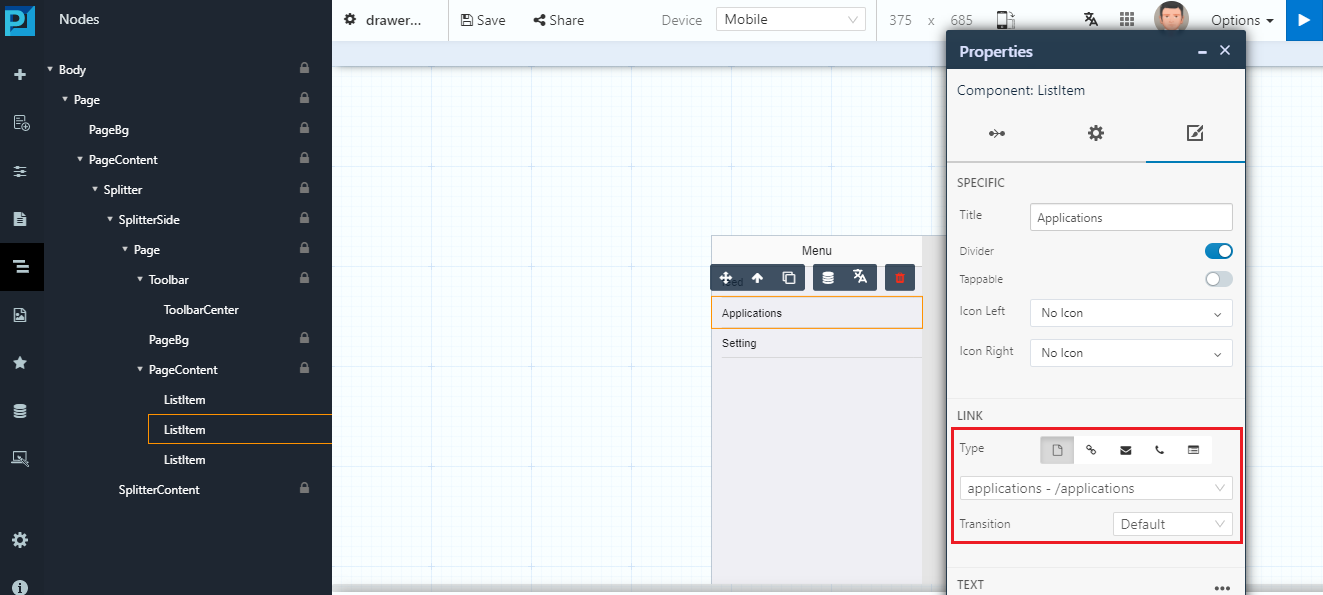
<figure><img src="https://2015371994-files.gitbook.io/~/files/v0/b/gitbook-x-prod.appspot.com/o/spaces%2FMpDjHWFRUtZ5nJcSfVXd%2Fuploads%2FcEBm7QNrdcqUAo6trFFS%2Fimage.png?alt=media" alt=""><figcaption></figcaption></figure>

<p align="center"><em>Link menu items to pages</em></p>

***

### Design Perspective

As part of **Page Designer best practices**:

* Use **Hyperlinks** for simple navigation
* Use **Tabs** for related content within a page
* Use **Drawer Menus** for mobile navigation
* Keep navigation simple and predictable

Good navigation design ensures users can move through the application **quickly and intuitively**.


---

# Agent Instructions: Querying This Documentation

If you need additional information that is not directly available in this page, you can query the documentation dynamically by asking a question.

Perform an HTTP GET request on the current page URL with the `ask` query parameter:

```
GET https://docs.onewebstack.com/oneweb-platform-th/building-apps/ui-page-designer/ux-ui-components/pages/page-navigation.md?ask=<question>
```

The question should be specific, self-contained, and written in natural language.
The response will contain a direct answer to the question and relevant excerpts and sources from the documentation.

Use this mechanism when the answer is not explicitly present in the current page, you need clarification or additional context, or you want to retrieve related documentation sections.
