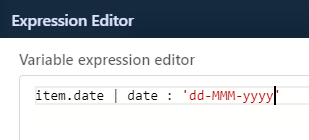
# Page Expression Editor
Proper formatting of UI fields is a critical part of creating effective user interfaces, as it helps present data clearly and accurately to users.\
ONEWEB **Page Designer** provides the **Page Expression Editor**, which allows users to format and transform data displayed on UI elements using **AngularJS filter expressions**.
The Expression Editor is commonly used for:
* Number formatting
* Currency formatting
* Date and time formatting
* Transforming values from State, Microflow output, or Local Database
***
### Access the Page Expression Editor
The **Expression Editor** is accessed through the **Connect to Data** workflow.
#### Step 1: Open Expression Editor
1. Select a UI element (e.g. Label, Text, Input)
2. Click the **Connect to Data** icon
3. Switch to the **Expression** tab
4. Click **Customize Expression**
***
### Use the Expression Editor
Inside the **Variable Expression Editor**, users can:
* Manually write AngularJS filter expressions
* Select values from:
* **Page State variables**
* **Microflow output fields**
* **Local Database fields**
* Apply format transformations using valid AngularJS syntax
You can either:
* Type the expression directly, or
* Use **Field Type** and **Fields** selectors to build expressions visually
***
### Common Formatting Examples
#### Number Formatting
Use AngularJS number filter to format numeric values.
Example:
```
{{value | number:2}}
```
***
#### Currency Formatting
Use the currency filter to display values as currency.
Example:
```
{{value | currency}}
```
***
#### Date Formatting
Use the date filter to format date values.
Example:
```
{{value | date:'dd/MM/yyyy'}}
```
***
{% hint style="info" %}
**Note:**\
In the current version, users **cannot select fields from the Field Type / Fields UI** when the Microflow output is a **List**.\
However, you can still manually write the expression in the **Variable Expression Editor** to transform list item fields.
{% endhint %}
***
### Design Perspective
As part of **Page Designer best practices**:
* Use Expression Editor to handle **presentation‑level formatting**
* Keep expressions simple and readable
* Prefer formatting in UI over modifying backend data
* Document complex expressions for maintainability
* Be cautious with list‑based Microflow outputs
The Page Expression Editor provides a powerful, flexible way to control how data is displayed without changing underlying business logic.
---
# Agent Instructions: Querying This Documentation
If you need additional information that is not directly available in this page, you can query the documentation dynamically by asking a question.
Perform an HTTP GET request on the current page URL with the `ask` query parameter:
```
GET https://docs.onewebstack.com/oneweb-platform-th/building-apps/ui-page-designer/ux-ui-components/pages/page-features/page-expression-editor.md?ask=
```
The question should be specific, self-contained, and written in natural language.
The response will contain a direct answer to the question and relevant excerpts and sources from the documentation.
Use this mechanism when the answer is not explicitly present in the current page, you need clarification or additional context, or you want to retrieve related documentation sections.