# Multi‑language

**Multi‑language** support in **ONEWEB Page Designer** allows you to create and manage **page content in multiple languages** for both **web** and **mobile applications**.\
This feature enables applications to dynamically display content based on the selected language, improving accessibility and user experience for international users.

Multi‑language support in Page Designer is implemented using:

* **Translation Keys**
* **Language Definitions**
* **JavaScript‑based language switching**

***

### How Multi‑language Works

The multi‑language feature follows this concept:

1. Define **Translation Keys**
2. Provide translation values for each supported language
3. Bind translation keys to UI components
4. Switch languages at runtime

***

### Step 1: Open Translation Manager

1. Open **Page Designer**
2. Go to the **TRANSLATION** tab

<figure><img src="https://2015371994-files.gitbook.io/~/files/v0/b/gitbook-x-prod.appspot.com/o/spaces%2FMpDjHWFRUtZ5nJcSfVXd%2Fuploads%2FFwzwLcEs29c8l9LbLqOt%2Fimage.png?alt=media&#x26;token=84192d35-fae7-438f-8881-5992e6c50e7c" alt=""><figcaption></figcaption></figure>

<p align="center"><em>Open Translation tab</em></p>

***

### Step 2: Create Translation Keys

1. Click **Add Key**
2. Define a unique **Translation Key** (e.g. `LBL_TITLE`, `BTN_SAVE`)

<figure><img src="https://2015371994-files.gitbook.io/~/files/v0/b/gitbook-x-prod.appspot.com/o/spaces%2FMpDjHWFRUtZ5nJcSfVXd%2Fuploads%2FUb4wgnRjcHUtxQJnxrub%2Fimage.png?alt=media&#x26;token=00790d4a-9e7f-4439-971e-44e87d595a9d" alt=""><figcaption></figcaption></figure>

<p align="center"><em>Add new translation key</em></p>

***

### Step 3: Add Supported Languages

1. Click **Add Language**
2. Select the languages you want to support

<figure><img src="https://2015371994-files.gitbook.io/~/files/v0/b/gitbook-x-prod.appspot.com/o/spaces%2FMpDjHWFRUtZ5nJcSfVXd%2Fuploads%2FTEAoFxEkBnadHrEuxq53%2Fimage.png?alt=media&#x26;token=cc7f5239-5b2c-42b2-9cdf-388342d252f3" alt=""><figcaption></figcaption></figure>

<p align="center"><em>Add supported languages</em></p>

<figure><img src="https://2015371994-files.gitbook.io/~/files/v0/b/gitbook-x-prod.appspot.com/o/spaces%2FMpDjHWFRUtZ5nJcSfVXd%2Fuploads%2F36XpV3D6PGVjlDhKwjB6%2Fimage.png?alt=media&#x26;token=7865a8a0-8d0a-4bba-8f53-08b880257e1b" alt=""><figcaption></figcaption></figure>

<p align="center"><em>Language selection confirmation</em></p>

***

### Step 4: Provide Translation Values

1. Enter text for each language under the same translation key
2. Each key must have a value per language

<figure><img src="https://2015371994-files.gitbook.io/~/files/v0/b/gitbook-x-prod.appspot.com/o/spaces%2FMpDjHWFRUtZ5nJcSfVXd%2Fuploads%2FyMZejwsYbpJidxDunaKc%2Fimage.png?alt=media&#x26;token=f3decd08-9307-4e1f-a6b9-22b237337c5c" alt=""><figcaption></figcaption></figure>

<p align="center"><em>Enter translations per language</em></p>

***

### Step 5: Set Default Language

Choose the language that will be used when the page first loads.

<figure><img src="https://2015371994-files.gitbook.io/~/files/v0/b/gitbook-x-prod.appspot.com/o/spaces%2FMpDjHWFRUtZ5nJcSfVXd%2Fuploads%2Fb8ZaJkySEjfQeB8ztuky%2Fimage.png?alt=media&#x26;token=ec114c67-bd96-4b9c-ac53-b9389bda80f7" alt=""><figcaption></figcaption></figure>

<p align="center"><em>Set default language</em></p>

***

### Step 6: Bind Translation Key to Page Content

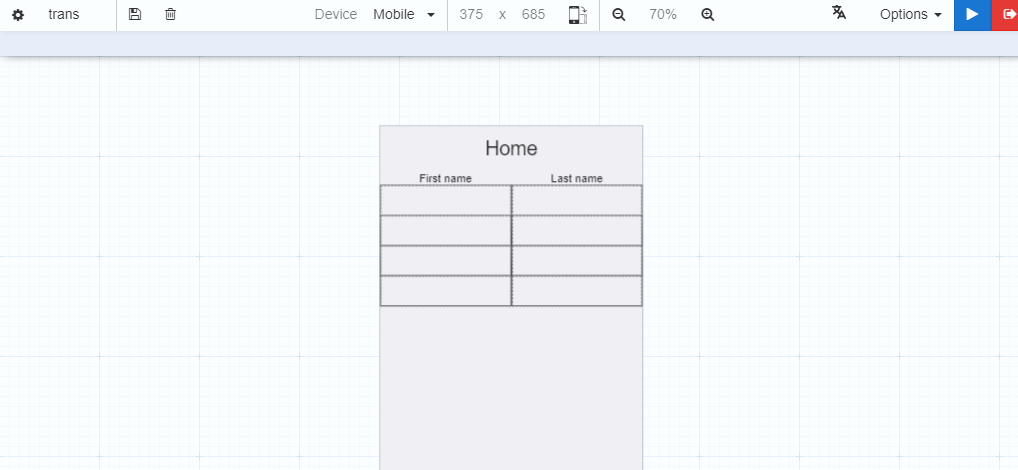
1. Open the page where multi‑language content is required
<figure><img src="https://2015371994-files.gitbook.io/~/files/v0/b/gitbook-x-prod.appspot.com/o/spaces%2FMpDjHWFRUtZ5nJcSfVXd%2Fuploads%2FsnToAm7ZizZukzERWVWB%2Fimage.png?alt=media&#x26;token=a7f2da2a-9970-4a3f-adec-9f0daafafb61" alt=""><figcaption></figcaption></figure>

<p align="center"><em>Open page for translation binding</em></p>

2. Select a text‑based component (Label, Button, etc.)
3. Click the **Translation icon**
4. Map the component to a **Translation Key**

<figure><img src="https://2015371994-files.gitbook.io/~/files/v0/b/gitbook-x-prod.appspot.com/o/spaces%2FMpDjHWFRUtZ5nJcSfVXd%2Fuploads%2FHz4dBv0sjc8hT1bEo9AR%2Fimage.png?alt=media&#x26;token=526c35c3-ed62-478b-a8e2-1bfa24cf3b7b" alt=""><figcaption></figcaption></figure>

<p align="center"><em>Map translation key to page content</em></p>

***

### Step 7: Create Language Switch Buttons

To switch languages at runtime:

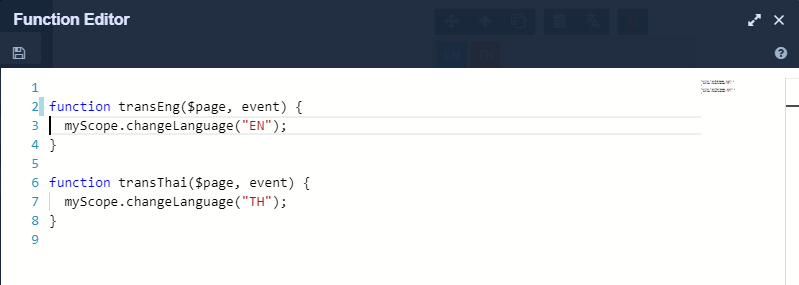
1. Add **Buttons** to the page (e.g. EN / JP)
2. Configure **JavaScript actions** on button click
3. Trigger language‑switching logic

<figure><img src="https://2015371994-files.gitbook.io/~/files/v0/b/gitbook-x-prod.appspot.com/o/spaces%2FMpDjHWFRUtZ5nJcSfVXd%2Fuploads%2FXYCgyZ0YXjdA3fF9NhvQ%2Fimage.png?alt=media&#x26;token=9478e66a-7724-4c78-b376-7dd37963189a" alt=""><figcaption></figcaption></figure>

<p align="center"><em>Create language switch buttons</em></p>

<figure><img src="https://2015371994-files.gitbook.io/~/files/v0/b/gitbook-x-prod.appspot.com/o/spaces%2FMpDjHWFRUtZ5nJcSfVXd%2Fuploads%2FLQTe9kbJtX7MQySdLLvN%2Fimage.png?alt=media&#x26;token=2bcb9416-824c-482b-9cdf-0a83faf5914e" alt=""><figcaption></figcaption></figure>

<p align="center"><em>Attach JavaScript to switch language</em></p>

***

### Runtime Example

<figure><img src="https://2015371994-files.gitbook.io/~/files/v0/b/gitbook-x-prod.appspot.com/o/spaces%2FMpDjHWFRUtZ5nJcSfVXd%2Fuploads%2FIvuxjJZeqtEwKzdsvL6m%2FMultilanguage1.jpg?alt=media&#x26;token=b911aff3-6daa-4210-967d-9f2426af6f82" alt=""><figcaption></figcaption></figure>

<p align="center"><em>Page displayed in Language 1</em></p>

<figure><img src="https://2015371994-files.gitbook.io/~/files/v0/b/gitbook-x-prod.appspot.com/o/spaces%2FMpDjHWFRUtZ5nJcSfVXd%2Fuploads%2FOlxxUsooPNtMkkVcGElE%2FMultilanguage2.jpg?alt=media&#x26;token=ed211d70-abe4-41af-91cc-543f542a4bda" alt=""><figcaption></figcaption></figure>

<p align="center"><em>Same page displayed in another language</em></p>

***

### Save and Build Application

After configuration:

1. Save the page
2. Build the application to apply translation changes

<figure><img src="https://2015371994-files.gitbook.io/~/files/v0/b/gitbook-x-prod.appspot.com/o/spaces%2FMpDjHWFRUtZ5nJcSfVXd%2Fuploads%2FdeLOIpBzIWH85U9k3iOI%2Fimage.png?alt=media&#x26;token=8f1166e2-3d4c-44d0-87dd-194689875368" alt=""><figcaption></figcaption></figure>

<figure><img src="https://2015371994-files.gitbook.io/~/files/v0/b/gitbook-x-prod.appspot.com/o/spaces%2FMpDjHWFRUtZ5nJcSfVXd%2Fuploads%2FxtW5Ah5hPe23vXfTMkIw%2Fimage.png?alt=media&#x26;token=02ee6b73-13c4-4ecc-ab0a-76b69dd5a5a0" alt=""><figcaption></figcaption></figure>

<p align="center"><em>Save and build application</em></p>

***

### Design Perspective

As part of **Page Designer best practices**:

* Always use **Translation Keys**, not hard‑coded text
* Keep translation keys consistent and meaningful
* Set a clear default language
* Test layout with longer translated strings
* Separate **Designer UI language** from **Page content language**

Multi‑language support ensures ONEWEB applications are **scalable, global‑ready, and user‑friendly**.


---

# Agent Instructions: Querying This Documentation

If you need additional information that is not directly available in this page, you can query the documentation dynamically by asking a question.

Perform an HTTP GET request on the current page URL with the `ask` query parameter:

```
GET https://docs.onewebstack.com/oneweb-platform-th/building-apps/ui-page-designer/ux-ui-components/pages/page-features/multi-language.md?ask=<question>
```

The question should be specific, self-contained, and written in natural language.
The response will contain a direct answer to the question and relevant excerpts and sources from the documentation.

Use this mechanism when the answer is not explicitly present in the current page, you need clarification or additional context, or you want to retrieve related documentation sections.