# Improved Drag & Drop
In the newer versions of **ONEWEB Page Designer**, the **Drag & Drop experience has been significantly enhanced** to make component placement more accurate, intuitive, and user‑friendly.
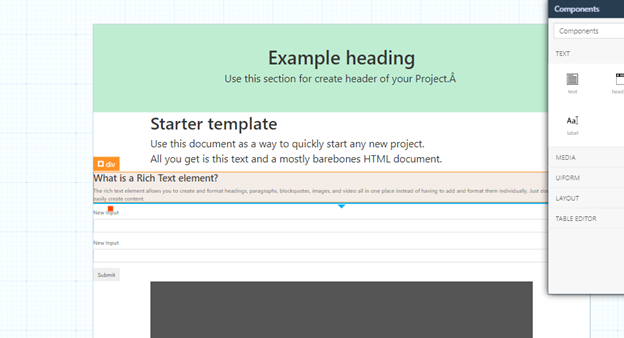
The improved Drag & Drop mechanism provides **clear visual guidance** that helps users position components precisely on the designer canvas, even in complex layouts.
***
### Key Enhancements
#### Visual Drop Guidance (Blue Arrows)
When dragging a UI component onto the page, Page Designer displays **blue directional arrows** to guide placement.
These arrows indicate:
* Where the component will be dropped
* Whether it will be placed **above**, **below**, or **between** existing components
This visual feedback greatly reduces trial‑and‑error when positioning elements.
***
#### Insert Components Between Existing Elements
To insert a new component **between two existing UI elements**, users simply need to watch for the **blue arrows appearing between components** while dragging.
This makes layout restructuring much faster and more predictable.
***
#### Active Component Highlighting (Orange Outline)
While dragging a component:
* The **current active target component** is highlighted with an **orange outline**
* The **component name** is displayed
This clearly shows:
* Which component is currently selected as the drop target
* The exact container or layout element involved
***
#### Validation and Warning Messages
If a component **cannot be placed inside another component** due to layout or structural rules, Page Designer automatically displays **warning messages**.
This protects the page structure and prevents invalid layouts.
***
### Use Together with Page Structure Window
For additional accuracy, users can:
* Observe the **Page Structure Window** on the left‑hand side
* Confirm the correct parent–child relationship
* Verify that the component is being inserted into the intended container
Using **Improved Drag & Drop + Page Structure Window** together provides maximum control and clarity.
***
### Benefits of Improved Drag & Drop
The enhanced Drag & Drop experience offers:
* Faster and more accurate component placement
* Clear visual feedback during layout changes
* Reduced layout errors
* Better usability for complex and nested pages
* Increased confidence for new users
***
### Design Perspective
As part of **Page Designer best practices**:
* Use visual arrows to confirm placement before dropping
* Always verify parent–child hierarchy in the Page Structure Window
* Pay attention to warning messages when restructuring layouts
* Prefer drag‑and‑drop over cut‑and‑paste for layout refinement
The improved Drag & Drop functionality ensures that page layouts remain **clean, structured, and maintainable**.
---
# Agent Instructions: Querying This Documentation
If you need additional information that is not directly available in this page, you can query the documentation dynamically by asking a question.
Perform an HTTP GET request on the current page URL with the `ask` query parameter:
```
GET https://docs.onewebstack.com/oneweb-platform-th/building-apps/ui-page-designer/ux-ui-components/pages/page-features/improved-drag-and-drop.md?ask=
```
The question should be specific, self-contained, and written in natural language.
The response will contain a direct answer to the question and relevant excerpts and sources from the documentation.
Use this mechanism when the answer is not explicitly present in the current page, you need clarification or additional context, or you want to retrieve related documentation sections.