# Connection
Within **SQL Builder**, ONEWEB provides a **Connection** feature that allows users to connect to a database and **execute SQL queries for validation and testing**.
The Connection feature enables users to:
* Reuse existing database connections configured in the application
* Create and manage new database connections
* Run SQL queries directly from SQL Builder to verify results
The **Connection** option is available in the **Side Menu** of SQL Builder.
***
### Access the Connection Menu
To access the Connection feature:
1. Open a **SQL Builder** project
2. Locate the **Connection** option in the Side Menu
3. Click **Connection**
This opens a dialog where users can either use an existing connection or configure a new one.
***
### Use an Existing Connection
To use an existing database connection:
1. Open the **Connection** dialog
2. Select a **Database**
3. Choose a **Server**
4. Select the **Database Schema**
5. Click **Set Active**
Once successfully connected, the active server and schema information are displayed in the Connection menu.
***
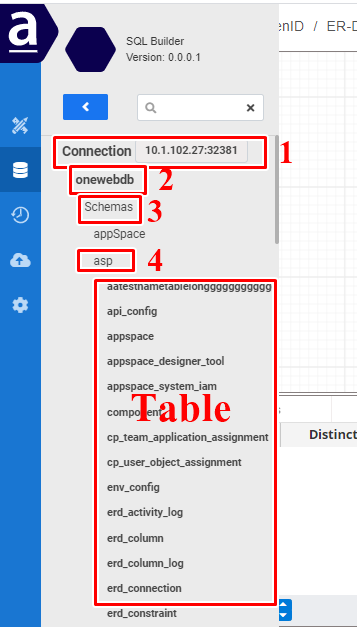
#### Browse Tables via Connection
After setting an active connection, users can explore database objects:
1. Expand **Connection**
2. Click the **Database Name**
3. Click the **Schema Name**
The available tables are shown and can be used when building SQL queries.
***
### Configure a New Connection
If a suitable connection does not exist, users can create a new one.
To configure a new connection:
1. Open the **Connection** dialog
2. Click **New Connection**
***
#### Step‑by‑Step Connection Wizard
1. **Select Database Engine**
Choose the database engine type (for example, Oracle, MySQL, PostgreSQL).
***
2. **Enter Connection Details**
Provide required connection details such as:
* Host
* Port
* Database name
* Credentials
***
3. **Configure Database Driver**
Users can:
* Select from existing database drivers
* Upload a new driver version if required
A sample driver is provided for reference.
***
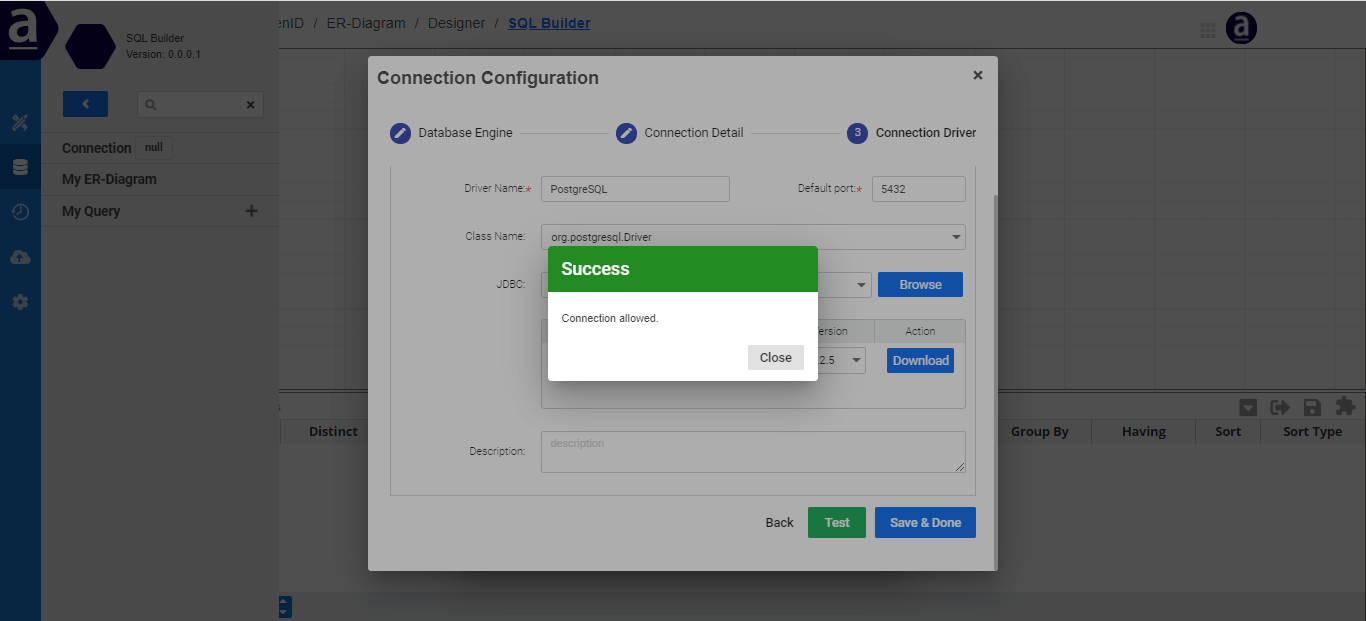
### Test and Save the Connection
After completing the configuration:
1. Click **Test** to validate the connection
2. If the success alert is displayed, the connection is working
3. Click **Close** on the alert
4. Click **Save & Done**
***
### Manage Connections
Once created, the new connection appears in the **available connections list**.
Users can:
* **Edit** a connection
* **Delete** a connection\
by clicking the icons next to the connection name.
***
### Summary
The **Connection** feature in SQL Builder enables users to validate SQL queries directly against a database.
With this feature, users can:
* Reuse existing database connections
* Configure new database connections via a guided wizard
* Test connectivity before executing queries
* Browse schemas and tables interactively
* Verify SQL results during development
Connection management is a critical part of using **SQL Builder effectively** within ONEWEB’s low‑code **Database Tools** ecosystem.
---
# Agent Instructions: Querying This Documentation
If you need additional information that is not directly available in this page, you can query the documentation dynamically by asking a question.
Perform an HTTP GET request on the current page URL with the `ask` query parameter:
```
GET https://docs.onewebstack.com/oneweb-platform-th/building-apps/low-code-with-appspace/database-tools/sql-builder/connection.md?ask=
```
The question should be specific, self-contained, and written in natural language.
The response will contain a direct answer to the question and relevant excerpts and sources from the documentation.
Use this mechanism when the answer is not explicitly present in the current page, you need clarification or additional context, or you want to retrieve related documentation sections.