# Entity Properties
In **Data Designer**, users can design an application’s data model by creating entities (tables) either **from scratch** or by **importing them from an existing database schema**.\
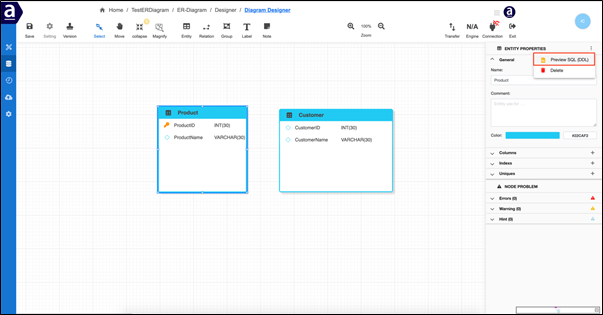
Each entity represents a database table and can be fully configured using the **Entity Properties** panel.
***
### Create a New Entity
To create a new entity:
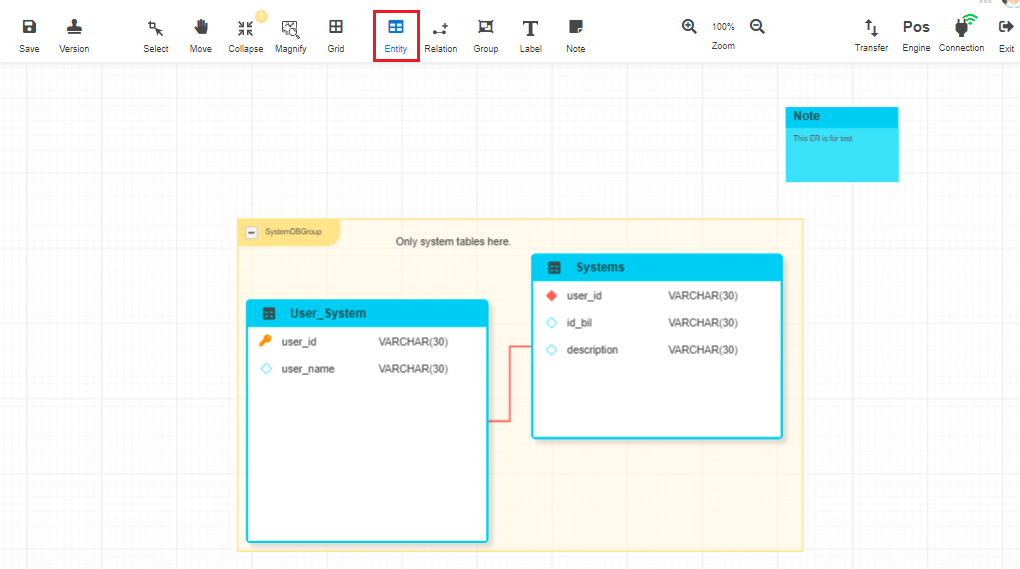
1. Select the **Entity** icon from the toolbar
2. Click or drag on the **design panel** to place the entity
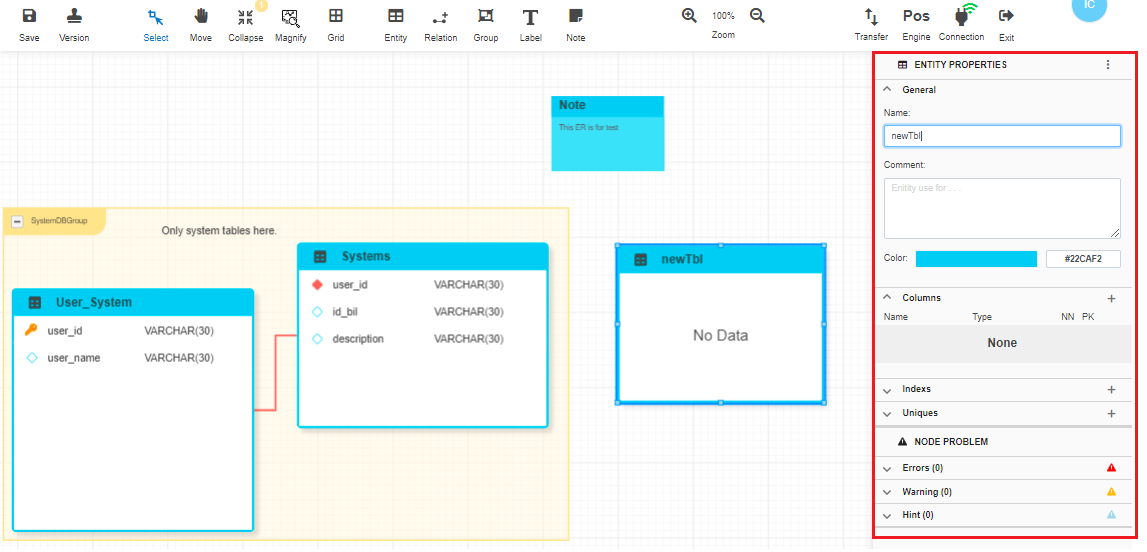
Once created, the **Entity Properties** window opens automatically on the right‑hand side.
***
### Entity Properties Overview
The Entity Properties panel is organized into multiple sections, each controlling a specific aspect of the entity definition.
***
### Entity – General
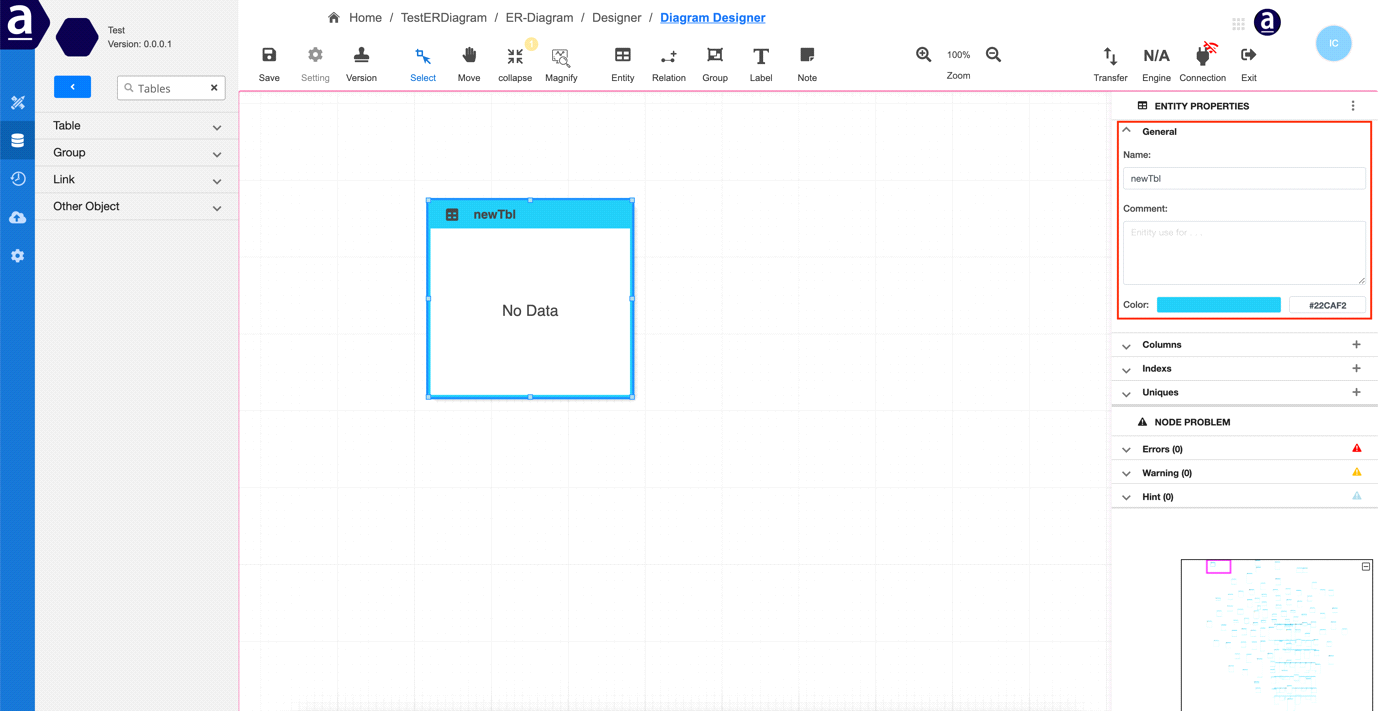
This section defines the basic metadata of the entity.
* **Name**\
Defines the name of the database table.
* **Comment**\
Adds descriptive information about the table.
* **Color**\
Changes the visual color of the table card in the ER Diagram for better readability.
***
### Entity – Columns
This section is used to define the structure of the table columns.
#### Add Columns
* Click the **Add Column** icon to add a new column.
Column Attributes
* **Name** – Column name
* **Type** – Database column data type
* **N (Not Null)** – Enforces NOT NULL constraint
* **PK (Primary Key)** – Marks column as part of the primary key
***
#### Extended Column Properties
Expand the column details to configure additional attributes.
Additional properties include:
* **Length** – Maximum length of the column
* **Precision** – Number of digits after the decimal
* **Default Value** – Default column value
* **Auto Increment** – Automatically increment value on insert
* **Delete** – Remove the column from the entity
***
### Entity – Indexes & Unique Constraints
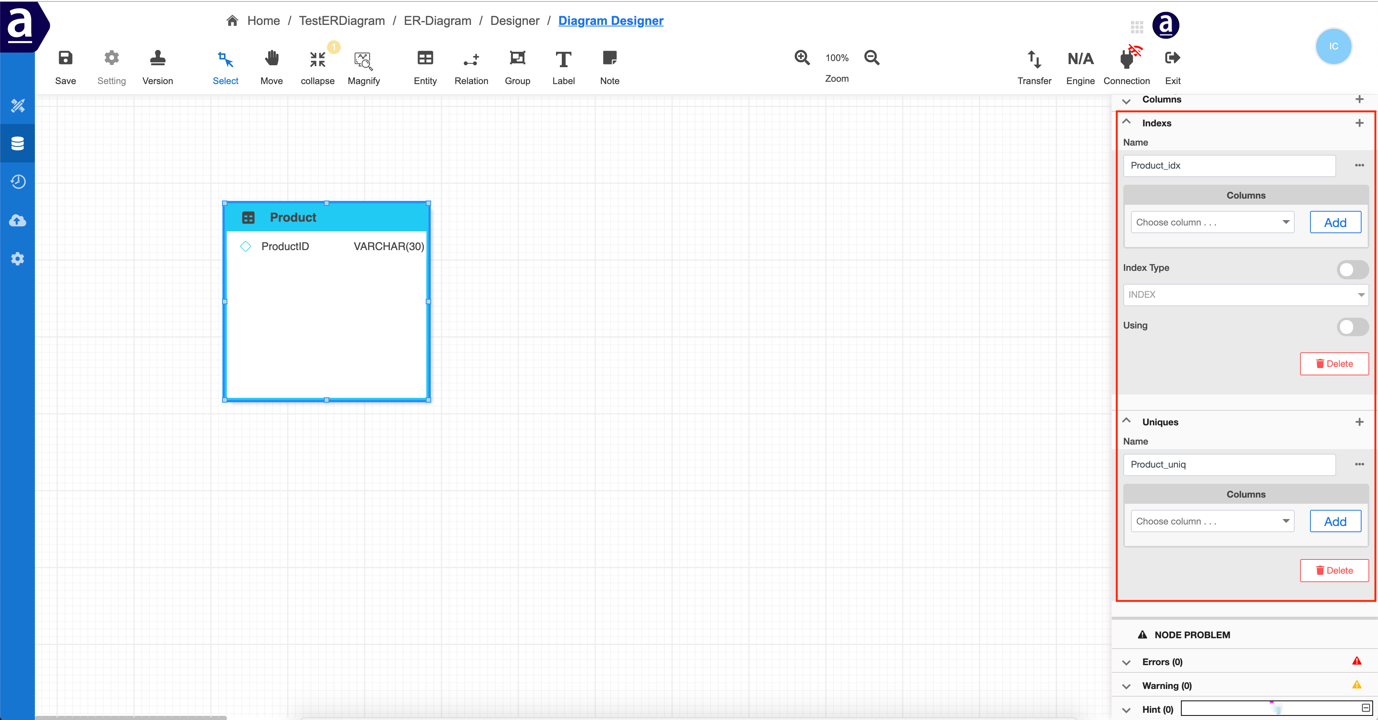
This section allows users to define:
* **Indexes**
* **Unique key constraints**
These constraints **do not appear visually in the ER Diagram**, but are generated when producing SQL (DDL).
***
### Entity – Node Problems
This section highlights potential issues with the entity definition:
* **Errors** – Configuration problems that must be resolved
* **Warnings** – Suggestions or best‑practice notices
These indicators help ensure that the entity is correctly designed before deployment.
***
### Entity – Preview SQL (DDL)
This option generates the **SQL Data Definition Language (DDL)** for the selected entity.
It allows users to preview the CREATE TABLE statement before exporting or deploying the schema.
***
### Entity – Delete
This option deletes the entity (table) from the data model.
***
### Summary
The **Entity Properties** panel is the central place for defining and managing database tables in Data Designer.
Through this panel, users can:
* Define table metadata and structure
* Manage columns and constraints
* Generate SQL (DDL) for deployment
* Validate entity configuration
* Maintain clean, well‑structured data models
This structured approach makes **Entity Properties** a core building block of ONEWEB’s **low‑code data modeling workflow**.
---
# Agent Instructions: Querying This Documentation
If you need additional information that is not directly available in this page, you can query the documentation dynamically by asking a question.
Perform an HTTP GET request on the current page URL with the `ask` query parameter:
```
GET https://docs.onewebstack.com/oneweb-platform-th/building-apps/low-code-with-appspace/database-tools/data-designer/entity-properties.md?ask=
```
The question should be specific, self-contained, and written in natural language.
The response will contain a direct answer to the question and relevant excerpts and sources from the documentation.
Use this mechanism when the answer is not explicitly present in the current page, you need clarification or additional context, or you want to retrieve related documentation sections.