# Environment Configuration
In real‑world applications, integration logic often interacts with **databases** and **external services**.\
However, configuration values such as **database URLs**, **JNDI names**, or **web service endpoints** usually differ across environments—for example:
* Development
* Testing (SIT / UAT)
* Production
Starting from **ONEWEB version 4.0.0.19**, the platform provides **Environment Configuration** that allows these values to be defined as **environment variables**.\
These variables can then be referenced directly in Microflow or Process configurations.
This approach enables smooth deployment across environments **without modifying the flow diagram each time**.
***
### Benefits of Environment Configuration
Using environment variables allows you to:
* Avoid hard‑coding environment‑specific values
* Deploy the same Microflow to multiple environments safely
* Reduce configuration errors during deployment
* Improve maintainability and governance
* Support enterprise CI/CD practices
***
### How to Create Environment Variables
#### Step 1: Open Environment Setup
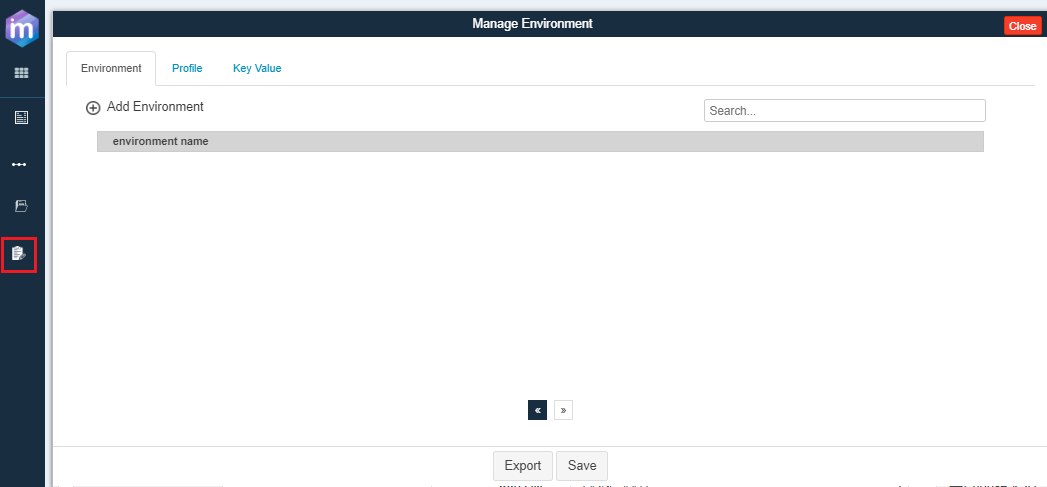
1. Open your application in **AppSpace**
2. Navigate to the **Environment Configuration** or **Environment Setup** screen
3. Click the **Add Environment** icon
***
#### Step 2: Define Environments
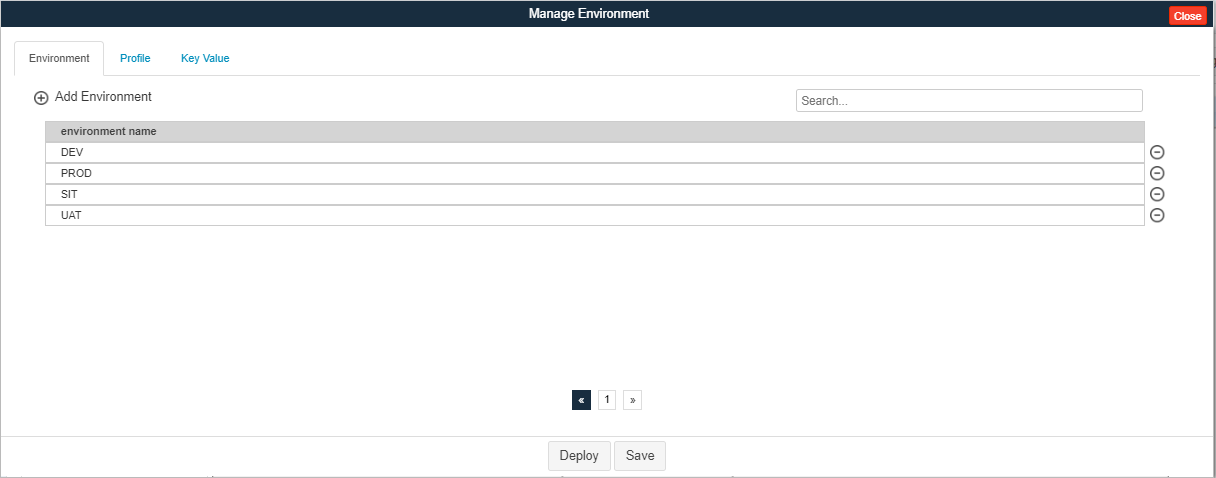
Create the required environments for your application, such as:
* DEV
* TEST
* UAT
* PROD
Each environment represents a deployment context with its own configuration values.
***
#### Step 3: Create Profiles (Optional)
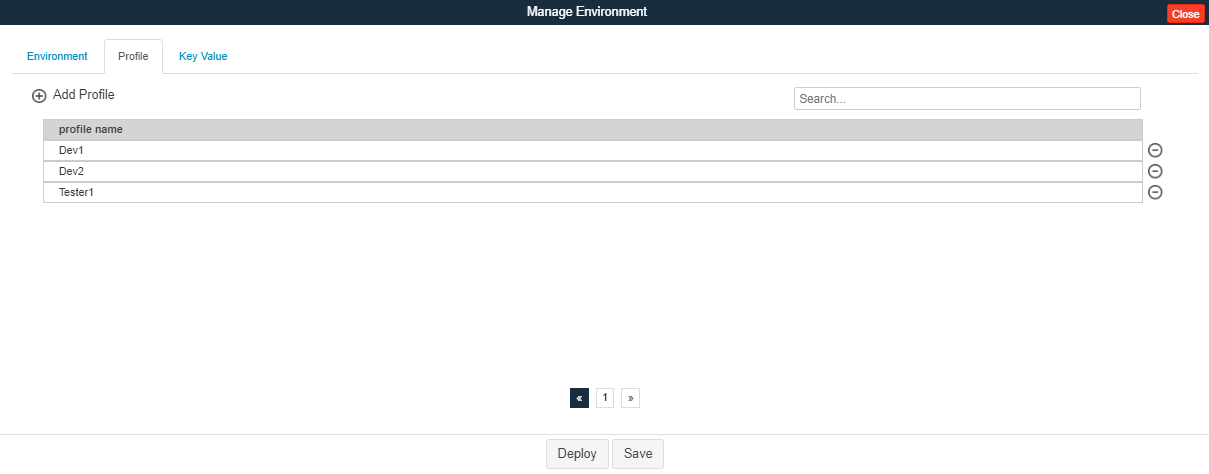
For each environment, users can create **multiple profiles** if required (for example, different database profiles within the same environment).
Profiles provide additional flexibility for advanced configurations.
***
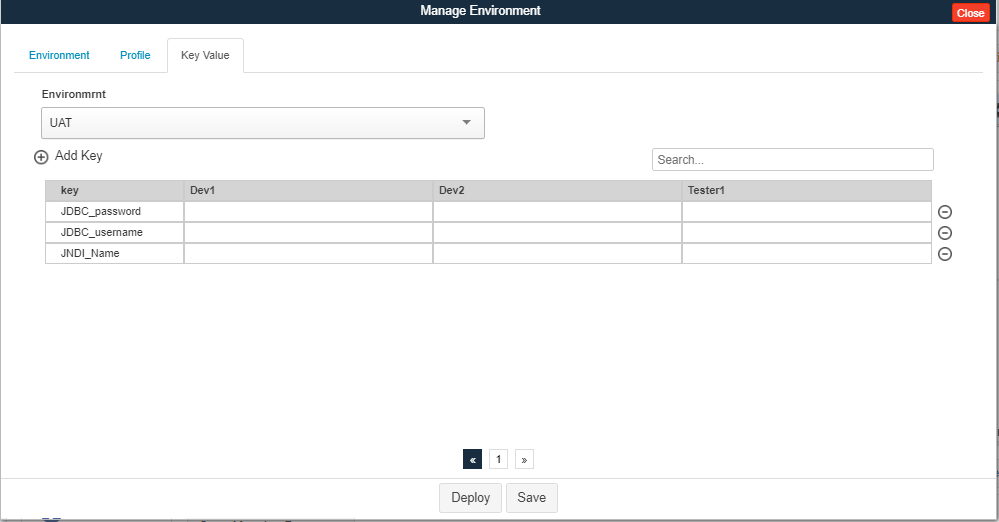
#### Step 4: Define Environment Variables
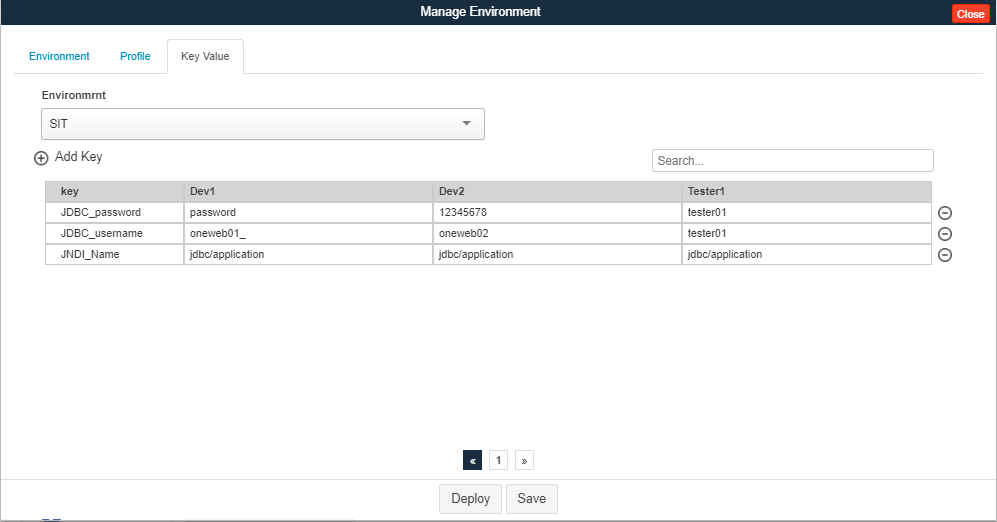
Under each environment (and profile, if applicable):
1. Add environment variables representing configuration parameters
2. Example variables:
* `JDBC_URL`
* `JNDI_NAME`
* `SOAP_ENDPOINT`
* `REST_BASE_URL`
***
#### Step 5: Configure Variables for Other Environments
Repeat variable creation for other environments and assign the correct values per environment.
This ensures the same Microflow can operate correctly across all deployment stages.
***
### Using Environment Variables in Microflow / Process
Once environment variables are defined, they can be referenced directly in node configurations.
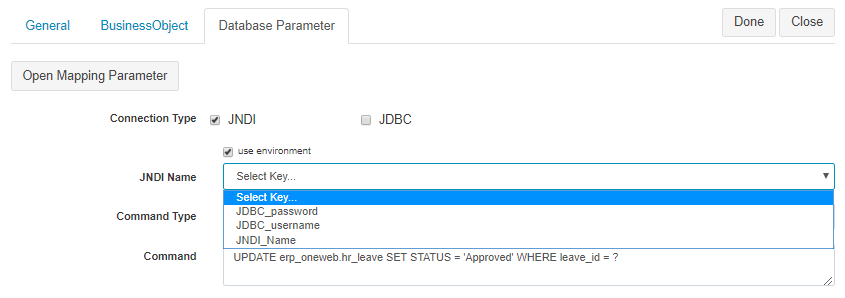
#### Example: Database Node
1. Open the **Database Node** configuration
2. Locate fields that support environment variables
3. Enable the **Use Environment** checkbox
4. Select the appropriate environment variable instead of hard‑coding the value
The same approach applies to:
* Web Service endpoints
* Authentication credentials
* File paths (where supported)
***
### Best Practices for Environment Configuration
* Always externalize environment‑specific values
* Never hard‑code database URLs or service endpoints
* Use meaningful and consistent variable names
* Keep sensitive values restricted to secure environments
* Validate flows after switching environments
***
### Summary
**Environment Configuration** in ONEWEB allows Microflows and Processes to be deployed seamlessly across different environments.
With environment variables, developers can:
* Maintain a single Microflow definition
* Deploy safely to DEV, TEST, and PROD
* Reduce manual configuration errors
* Align with enterprise deployment standards
This feature is essential for building **scalable, portable, and production‑ready integrations** using ONEWEB Microflow.
---
# Agent Instructions: Querying This Documentation
If you need additional information that is not directly available in this page, you can query the documentation dynamically by asking a question.
Perform an HTTP GET request on the current page URL with the `ask` query parameter:
```
GET https://docs.onewebstack.com/oneweb-platform-th/building-apps/integrations/develop-integration-with-oneweb-microflow/environment-configuration.md?ask=
```
The question should be specific, self-contained, and written in natural language.
The response will contain a direct answer to the question and relevant excerpts and sources from the documentation.
Use this mechanism when the answer is not explicitly present in the current page, you need clarification or additional context, or you want to retrieve related documentation sections.