# Upload File
In a process flow, users may need to upload **external files** such as:
* **JAR files** for the **Java Task**
* **WSDL / XSD files** for the **Web Service Task**
Instead of uploading these files directly inside individual nodes, ONEWEB provides a centralized **Upload Files** facility at the **application level**.\
This approach allows files to be reused across multiple nodes and makes maintenance significantly easier.
***
### Purpose of Upload File
The **Upload File** feature is designed to:
* Centralize management of external resources
* Allow reuse of files across multiple process nodes
* Simplify file updates without modifying node configurations
* Reduce risk of breaking process logic during updates
Once uploaded, files can be **selected directly** from Java Tasks or Web Service Tasks as needed.
***
### Uploading Files to an Application
To upload files into an application:
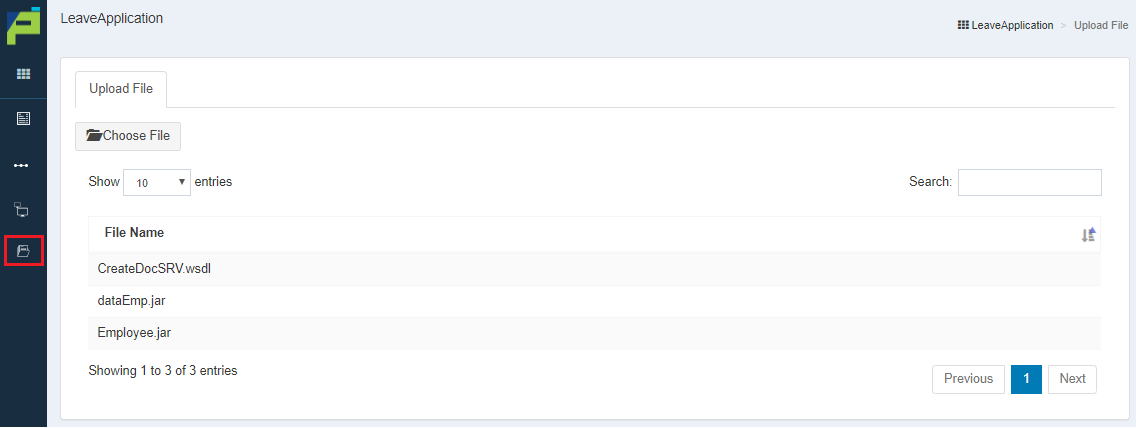
1. Navigate to the **Upload Files** menu in Process Designer
2. Upload the required files (e.g. JAR, WSDL, XSD)
3. Files are stored at the application level and become available for selection
***
### Using Uploaded Files in Process Nodes
After files are uploaded, they can be selected directly within supported node configurations.
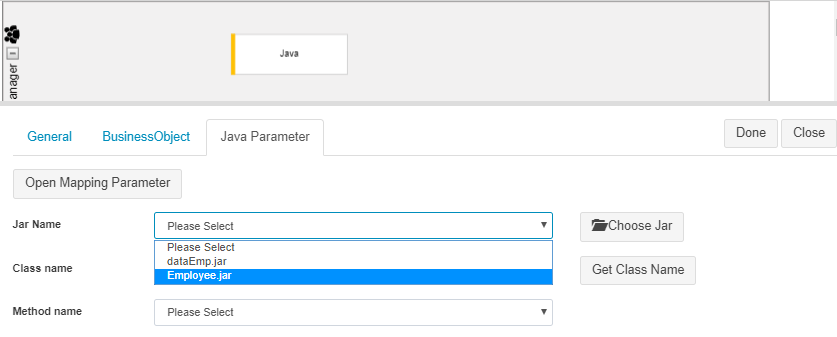
#### Java Task
* Uploaded JAR files appear in the **Jar Name** selection list
* Users can select the required JAR without re‑uploading it
* Makes it easier to update Java logic centrally
***
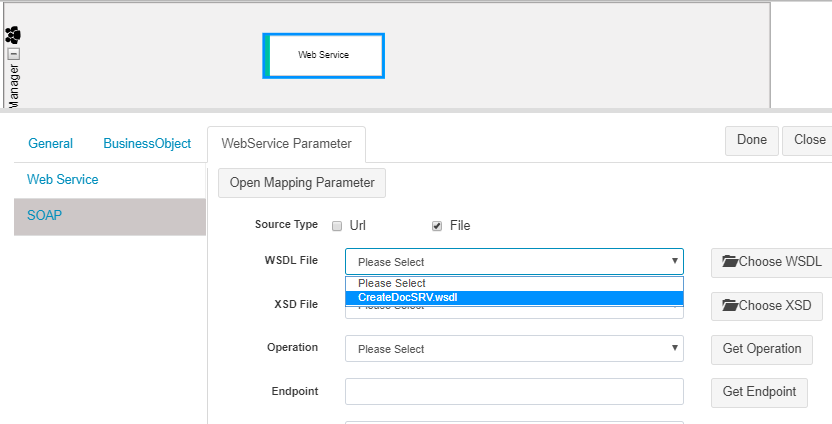
#### Web Service Task
* Uploaded WSDL or XSD files can be selected in the SOAP configuration
* Avoids repeated uploads for multiple Web Service nodes
* Simplifies service definition updates
***
### Benefits of Centralized File Upload
Using the **Upload Files** facility provides several advantages:
* Centralized resource management
* Reusability across multiple process nodes
* Easier file updates and version control
* Reduced process maintenance effort
* Lower risk of configuration errors
When a file is updated at the application level, nodes referencing that file automatically use the updated version.
***
### Usage Guidelines
* Upload files at the application level whenever reuse is expected
* Use meaningful file names for clarity
* Update files centrally instead of re‑configuring nodes
* Test processes after updating critical files (JAR/WSDL)
* Avoid uploading duplicate files unnecessarily
***
### Summary
The **Upload File** feature enables efficient and maintainable management of external resources in ONEWEB Process Designer.
Key points:
* Supports JAR, WSDL, XSD, and other external files
* Files are uploaded once per application
* Java Task and Web Service Task can reuse uploaded files
* Improves maintainability and reduces configuration overhead
Using centralized file upload ensures that processes remain **clean, reusable, and easy to maintain**, especially in complex enterprise workflows.
---
# Agent Instructions: Querying This Documentation
If you need additional information that is not directly available in this page, you can query the documentation dynamically by asking a question.
Perform an HTTP GET request on the current page URL with the `ask` query parameter:
```
GET https://docs.onewebstack.com/designer-reference/process-designer/process-designer-component/upload-file.md?ask=
```
The question should be specific, self-contained, and written in natural language.
The response will contain a direct answer to the question and relevant excerpts and sources from the documentation.
Use this mechanism when the answer is not explicitly present in the current page, you need clarification or additional context, or you want to retrieve related documentation sections.