# Page Designer Parameter
**Page Designer Parameters** are used to **pass data between pages** and to **receive parameters from Microflows** inside Page Designer.\
They enable pages to behave dynamically based on incoming values, such as IDs, names, or other runtime data.
***
### Purpose of Page Designer Parameters
Page Designer Parameters are commonly used for:
* Passing values from one page to another
* Receiving input parameters from a **Microflow**
* Controlling page behavior based on runtime data
* Supporting navigation with context (e.g. detail pages)
***
### Creating Page Designer Parameters
#### Step 1: Open Page State
In Page Designer, click the **Page State** icon on the **top toolbar**.
This action opens the **Page State modal**, which includes Page Designer Parameters.
***
#### Step 2: Open Page Designer Parameter Section
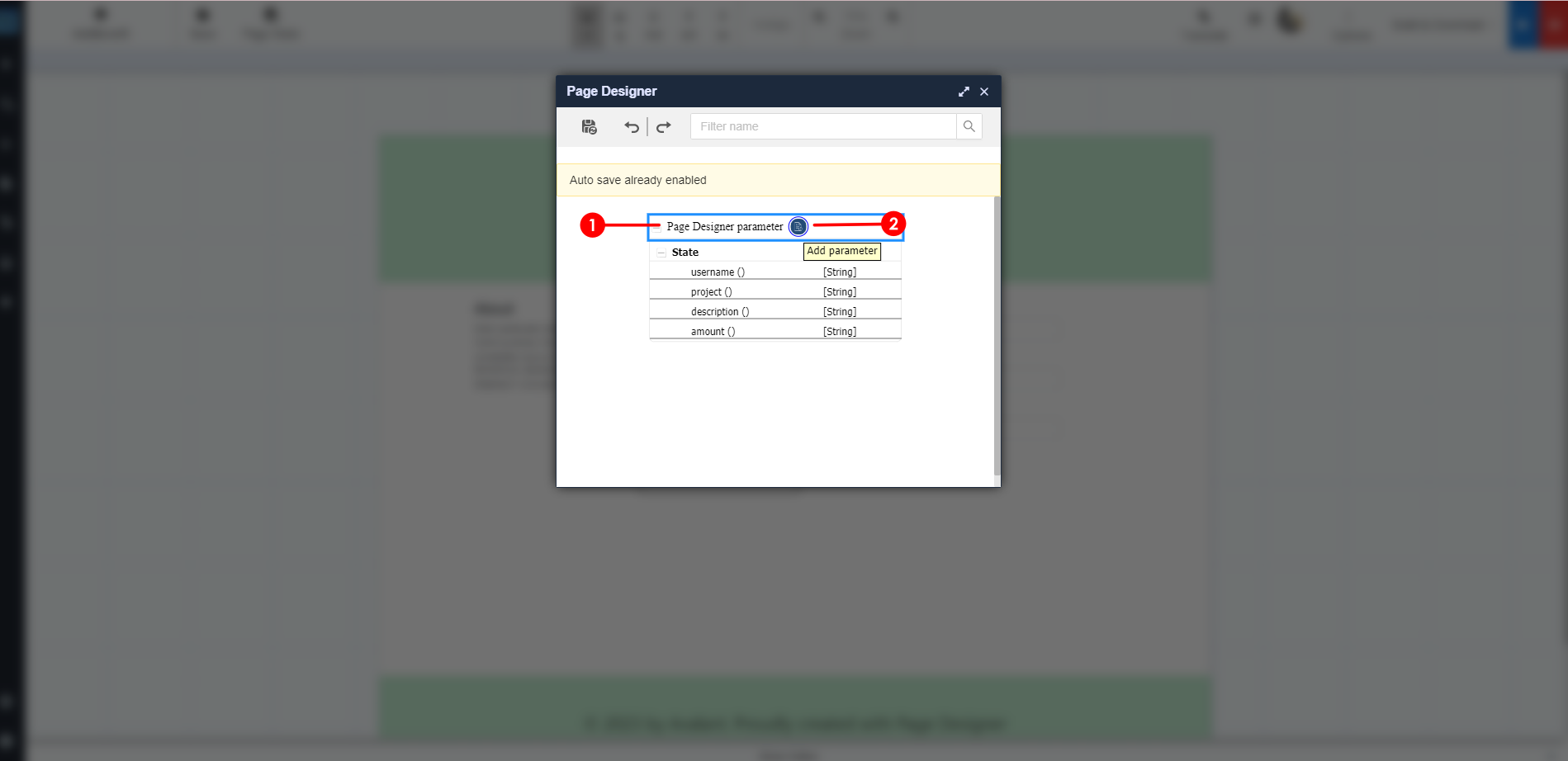
Inside the Page State modal, locate **Page Designer Parameter**.\
Click the **Add Parameter** icon to create a new parameter.
***
#### Step 3: Add Parameter Fields
Click **Add Field** to open a form for parameter details.
In the form:
* Enter the **Field Name** (parameter name)
* Configure the parameter as required
* Click **Submit**
You can repeat this step by clicking **Add Field** again if multiple parameters are needed.
***
#### Step 4: Save Page Designer Parameters
Once all parameters are defined, click the **Save** icon to store the configuration.
The parameters are now available for:
* Page navigation
* Data binding
* Microflow integration
***
### Using Page Designer Parameters
After creation, Page Designer Parameters can be used to:
* Bind values to components
* Receive parameters passed from Microflows
* Control conditional logic on the page
* Support master‑detail navigation scenarios
***
### Summary
**Page Designer Parameters** provide a flexible way to exchange data between pages and backend logic.
Key points:
* Parameters are managed through **Page State**
* They support page‑to‑page and Microflow communication
* Multiple parameters can be defined per page
* Changes must always be saved after configuration
Using Page Designer Parameters correctly is essential for building **dynamic and context‑aware pages** in ONEWEB.
---
# Agent Instructions: Querying This Documentation
If you need additional information that is not directly available in this page, you can query the documentation dynamically by asking a question.
Perform an HTTP GET request on the current page URL with the `ask` query parameter:
```
GET https://docs.onewebstack.com/designer-reference/page-designer/page-designer-tools/generic-tools/page-designer-parameter.md?ask=
```
The question should be specific, self-contained, and written in natural language.
The response will contain a direct answer to the question and relevant excerpts and sources from the documentation.
Use this mechanism when the answer is not explicitly present in the current page, you need clarification or additional context, or you want to retrieve related documentation sections.