# Creating Links
Page Designer allows you to add links to components so users can **navigate within the application**, **open external websites**, **send emails**, **dial phone numbers**, or **open modal dialogs**.
This section explains how to configure different link types and how to create **dynamic links** using runtime values.
***
### Supported Link Types
You can configure a component to link to any of the following:
* **Route** – Navigate to another page within the application
* **URL** – Open an external website
* **Mail** – Open the default email client
* **Tel** – Initiate a phone call
* **Modal** – Open a modal dialog
***
### How to Create a Link
1. **Select the component** you want to turn into a link on the design canvas.
2. In the **link configuration panel**, choose the **Link Type**:
* **Route**
* **URL**
* **Mail**
* **Tel**
* **Modal**
3. Based on the selected type, **choose the target page or modal**, or **enter the destination value**:
* Page or Modal name (for Route/Modal)
* Website URL (for URL)
* Email address (for Mail)
* Telephone number (for Tel)
4. Save the configuration.
#### Link Configuration Example
***
### Creating Dynamic Links
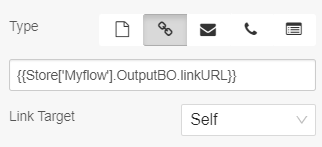
Page Designer also supports **dynamic links** using runtime values from **Store** or **Page State**.\
To create a dynamic link, use the **double‑brace syntax**.
#### Syntax
```
{{variableName}}
```
This allows the link destination to be resolved dynamically when the page runs—for example, using an ID, URL, or value returned from a Microflow.
#### Example of Dynamic Link Configuration
***
### Best Practices
* Use **Route** for internal navigation to preserve application context.
* Use **Modal** for lightweight dialogs or contextual actions without leaving the page.
* Prefer **dynamic links** when destinations depend on user input or data.
* Validate URLs, email addresses, and phone numbers to avoid broken links.
* Always **preview and test links** before publishing your page.
***
### Summary
Creating links in Page Designer enables seamless navigation and interaction:
* Multiple link types are supported (Route, URL, Mail, Tel, Modal)
* Links can be static or dynamic
* Dynamic links use `{{ }}` syntax with Store or Page State values
These features help you build **interactive, data‑driven navigation flows** within your ONEWEB applications.
---
# Agent Instructions: Querying This Documentation
If you need additional information that is not directly available in this page, you can query the documentation dynamically by asking a question.
Perform an HTTP GET request on the current page URL with the `ask` query parameter:
```
GET https://docs.onewebstack.com/designer-reference/page-designer/page-designer-tools/generic-tools/creating-links.md?ask=
```
The question should be specific, self-contained, and written in natural language.
The response will contain a direct answer to the question and relevant excerpts and sources from the documentation.
Use this mechanism when the answer is not explicitly present in the current page, you need clarification or additional context, or you want to retrieve related documentation sections.