# How to Create a SQL Builder App
This section explains how to create a **SQL Builder** project in **AppSpace**, which allows users to build SQL queries visually based on an existing **ER Diagram** created using **Data Designer**.
***
### Prerequisite
Before creating a SQL Builder app, ensure that:
* At least one **ER Diagram** exists in the application\
(Designed using **Data Designer** or imported from an existing database)
SQL Builder relies on the ER Diagram as the source of tables, columns, and relationships.
***
### Step 1: Open Data Designer Menu
1. Open your application in **AppSpace**
2. From the application menu, select **Data Designer**
***
### Step 2: Create a SQL Builder Project
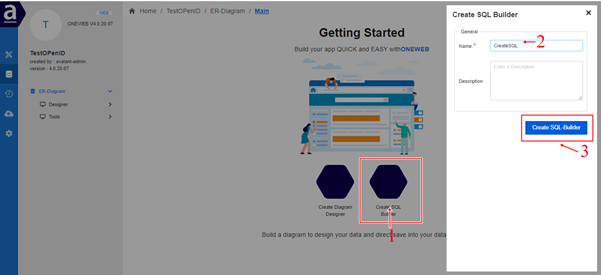
1. Click the **Create SQL‑Builder** icon
2. A modal window opens
3. Enter a name for the SQL Builder project
4. Click **Create SQL‑Builder**
***
### Step 3: Open SQL Builder for Design
Once the SQL Builder project is created successfully:
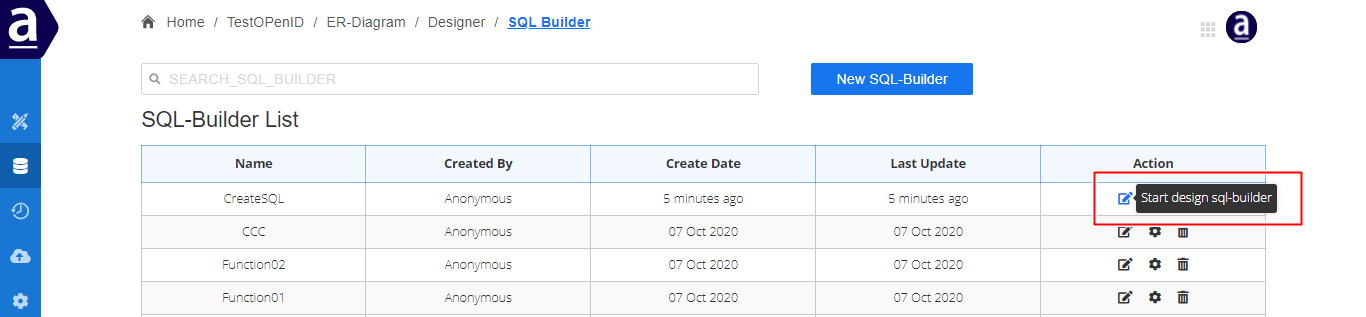
1. Click the **Start Design SQL‑Builder** icon
2. The system opens the SQL Builder design workspace
***
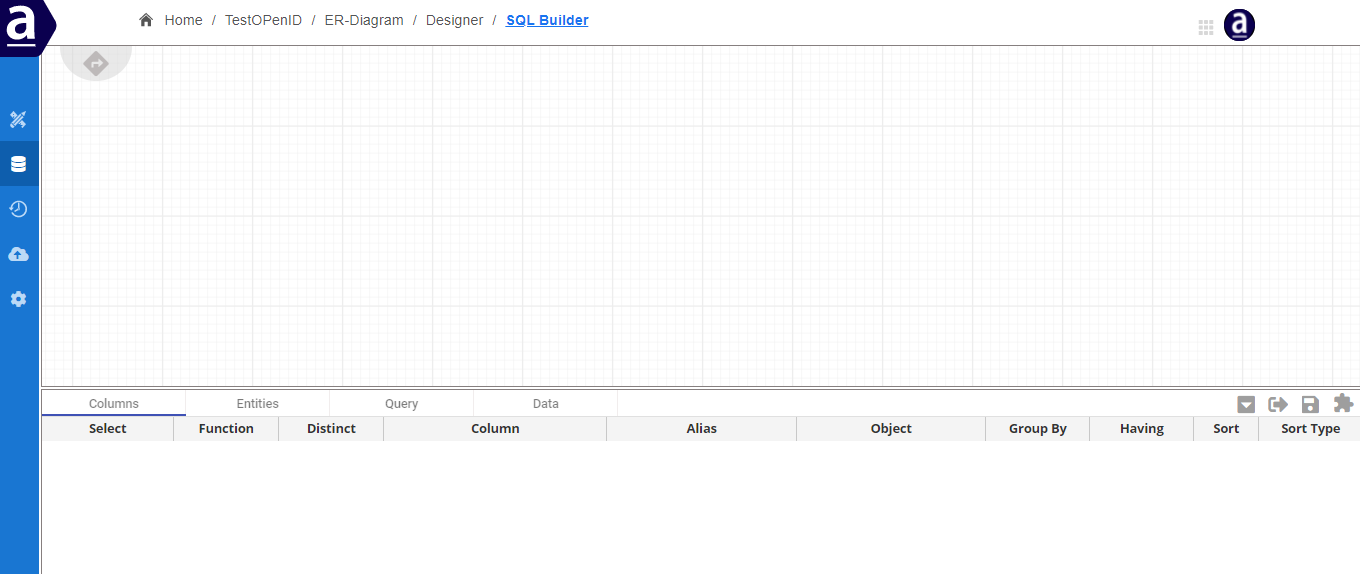
### Step 4: Review the SQL Builder Design Workspace
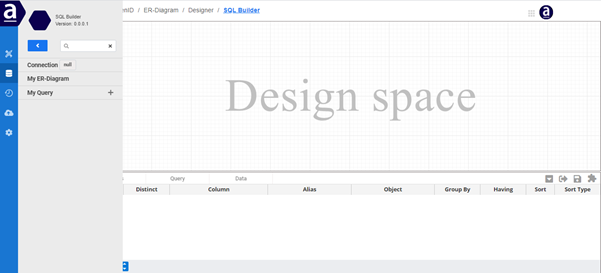
After opening the SQL Builder project, users will see the **design canvas**, where queries are created and managed.
This workspace allows users to visually assemble SQL queries using entities and relationships from the ER Diagram.
***
### Step 5: Use the SQL Builder Side Menu
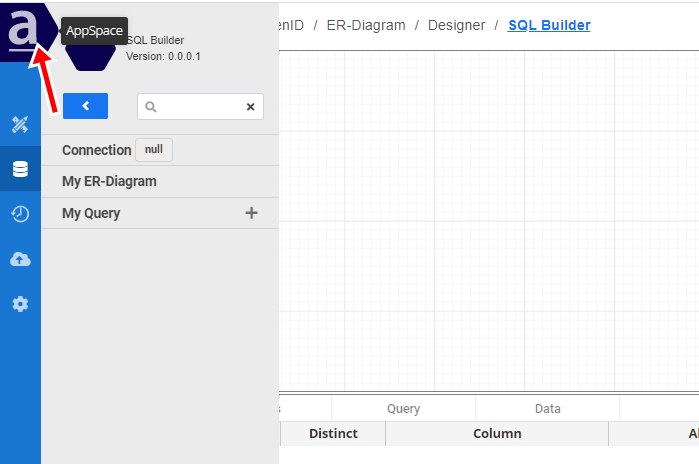
The **Side Menu** in SQL Builder helps users manage diagrams, connections, and queries.
#### Side Menu Options
* **Search Box**\
Search and filter elements within the side menu.
* **Connection**\
Manage database connections for query execution.
* **My ER‑Diagram**\
View ER Diagrams in the application and include tables in the design canvas.
* **My Query**\
View existing SQL Builder queries and reuse or include them in the design.
***
#### Collapse or Expand the Side Menu
The Side Menu can be collapsed or expanded by clicking the **AppSpace icon**, providing more space on the design canvas when needed.
***
### Summary
Creating a **SQL Builder App** in AppSpace allows users to start building SQL queries visually using an existing **ER Diagram**.
With SQL Builder, users can:
* Create query projects without writing SQL manually
* Select tables and columns from ER Diagrams
* Manage reusable queries within the application
* Integrate queries with Processes, Microflows, or other components
SQL Builder works together with **Data Designer** to provide a complete, low‑code database design and querying experience in ONEWEB.
---
# Agent Instructions: Querying This Documentation
If you need additional information that is not directly available in this page, you can query the documentation dynamically by asking a question.
Perform an HTTP GET request on the current page URL with the `ask` query parameter:
```
GET https://docs.onewebstack.com/designer-reference/data-designer/sql-builder/how-to-create-a-sql-builder-app.md?ask=
```
The question should be specific, self-contained, and written in natural language.
The response will contain a direct answer to the question and relevant excerpts and sources from the documentation.
Use this mechanism when the answer is not explicitly present in the current page, you need clarification or additional context, or you want to retrieve related documentation sections.