# How to Create a Data Designer App
This section explains how to create and start using a **Data Designer** project within **AppSpace** to design an application’s data model using an **ER Diagram**.
***
### Step 1: Open Data Designer
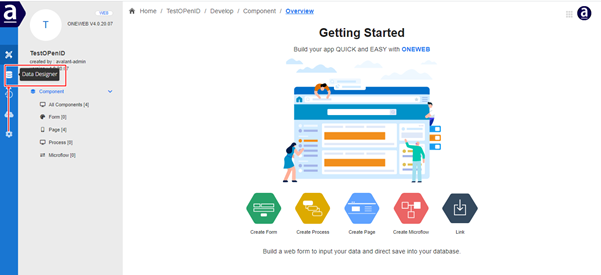
1. Open your application in **AppSpace**
2. From the application menu, select **Data Designer**
***
### Step 2: Create a Data Designer Diagram
1. Click the **Create Diagram Designer** icon
2. A modal window opens
In the modal:
* Enter a name for your data model
* Click **Create ER‑Diagram**
***
### Step 3: Open the Diagram for Design
Once the Data Designer project is created successfully:
1. Click the **Start Design Diagram** icon
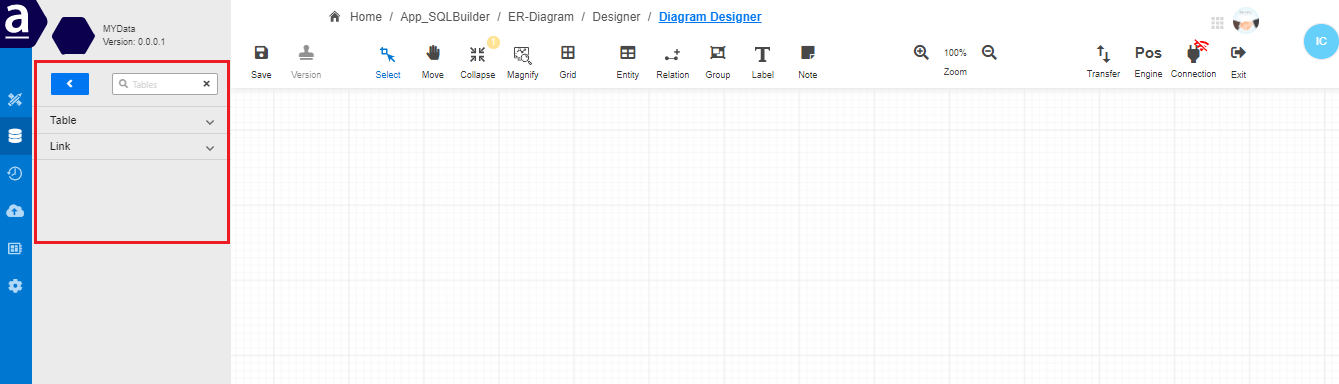
2. The system opens the **ER Diagram design workspace**
***
### Step 4: Review the Design Workspace
After opening the diagram, you will see the **design canvas**, where you can:
* Create entities (tables)
* Define columns and data types
* Draw relationships between entities
***
### Step 5: Use the Side Menu
Inside the Diagram Designer, a **Side Menu** is available to help manage and navigate your data model.
***
#### Side Menu Options
The Side Menu provides the following features:
* **Search Box**\
Search and filter entities or relationships in the data model.
* **Table**\
View and manage all entities (tables) defined in the data model.
* **Link**\
View and manage relationships (links) between entities.
These tools help keep the data model organized as it grows in complexity.
***
### Summary
Creating a **Data Designer App** in AppSpace is the starting point for modeling application data in ONEWEB.
By using Data Designer, users can:
* Create ER diagrams visually
* Design tables and relationships without SQL
* Organize entities and links through a guided UI
* Lay the foundation for SQL Builder, Data Viewer, and application data access
This makes Data Designer an essential tool for low‑code, data‑driven application development in ONEWEB.
---
# Agent Instructions: Querying This Documentation
If you need additional information that is not directly available in this page, you can query the documentation dynamically by asking a question.
Perform an HTTP GET request on the current page URL with the `ask` query parameter:
```
GET https://docs.onewebstack.com/designer-reference/data-designer/how-to-create-a-data-designer-app.md?ask=
```
The question should be specific, self-contained, and written in natural language.
The response will contain a direct answer to the question and relevant excerpts and sources from the documentation.
Use this mechanism when the answer is not explicitly present in the current page, you need clarification or additional context, or you want to retrieve related documentation sections.