# How to Use Data Viewer
This section explains how to use **Data Viewer** to connect to a database, browse data, and execute queries directly from **AppSpace**, without using external database tools.
***
### Open Data Viewer
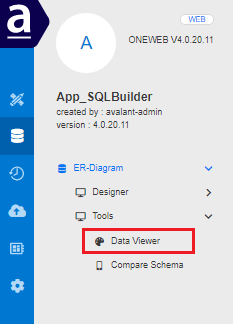
1. Open the application in **AppSpace**
2. Select the **Database** menu
3. Under **Tools**, click **Data Viewer**
The system opens the **Data Viewer** screen.
***
### Data Viewer Interface Overview
The Data Viewer UI consists of two main sections:
* **Sidebar**\
Used to search, filter, and browse database connections, schemas, and tables.
* **Toolbar**\
Contains controls to interact with data, run queries, and open additional tools.
***
### Create a New Database Connection
To create a new database connection:
1. In the **Sidebar**, click the **New Connection** icon
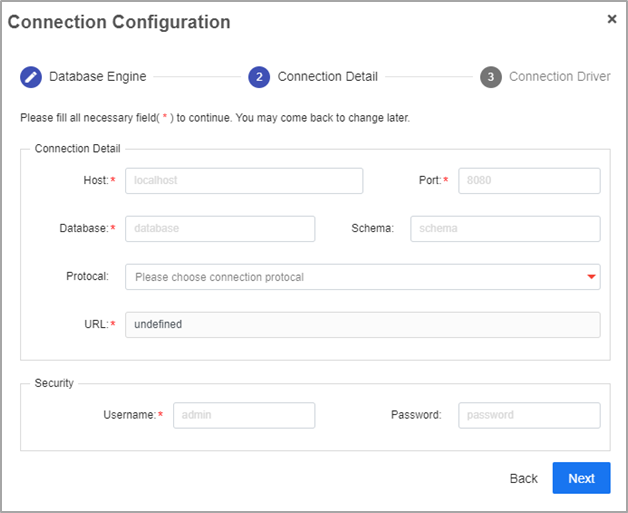
2. The **Create Connection Wizard** opens
3. Follow the steps below:
#### Step 1: Enter Database Details
Provide details such as host, port, database name, and credentials.
***
#### Step 2: Configure Database Driver
* Select an existing database driver, or
* Upload a new driver version if required
***
#### Step 3: Test and Save the Connection
1. Click **Test** to verify connectivity
2. If the test is successful, click **Save & Done**
The new connection appears in the list of available connections.
***
### Browse Tables and View Data
1. Expand a **Database Connection** in the Sidebar
2. Expand the schema to view tables
3. Double‑click a table to fetch and display its data
***
#### 🔍 Search, Filter, and Sort Records
* Use the **search field** to filter records
* Click column headers to sort data in ascending or descending order
***
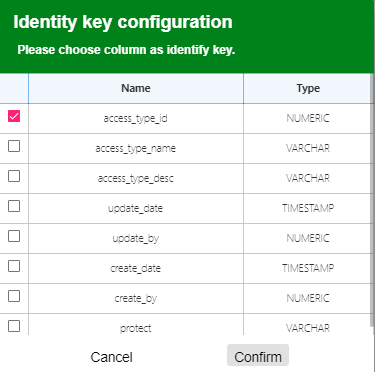
#### Identity Key Configuration
The **key icon** allows users to set **identity (primary key) columns**, which enables saving edits back to the database.
***
### Record Count Information
At the bottom of the data panel, Data Viewer displays:
* Total number of records retrieved
* Number of fetch operations performed
***
### Generate SQL Statements from Data
Data Viewer allows users to generate basic SQL statements directly from table data, including:
* **INSERT**
* **UPDATE**
* **DELETE**
***
### Run Custom SQL Queries
#### Open Script Window
1. Click the **Script** icon on the toolbar
***
#### Select Connection and Execute Query
1. Click the **Connection** icon and choose a database connection
2. Once connected (icon turns green), click **Run** to execute the SQL
***
### Summary
**Data Viewer** enables users to explore and validate database content directly within ONEWEB.
Using Data Viewer, users can:
* Create and manage database connections
* Browse schemas and tables
* Search, sort, and filter table data
* Generate SQL statements
* Execute custom SQL queries
This makes Data Viewer a powerful and convenient **database visualization and validation tool** within ONEWEB’s **Database Tools** suite.
---
# Agent Instructions: Querying This Documentation
If you need additional information that is not directly available in this page, you can query the documentation dynamically by asking a question.
Perform an HTTP GET request on the current page URL with the `ask` query parameter:
```
GET https://docs.onewebstack.com/designer-reference/data-designer/data-viewer/how-to-use-data-viewer.md?ask=
```
The question should be specific, self-contained, and written in natural language.
The response will contain a direct answer to the question and relevant excerpts and sources from the documentation.
Use this mechanism when the answer is not explicitly present in the current page, you need clarification or additional context, or you want to retrieve related documentation sections.