# Menu Configuration
The **Menu Configuration** utility allows users to add and manage applications within the **ONEWEB Main Menu**.\
This feature enables applications created using **App Designer** to be easily accessed by end users through the platform navigation.
Once an application is registered in the menu, access control can be managed using ONEWEB’s **Identity and Access Management (IAM)** to ensure that only authorized users or roles can access the application.
***
### Purpose of Menu Configuration
Menu Configuration is used to:
* Add applications to the ONEWEB main menu
* Organize menu items hierarchically (parent–child menus)
* Control how users navigate to Smart Forms
* Link menu items to entities in specific modes (Search / Insert)
* Integrate menu visibility with IAM for secure access control
This utility bridges **application design** and **application access**.
***
### Accessing Menu Configuration
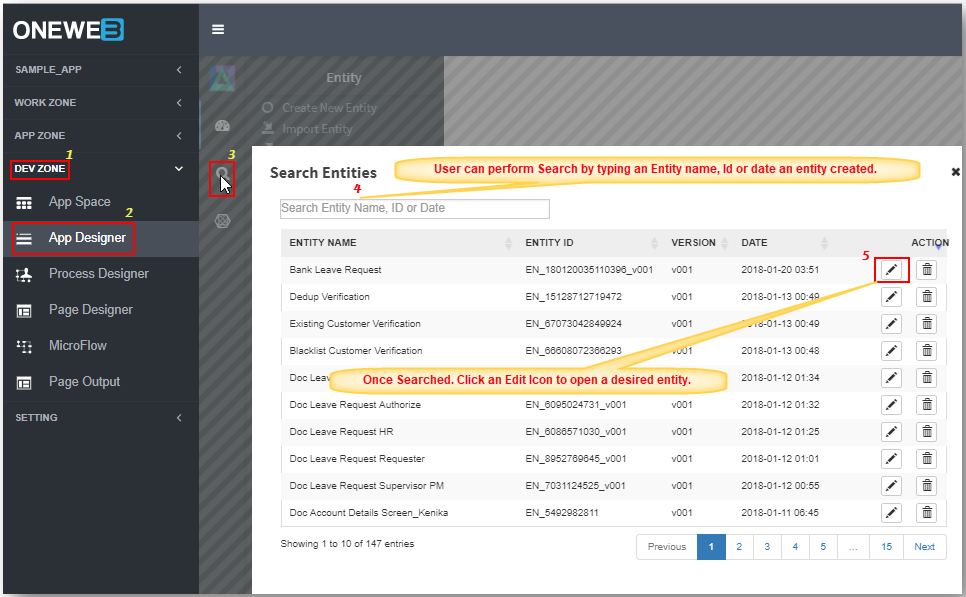
To access the Menu Configuration utility:
1. Navigate to **DEV ZONE**
2. Open **App Designer**
3. Click the **Utilities** icon 
4. Select **Menu Configuration**
***
### Example Scenario
To illustrate Menu Configuration, consider the following requirement:
* Create a **menu header** called **SAMPLE\_APP**
* Under this header, allow users to access an application called **Doc Order Request**
#### Desired Menu Structure
```
SAMPLE_APP
└── Doc Order Request
```
The final output on the ONEWEB menu should appear as shown below:
***
### Step 1: Create a Menu Label (Parent Menu)
A **LABEL** type menu is used to group related application pages.
#### Steps
1. Click the **Add Menu** icon 
2. Click the **Menu Properties** icon  to open the configuration window
3. Configure the menu properties:
* **Description**: `SAMPLE_APP`
* **Sequence**: `1`
* **Mapping**: Leave blank (LABEL menus are not mapped to entities)
* **Reference**: Leave blank (top‑level menu)
* **Type**: `LABEL`
* **Action Target**: `mainframe`
4. Click **OK** to save
After this step, the **SAMPLE\_APP** menu label will appear in the Menu Configuration screen.
***
### Step 2: Create a Menu Page (Application Link)
A **PAGE** type menu is used to open an application (Entity).
#### Steps
1. Select the **SAMPLE\_APP** menu label
2. Click the **Add Menu** icon 
3. Open **Menu Properties**
4. Configure the menu item:
* **Description**: `Doc Order Request`
* **Sequence**: `1`
* **Mapping**:
* Select the target **Entity**
* Choose the required **Mode** (e.g. `INSERT`)
* Click **Generate** to auto‑generate Action URL
* **Reference**: Auto‑populated with SAMPLE\_APP
* **Type**: `PAGE`
* **Action Target**: `mainframe`
{% hint style="info" %}
For more details on available entity modes, refer to the **Entity Modes** section.
{% endhint %}
1. Click **OK** to save
***
### Final Result
Once configuration is complete, the new menu will appear on the **ONEWEB Main Menu** as shown below:
***
{% hint style="info" %}
**Important Note**\
After creating or updating menu items:
* Refresh the application cache
* Log out and log back in
This is required for menu changes to take effect.
{% endhint %}
***
### Best Practices for Menu Configuration
* Use **LABEL** menus to group related applications
* Use meaningful and business‑friendly menu names
* Keep menu hierarchy shallow and intuitive
* Always control access using **IAM** after publishing menus
* Test menu navigation in all target modes (Search / Insert)
***
### Summary
The **Menu Configuration** utility allows applications built in App Designer to be exposed through the ONEWEB navigation menu.
Key points:
* Supports hierarchical menu design (LABEL + PAGE)
* Links menu items to entities and modes
* Integrates with IAM for secure access
* Essential for making applications usable by end users
Menu Configuration is a critical step in turning a designed Smart Form into a **production‑ready and accessible application** on the ONEWEB platform.
---
# Agent Instructions: Querying This Documentation
If you need additional information that is not directly available in this page, you can query the documentation dynamically by asking a question.
Perform an HTTP GET request on the current page URL with the `ask` query parameter:
```
GET https://docs.onewebstack.com/designer-reference/app-designer/utilities/menu-configuration.md?ask=
```
The question should be specific, self-contained, and written in natural language.
The response will contain a direct answer to the question and relevant excerpts and sources from the documentation.
Use this mechanism when the answer is not explicitly present in the current page, you need clarification or additional context, or you want to retrieve related documentation sections.