# Label
The **Label** field is used to display **static text content** on a Smart Form.\
Unlike input fields, a Label is **not used for data entry** and is not persisted to the database. It is primarily used for **display, instruction, or section heading purposes**.
A Label can display plain text or **rich text content**, and can be freely positioned within a Module layout.
***
### Purpose of Label Field
The Label field is commonly used to:
* Display descriptive text or instructions
* Provide section headers within a form
* Explain form usage or required inputs
* Show static messages to users
* Enhance layout clarity and user experience
Since Labels are not bound to database columns, they are ideal for **presentation‑only content**.
***
### Adding and Configuring a Label
To add a Label field:
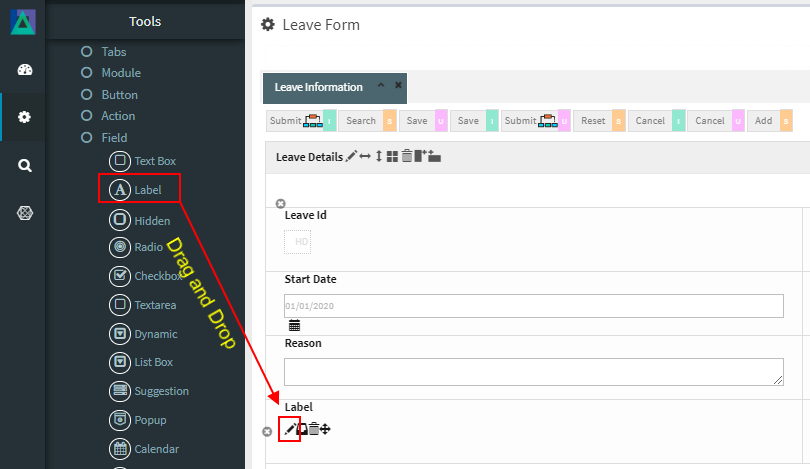
1. Drag a **Label** field into a Module layout
2. Click the **Edit (pencil) icon** on the Label
3. The **Label Configuration** window opens
***
### Label Configuration Properties
The properties available for the Label field are described below.
| Property | Mandatory | Description |
| ----------------- | --------- | ------------------------------------------------------------------------------------------------------------------- |
| **MF ID** | Yes | A unique identifier generated automatically by the system |
| **ShowFieldName** | Yes | Defines the label name displayed on the screen. Clicking the blue icon auto‑generates a value based on the field ID |
| **Show Data** | No | The actual text content displayed by the Label. Supports **Rich Text** formatting when enabled |
| **Alignment** | No | Controls text alignment. Available options: **Left**, **Center**, **Right** |
| **Authen** | No | When enabled, invokes the ONEWEB Authorization Engine (IAM) to control visibility based on permission |
***
### Rich Text Support
The **Show Data** property supports **Rich Text formatting**, allowing users to:
* Change text styles (bold, italic, underline)
* Add line breaks or structured content
* Improve readability for instructions or notices
This makes Labels suitable for **form instructions, warnings, or explanatory text**.
***
### Authorization (Authen)
When **Authen** is enabled:
* The Label visibility is controlled by ONEWEB’s IAM (authorization engine)
* Only authorized users can see the Label
* Useful for role‑based instructions or conditional display
***
### Usage Guidelines
* Use Label fields for **presentation only**
* Do not use Labels for storing or manipulating data
* Place Labels inside a Module (Labels cannot exist outside Modules)
* Use clear and concise text for instructions
* Use alignment and rich text to improve UX
* Use Authen for role‑specific or conditional messages
***
### Summary
The **Label** field is a non‑data, presentation‑only component used to display static or formatted text in Smart Forms.
Key points:
* Displays static or rich text content
* Not bound to database fields
* Used for instructions, headings, or messages
* Supports alignment and authorization
* Must be placed inside a Module
Proper use of Label fields improves **clarity, usability, and user experience** of Smart Forms in ONEWEB.
---
# Agent Instructions: Querying This Documentation
If you need additional information that is not directly available in this page, you can query the documentation dynamically by asking a question.
Perform an HTTP GET request on the current page URL with the `ask` query parameter:
```
GET https://docs.onewebstack.com/designer-reference/app-designer/entity/create-new-entity/fields/label.md?ask=
```
The question should be specific, self-contained, and written in natural language.
The response will contain a direct answer to the question and relevant excerpts and sources from the documentation.
Use this mechanism when the answer is not explicitly present in the current page, you need clarification or additional context, or you want to retrieve related documentation sections.