# Create New Entity
Creating a new **Entity** is the first operational step in building Smart Forms in ONEWEB.\
This section explains how to create a new entity and introduces the **Entity Menu**, which is used to configure, preview, and manage entity behavior.
***
### Starting Point: Entity Menu (Top‑Left)
#### Step 1: Create a New Entity
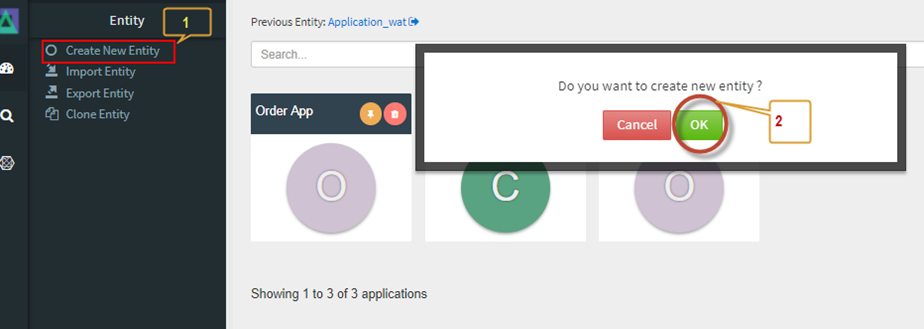
1. Open **App Designer**
2. From the **Entity Menu** (top‑left), click **Create New Entity**
3. A confirmation popup appears
#### Step 2: Confirm Creation
* Click **OK** to proceed
* A blank entity is created and opened for configuration
***
### Entity Configuration Overview
Once an entity is created, its configuration options become available through the **Entity Menu**.
> **Note**\
> The Entity Menu is always accessible from the **top‑right corner** of the screen whenever an entity is open.
***
### Edit Entity Configuration
This icon opens the **Entity Configuration** panel, where core entity properties are defined.
#### Commonly Used Property
* **Entity Name** – The most important property\
Choose a name that clearly identifies the business scope of the entity\
(e.g. `Customer`, `Invoice`, `PurchaseOrder`)
#### Entity Configuration Properties
| Property | Mandatory | Description |
| ------------------ | --------- | ---------------------------------- |
| Entity ID | Yes | System‑generated unique identifier |
| Entity Name | Yes | User‑defined business name |
| Template Code | Yes | Active UI template |
| Theme Code | Yes | Active UI theme |
| System Code | Yes | Application schema code |
| Version | Yes | Entity version |
| Default Search | No | Default entity for search screen |
| Default Insert | No | Default entity for insert screen |
| Require Workflow | No | Enable workflow integration |
| Workflow Workqueue | No | Workqueue mapping |
| Tab Condition | No | Enable conditional tabs |
| Hide Tab | No | Hide child tabs |
| View Mode | No | Open entity in read‑only mode |
| Load Tab | No | Auto‑load tab |
| History Flag | No | Enable history tracking |
| Image Viewer | No | Enable image viewer |
***
### Configure Action Flow (Microflow Integration)
This icon is used to configure **Action Flow**, allowing the entity to:
* Integrate with **Microflow Designer**
* Trigger backend logic during entity operations
***
### Save Entity
This icon saves the current entity configuration.
> **Best Practice**\
> Save frequently after each configuration change.
***
### Preview Entity (Search Mode)
This opens a **Search Preview** of the entity.\
Useful when:
* Table configuration is partially defined
* You want to validate search behavior early
***
### Preview Entity (Create / Insert Mode)
This icon opens the **Create / Insert Preview**, allowing you to:
* Preview data entry UI
* Validate input layout before full configuration
***
### Help
Opens the **Help screen** for entity-related guidance.
***
### Back to Application
Returns to the **Application screen**.
***
### Console Logs
Opens the **Console**, where users can:
* View activity logs
* Debug entity behavior
***
### Smart Data Entry
Opens the **Smart Data Entry screen** for quick data input and testing.
***
### Summary
Creating a new Entity involves:
* Initial creation via Entity Menu
* Defining entity properties
* Saving and previewing behavior
* Integrating with Microflow if needed
Key takeaways:
* Entity creation is the foundation of Smart Forms
* Entity Menu centralizes configuration and previews
* Proper naming and scope definition is critical
* Frequent saving and previewing ensure faster development
---
# Agent Instructions: Querying This Documentation
If you need additional information that is not directly available in this page, you can query the documentation dynamically by asking a question.
Perform an HTTP GET request on the current page URL with the `ask` query parameter:
```
GET https://docs.onewebstack.com/designer-reference/app-designer/entity/create-new-entity.md?ask=
```
The question should be specific, self-contained, and written in natural language.
The response will contain a direct answer to the question and relevant excerpts and sources from the documentation.
Use this mechanism when the answer is not explicitly present in the current page, you need clarification or additional context, or you want to retrieve related documentation sections.