# Clone Entity
The **Clone Entity** feature allows users to **create a replica of an existing business entity** within the ONEWEB platform.\
Cloning an entity eliminates the need to build similar Smart Forms repeatedly and enables rapid creation of new entities based on an existing design.
After cloning, users can further customize the new entity to meet specific business requirements.
***
### Purpose of Clone Entity
The **Clone Entity** feature is designed to:
* Reuse existing Smart Form designs efficiently
* Reduce time and effort in creating similar entities
* Maintain consistency across related entities
* Support rapid prototyping and iterative development
* Enable safe customization without impacting the original entity
Cloning is particularly useful when multiple entities share a similar structure with slight variations.
***
### Cloning an Existing Entity
To clone an entity, follow the steps below.
***
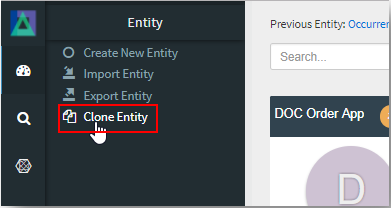
#### Step 1: Open Clone Entity Menu
1. Navigate to the **Entity Menu** at the top‑left corner
2. Select **Entity → Clone Entity**
***
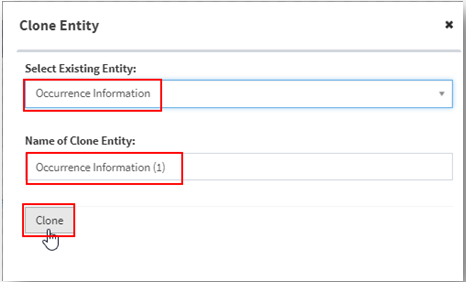
#### Step 2: Select Source Entity
* Choose an existing entity from **Select Existing Entity**
* This entity will be used as the template for cloning
***
#### Step 3: Define Clone Entity Name
* Specify a **new name** for the cloned entity
* The name must be **unique** within the application
{% hint style="info" %}
**Important**\
The name of the cloned entity **must not match any existing entity name**.
{% endhint %}
***
#### Step 4: Clone the Entity
* Click the **Clone** button
* The system duplicates the entity configuration
***
### Result of Cloning
After successful cloning:
* A **new entity** is created with identical structure to the source entity
* The system displays a **success message**
* A direct link is provided to open and edit the cloned entity
* The original entity remains unchanged
***
### What Gets Cloned
The Clone Entity process copies:
* Entity metadata
* Modules and their configurations
* Fields and field properties
* Tabs and tab conditions
* Buttons and actions
* Layout structure
This ensures that the cloned entity behaves consistently with the original at the time of cloning.
***
### Usage Guidelines
* Use cloning when entities share a common structure
* Rename the cloned entity meaningfully to reflect its purpose
* Review and update database mappings after cloning
* Customize fields, actions, and logic as required
* Avoid cloning obsolete or deprecated entities
* Test the cloned entity before using it in production
***
### Summary
The **Clone Entity** feature provides a fast and efficient way to replicate existing entities in ONEWEB.
Key points:
* Creates a copy of an existing entity
* Saves time in Smart Form development
* Allows unlimited replicas with unique names
* Original entity remains unaffected
* Ideal for building variations of similar entities
Using Clone Entity effectively supports **rapid development, consistency, and scalability** in ONEWEB App Designer.
---
# Agent Instructions: Querying This Documentation
If you need additional information that is not directly available in this page, you can query the documentation dynamically by asking a question.
Perform an HTTP GET request on the current page URL with the `ask` query parameter:
```
GET https://docs.onewebstack.com/designer-reference/app-designer/entity/clone-entity.md?ask=
```
The question should be specific, self-contained, and written in natural language.
The response will contain a direct answer to the question and relevant excerpts and sources from the documentation.
Use this mechanism when the answer is not explicitly present in the current page, you need clarification or additional context, or you want to retrieve related documentation sections.