# PGD Directives

**PGD Directives** allow developers to add **custom directives (custom attributes)** to any UI element in **ONEWEB Page Designer**.\
These directives behave as additional HTML properties and enable **advanced, dynamic UI behavior** that goes beyond standard configuration options.

PGD Directives are commonly used to:

* Control visibility dynamically
* Bind values conditionally
* Apply CSS classes based on state
* Extend component behavior using Angular‑style directives

***

### How to Add a PGD Directive

#### Step 1: Select the Target Element

1. Open your page in **Page Designer**
2. Click on the UI element you want to extend with a directive

<figure><img src="https://2015371994-files.gitbook.io/~/files/v0/b/gitbook-x-prod.appspot.com/o/spaces%2FMpDjHWFRUtZ5nJcSfVXd%2Fuploads%2FrbPCWPGj405VRiiXLu1W%2Fimage.png?alt=media&#x26;token=3856555f-4f27-4417-bade-dc03582ea64f" alt=""><figcaption></figcaption></figure>

<p align="center"><em>Select an element on the page</em></p>

***

#### Step 2: Open Directive Configuration

1. In the **Property Editor**, open the **Setting and Data** tab
2. Click **+ Add Directive**

<figure><img src="https://2015371994-files.gitbook.io/~/files/v0/b/gitbook-x-prod.appspot.com/o/spaces%2FMpDjHWFRUtZ5nJcSfVXd%2Fuploads%2FhMm16qkSALjcTD5HQfyg%2Fimage.png?alt=media&#x26;token=ca51afe5-521a-4b86-91d8-4977dd90bc0d" alt=""><figcaption></figcaption></figure>

3. Click the **Add (+)** icon

<figure><img src="https://2015371994-files.gitbook.io/~/files/v0/b/gitbook-x-prod.appspot.com/o/spaces%2FMpDjHWFRUtZ5nJcSfVXd%2Fuploads%2FFDBi0Nor7BEhhPrPrKpl%2Fimage.png?alt=media&#x26;token=95acf505-6305-49f0-915e-07ed6f692f78" alt=""><figcaption></figcaption></figure>

<p align="center"><em>Add new directive row</em></p>

***

#### Step 3: Define Directive Attribute and Value

1. Enter the **Directive Attribute** (e.g. `ng-hide`, `ng-class`, `ng-value`)
2. Select how the value is provided:
   * **Static value**
   * **Value from State**

If using State, apply the following syntax:

```
{{State.parameterName}}
```

3. Click **Done** to save the directive

<figure><img src="https://2015371994-files.gitbook.io/~/files/v0/b/gitbook-x-prod.appspot.com/o/spaces%2FMpDjHWFRUtZ5nJcSfVXd%2Fuploads%2Fe9UFE0yKg1fNY8JctFTK%2Fimage.png?alt=media&#x26;token=8fe36490-f985-4501-94ad-c0b51424eb60" alt=""><figcaption></figcaption></figure>

<p align="center"><em>Configure directive attribute and value</em></p>

***

#### Step 4: Save and Verify

1. Save the page
2. Build the application
3. Inspect the rendered HTML to verify the directive has been added to the element

<figure><img src="https://2015371994-files.gitbook.io/~/files/v0/b/gitbook-x-prod.appspot.com/o/spaces%2FMpDjHWFRUtZ5nJcSfVXd%2Fuploads%2FcPTPoGcwM5vdtXhdbDLK%2Fimage.png?alt=media&#x26;token=c2dbce26-b828-4b96-919f-4af3950e4276" alt=""><figcaption></figcaption></figure>

<p align="center"><em>Directive reflected in HTML output</em></p>

***

### Common Uses of PGD Directives

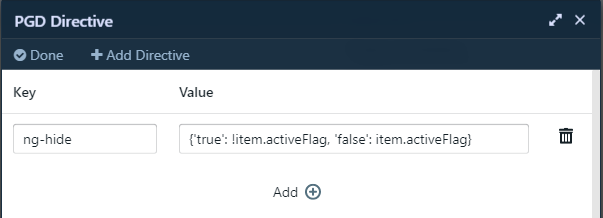
#### Conditional Visibility (`ng-hide`)

Use `ng-hide` to show or hide elements dynamically based on conditions.
<figure><img src="https://2015371994-files.gitbook.io/~/files/v0/b/gitbook-x-prod.appspot.com/o/spaces%2FMpDjHWFRUtZ5nJcSfVXd%2Fuploads%2FwqlHZrEUaFd5qP8373pY%2Fimage.png?alt=media&#x26;token=24422a94-ee95-4280-844d-d5f71e0e2006" alt=""><figcaption></figcaption></figure>

<p align="center"><em>Hide element using ng-hide</em></p>

***

#### Conditional Value Assignment (`ng-value`)

Use `ng-value` to assign values to elements based on logic.

<figure><img src="https://2015371994-files.gitbook.io/~/files/v0/b/gitbook-x-prod.appspot.com/o/spaces%2FMpDjHWFRUtZ5nJcSfVXd%2Fuploads%2FmMPzkHy42bHsu49O9b0e%2Fimage.png?alt=media&#x26;token=66a05ec6-b435-43f7-902f-7bfa13e9fb37" alt=""><figcaption></figcaption></figure>

<p align="center"><em>Set value using ng-value</em></p>

***

#### Bind Values from State or Store

PGD Directives can reference values from:

* **Page State**
* **Store**

<figure><img src="https://2015371994-files.gitbook.io/~/files/v0/b/gitbook-x-prod.appspot.com/o/spaces%2FMpDjHWFRUtZ5nJcSfVXd%2Fuploads%2Fe49F3qjN5N1OqzPg1Ipj%2Fimage.png?alt=media&#x26;token=4f5128d3-3d6c-4924-84e6-31607ee3aadc" alt=""><figcaption></figcaption></figure>

<p align="center"><em>Bind directive value from State or Store</em></p>

***

#### Dynamic Styling (`ng-class`)

Use `ng-class` to apply CSS classes dynamically based on State or Store values.

<figure><img src="https://2015371994-files.gitbook.io/~/files/v0/b/gitbook-x-prod.appspot.com/o/spaces%2FMpDjHWFRUtZ5nJcSfVXd%2Fuploads%2FdKLhWZSR0gWVsbpyq2kK%2Fimage.png?alt=media&#x26;token=71626e64-e875-4672-9c34-f1f4b631b870" alt=""><figcaption></figcaption></figure>

<p align="center"><em>Apply CSS class dynamically using ng-class</em></p>

***

### Design Perspective

As part of **Page Designer advanced usage best practices**:

* Use PGD Directives only when standard properties are insufficient
* Keep directive usage consistent and well‑documented
* Avoid overly complex logic in directives
* Prefer State‑driven conditions for clarity and maintainability

PGD Directives provide **powerful low‑level control** over UI behavior while still working within the Page Designer framework.


---

# Agent Instructions: Querying This Documentation

If you need additional information that is not directly available in this page, you can query the documentation dynamically by asking a question.

Perform an HTTP GET request on the current page URL with the `ask` query parameter:

```
GET https://docs.onewebstack.com/building-apps/ui-page-designer/ux-ui-components/pages/page-features/pgd-directives.md?ask=<question>
```

The question should be specific, self-contained, and written in natural language.
The response will contain a direct answer to the question and relevant excerpts and sources from the documentation.

Use this mechanism when the answer is not explicitly present in the current page, you need clarification or additional context, or you want to retrieve related documentation sections.
