# Navbar
**Navbar** provides a structured navigation mechanism for **web applications** built using ONEWEB Page Designer.\
It allows users to easily move between pages using a consistent menu layout, improving usability and overall user experience.
Page Designer provides a **predefined Navbar Page Template for Web**, which can be customized and reused across pages.
***
### Create a Navbar Using the Navbar Template
#### Step 1: Create a New Navbar Page
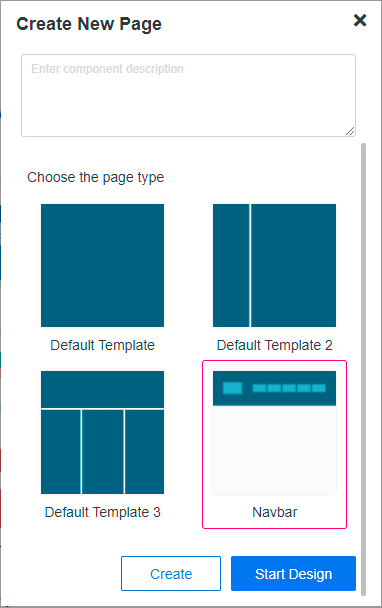
1. Open **Create New Page**
2. Choose the **Navbar template** under Web page templates
The system generates a page layout specifically designed for navigation menus.
***
### Customize the Navbar Page
Once created, users can customize the Navbar page according to their website requirements, such as:
* Adding menu items
* Linking menu items to pages or URLs
* Styling navigation elements
* Adjusting layout and spacing
This Navbar page acts as a reusable navigation component.
***
### Use the Navbar in Your Pages
To apply the Navbar for navigation, it must be attached to the **Header page** of the application.
***
#### Step 2: Open Header Page
1. Open the **Header Page** in the application
***
#### Step 3: Open Page Settings
1. Open the **Page Settings** menu for the Header page
***
#### Step 4: Select Navbar for Header
1. In Page Settings, locate the **Menu List** option
2. Choose the created **Navbar page** from the drop‑down list
3. Select navbar position:
* **Top**
* **Bottom**
***
### Navbar Positioning
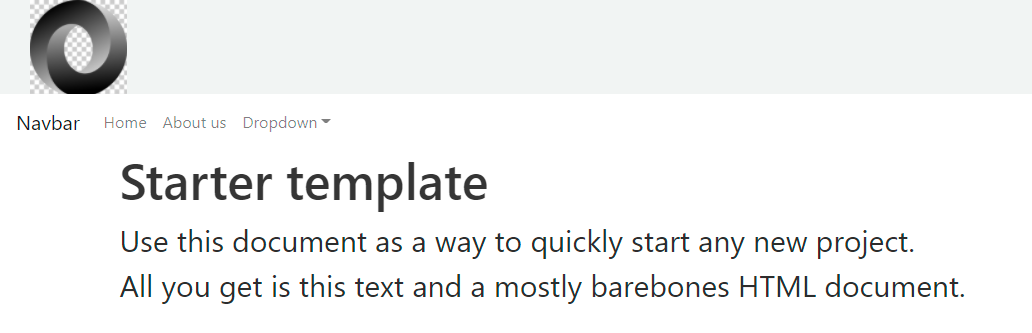
If the user selects **Bottom**, the Navbar appears below the header content, as shown below:
Selecting **Top** places the Navbar above the header content.
***
### Design Perspective
As part of **Web UX best practices**:
* Use Navbar for **primary navigation**
* Keep menu items concise and well‑organized
* Ensure consistent navigation across pages
* Avoid overcrowding the Navbar
* Test responsiveness across screen sizes
Using the Navbar template ensures **consistent, maintainable, and user‑friendly navigation** throughout the web application.
---
# Agent Instructions: Querying This Documentation
If you need additional information that is not directly available in this page, you can query the documentation dynamically by asking a question.
Perform an HTTP GET request on the current page URL with the `ask` query parameter:
```
GET https://docs.onewebstack.com/building-apps/ui-page-designer/ux-ui-components/pages/page-features/navbar.md?ask=
```
The question should be specific, self-contained, and written in natural language.
The response will contain a direct answer to the question and relevant excerpts and sources from the documentation.
Use this mechanism when the answer is not explicitly present in the current page, you need clarification or additional context, or you want to retrieve related documentation sections.