# Local Storage in Page

**Local Storage** in ONEWEB Page Designer allows developers to create a **local database on a mobile device**.\
This local database is stored directly on the device where the mobile application is running and can be used to store, manage, and display data **offline**.

This feature is particularly useful when:

* The application must work in **poor or no network connectivity**
* Data needs to be captured offline and synced later
* Performance and responsiveness are critical on mobile devices

Local Storage can optionally be synchronized with the **server‑side database** using the **Sync Service** once network connectivity is restored.

***

### Create a Local Database in a Mobile Application

#### Step 1: Open Database Manager

1. Open **Page Designer**
2. Click the **Database** icon
3. Click the **Plus (+)** icon to create a new table

<figure><img src="https://2015371994-files.gitbook.io/~/files/v0/b/gitbook-x-prod.appspot.com/o/spaces%2FMpDjHWFRUtZ5nJcSfVXd%2Fuploads%2FGXH29jjK4nMtiQ8YJbNs%2Fimage.png?alt=media&#x26;token=66e1e131-c062-43b2-97cd-f4af045fb785" alt=""><figcaption></figcaption></figure>

<p align="center"><em>Open Database and create a new table</em></p>

***

#### Step 2: Define Collection Properties

1. Enter the **Collection Name**
2. Select the **Collection Space**
3. Click **Start Design**

<figure><img src="https://2015371994-files.gitbook.io/~/files/v0/b/gitbook-x-prod.appspot.com/o/spaces%2FMpDjHWFRUtZ5nJcSfVXd%2Fuploads%2FqXd5ge6RT3QKVsCwTaEJ%2Fimage.png?alt=media&#x26;token=d3b1b1be-1eeb-49a8-9998-aa36ec9bd54e" alt=""><figcaption></figcaption></figure>

<p align="center"><em>Create local collection</em></p>

> If you want to enable server synchronization, refer to\
> **Sync Service in Page** for additional configuration.

***

#### Step 3: Add Columns and Initial Data

1. Define columns for the table (name, type, constraints)
2. Optionally insert sample data for testing

<figure><img src="https://2015371994-files.gitbook.io/~/files/v0/b/gitbook-x-prod.appspot.com/o/spaces%2FMpDjHWFRUtZ5nJcSfVXd%2Fuploads%2Fq1OTlyZwVWsXKkOCk2pz%2Fimage.png?alt=media&#x26;token=7c319f9a-2927-4513-a722-17d8a5ebbe2e" alt=""><figcaption></figcaption></figure>

<p align="center"><em>Add columns and data to local table</em></p>

***

#### Step 4: Save Local Table

Click **Save**.\
The table now appears under **Database** on the left‑hand panel.

<figure><img src="https://2015371994-files.gitbook.io/~/files/v0/b/gitbook-x-prod.appspot.com/o/spaces%2FMpDjHWFRUtZ5nJcSfVXd%2Fuploads%2FH1CMuhLlpA4iBRBWKavJ%2Fimage.png?alt=media&#x26;token=e59e7a64-88ad-400a-b383-7abfe7a6b708" alt=""><figcaption></figcaption></figure>

<p align="center"><em>Local table saved and visible</em></p>

***

#### Step 5: Export DDL (Optional – For Sync)

If server synchronization is required:

1. Click the **Export DDL** icon
2. Use the generated DDL to create the corresponding table on the server database

<figure><img src="https://2015371994-files.gitbook.io/~/files/v0/b/gitbook-x-prod.appspot.com/o/spaces%2FMpDjHWFRUtZ5nJcSfVXd%2Fuploads%2F9OZb0NtJCwMCjzKhfCu2%2Fimage.png?alt=media&#x26;token=2e19ba01-1f83-4cbc-bb41-139a70b0e508" alt=""><figcaption></figcaption></figure>

<p align="center"><em>Export DDL for server sync</em></p>

***

### Display Local Storage Data on the Page

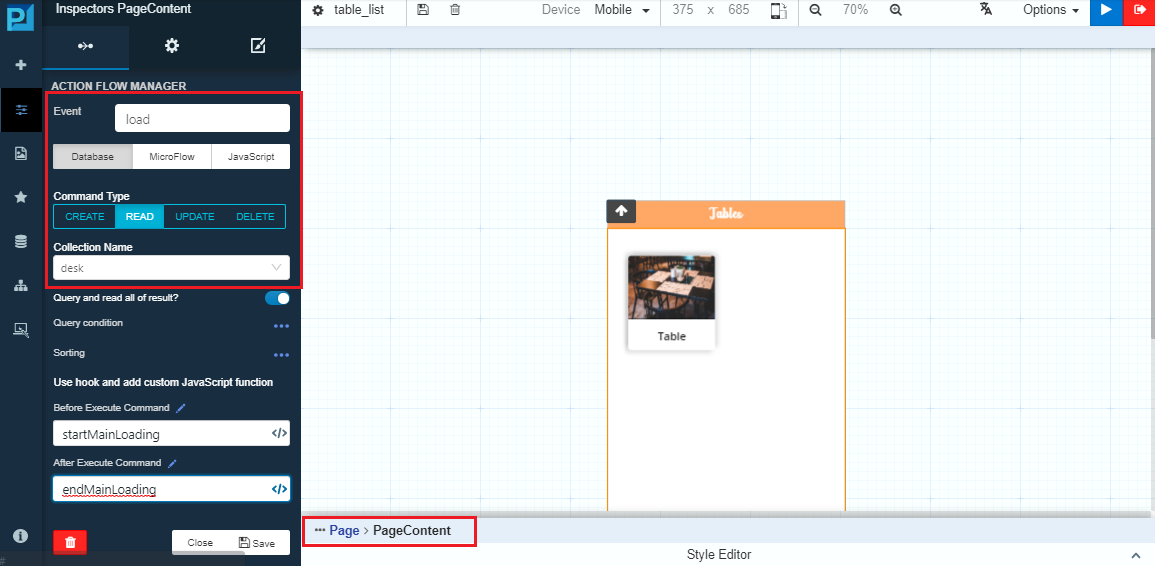
#### Step 6: Read Data on Page Load

1. Open the target page
2. Add an **Action** to the **PageContent – Load** event
3. Configure the action to read from the local database
<figure><img src="https://2015371994-files.gitbook.io/~/files/v0/b/gitbook-x-prod.appspot.com/o/spaces%2FMpDjHWFRUtZ5nJcSfVXd%2Fuploads%2F9uftHiubnPyLLisIwAUA%2Fimage.png?alt=media&#x26;token=6dced713-7345-4672-8af3-94389208dd9d" alt=""><figcaption></figcaption></figure>

<p align="center"><em>Read local DB on page load</em></p>

***

#### Step 7: Bind UI Components to Local Table

1. Add a **Card** component to the page
2. Use **Connect to DB** to bind the Card to the local table

<figure><img src="https://2015371994-files.gitbook.io/~/files/v0/b/gitbook-x-prod.appspot.com/o/spaces%2FMpDjHWFRUtZ5nJcSfVXd%2Fuploads%2FqvtObwbwd1AyUHWh1MVi%2Fimage.png?alt=media&#x26;token=ffd51c75-c525-4cfa-9870-4b535bbb5de0" alt=""><figcaption></figcaption></figure>

<p align="center"><em>Bind Card component to local DB</em></p>

***

#### Step 8: Map Card Fields

Map child fields inside the Card component to table columns.

***

### Sync Local Data with Server (Optional)

#### Step 9: Add Sync Button

1. Add a **Button** to the page
2. Configure it to trigger a sync action

<figure><img src="https://2015371994-files.gitbook.io/~/files/v0/b/gitbook-x-prod.appspot.com/o/spaces%2FMpDjHWFRUtZ5nJcSfVXd%2Fuploads%2FPlSoNBghLPLz7jU184Gv%2Fimage.png?alt=media&#x26;token=0102b269-7846-4e91-ade9-0af390539c53" alt=""><figcaption></figcaption></figure>

<p align="center"><em>Add sync button to page</em></p>

***

#### Step 10: Add JavaScript for Sync

Configure the button to execute JavaScript that calls the local storage sync function.

<figure><img src="https://2015371994-files.gitbook.io/~/files/v0/b/gitbook-x-prod.appspot.com/o/spaces%2FMpDjHWFRUtZ5nJcSfVXd%2Fuploads%2FulI4SpeK78Pc7R6puYti%2Fimage.png?alt=media&#x26;token=91249e60-e6f1-447d-a886-89b2abcd1d02" alt=""><figcaption></figcaption></figure>

<p align="center"><em>Add JavaScript for syncing local storage</em></p>

***

### Result

#### Local Data Displayed

When the app runs, data from the **local database** is displayed on the page.

<figure><img src="https://2015371994-files.gitbook.io/~/files/v0/b/gitbook-x-prod.appspot.com/o/spaces%2FMpDjHWFRUtZ5nJcSfVXd%2Fuploads%2FNatsc3nLlcfUSXPtt2t9%2Fimage.png?alt=media&#x26;token=6d06d319-a3cf-4f99-a393-bffed08bf42b" alt=""><figcaption></figcaption></figure>

<p align="center"><em>Data displayed from local DB</em></p>

***

#### Data Updated After Sync

After clicking the **Sync** button, additional data from the server appears.

<figure><img src="https://2015371994-files.gitbook.io/~/files/v0/b/gitbook-x-prod.appspot.com/o/spaces%2FMpDjHWFRUtZ5nJcSfVXd%2Fuploads%2FeygOAi2aq97vpFlA0Snb%2Fimage.png?alt=media&#x26;token=f1cb23f1-1ad3-45b2-a20d-6e6ffbb38d62" alt=""><figcaption></figcaption></figure>

<p align="center"><em>Data updated after server sync</em></p>

***

### Design Perspective

As part of **mobile app best practices**:

* Use Local Storage for **offline‑first design**
* Sync data when network becomes available
* Avoid storing sensitive data unencrypted
* Clearly indicate sync status to users

Local Storage enables ONEWEB applications to remain **functional, responsive, and reliable** even without continuous connectivity.


---

# Agent Instructions: Querying This Documentation

If you need additional information that is not directly available in this page, you can query the documentation dynamically by asking a question.

Perform an HTTP GET request on the current page URL with the `ask` query parameter:

```
GET https://docs.onewebstack.com/building-apps/ui-page-designer/ux-ui-components/pages/page-features/local-storage-in-page.md?ask=<question>
```

The question should be specific, self-contained, and written in natural language.
The response will contain a direct answer to the question and relevant excerpts and sources from the documentation.

Use this mechanism when the answer is not explicitly present in the current page, you need clarification or additional context, or you want to retrieve related documentation sections.
