# Custom Font

In addition to system‑provided fonts, **ONEWEB Page Designer** allows users to upload and use **custom fonts**.\
This feature helps teams maintain **brand consistency** and apply specific typography styles across web pages and mobile applications.

Supported font formats include:

* **TTF (TrueType Font)**
* **OTF (OpenType Font)**
* **WOFF (Web Open Font Format)**

Once uploaded, custom fonts become available for use throughout **Page Designer**, just like built‑in system fonts.

***

### How to Upload Custom Fonts

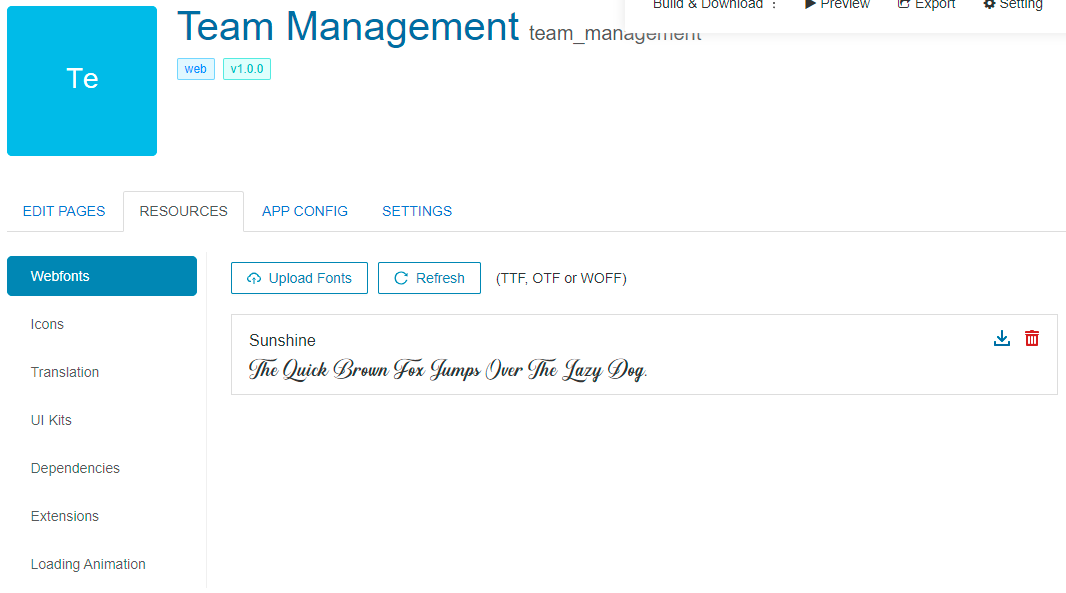
#### Step 1: Open Web Fonts Resource

1. Open **Page Designer**
2. Navigate to the **RESOURCES** tab
3. Select the **WEBFONTS** sub‑tab

<figure><img src="https://2015371994-files.gitbook.io/~/files/v0/b/gitbook-x-prod.appspot.com/o/spaces%2FMpDjHWFRUtZ5nJcSfVXd%2Fuploads%2FLaBrrIcmwTHggywU6jeJ%2Fimage.png?alt=media&#x26;token=14213661-db63-4a62-9228-a59e7c8da61d" alt=""><figcaption></figcaption></figure>

<p align="center"><em>Open Web Fonts under Resources</em></p>

***

#### Step 2: Upload Font Files

1. Click **Upload Fonts**
2. Select font files from your local machine\
   **or**
3. Drag and drop font files directly into the upload area
<figure><img src="https://2015371994-files.gitbook.io/~/files/v0/b/gitbook-x-prod.appspot.com/o/spaces%2FMpDjHWFRUtZ5nJcSfVXd%2Fuploads%2FdptY23ckCma94Na59mZm%2Fimage.png?alt=media&#x26;token=c3cde05a-ba05-4336-b7cd-1efb4619a454" alt=""><figcaption></figcaption></figure>

<p align="center"><em>Upload or drag‑and‑drop font files</em></p>

After the upload is complete, the fonts are registered and ready for use.

***

### Use Custom Fonts in Page Designer

Once uploaded:

* The new fonts appear in the **Font Family** selection list
* Fonts can be applied to:
  * Text components
  * Headings
  * Labels and other typography‑based elements

Custom fonts can be used consistently across:

* Individual pages
* Shared Header & Footer
* Entire applications

***

### Design Perspective

As part of **Page Designer best practices**:

* Use custom fonts to align UI with corporate branding
* Limit the number of custom fonts to maintain performance
* Prefer WOFF format for web optimization when available
* Apply fonts consistently across pages for better UX

Custom Font support enables designers to deliver **polished, brand‑aligned user interfaces** without custom CSS or manual font handling.


---

# Agent Instructions: Querying This Documentation

If you need additional information that is not directly available in this page, you can query the documentation dynamically by asking a question.

Perform an HTTP GET request on the current page URL with the `ask` query parameter:

```
GET https://docs.onewebstack.com/building-apps/ui-page-designer/ux-ui-components/pages/page-features/custom-font.md?ask=<question>
```

The question should be specific, self-contained, and written in natural language.
The response will contain a direct answer to the question and relevant excerpts and sources from the documentation.

Use this mechanism when the answer is not explicitly present in the current page, you need clarification or additional context, or you want to retrieve related documentation sections.
