# Data Designer Tools
The **Data Designer** provides a rich set of tools to help users design, manage, and maintain application data models using a visual **ER Diagram–based interface**.\
These tools allow users to efficiently navigate complex schemas, control diagram layout, manage versions, and transfer schema definitions across environments.
***
### Search and Navigation Tools
#### Search
The **Search field** allows users to quickly search and filter entities (tables) within the **Side Menu**, making it easier to locate specific elements in large data models.
***
#### Hide / Show Tables
Each table includes a **Hide/Show icon** that allows users to temporarily hide or display the table on the design canvas.\
This helps reduce visual clutter when working with complex ER diagrams.
***
#### Locate
The **Locate icon** allows users to quickly locate a specific table or relationship link on the design canvas.\
This feature is available for both entities and links.
***
### Toolbar Controls
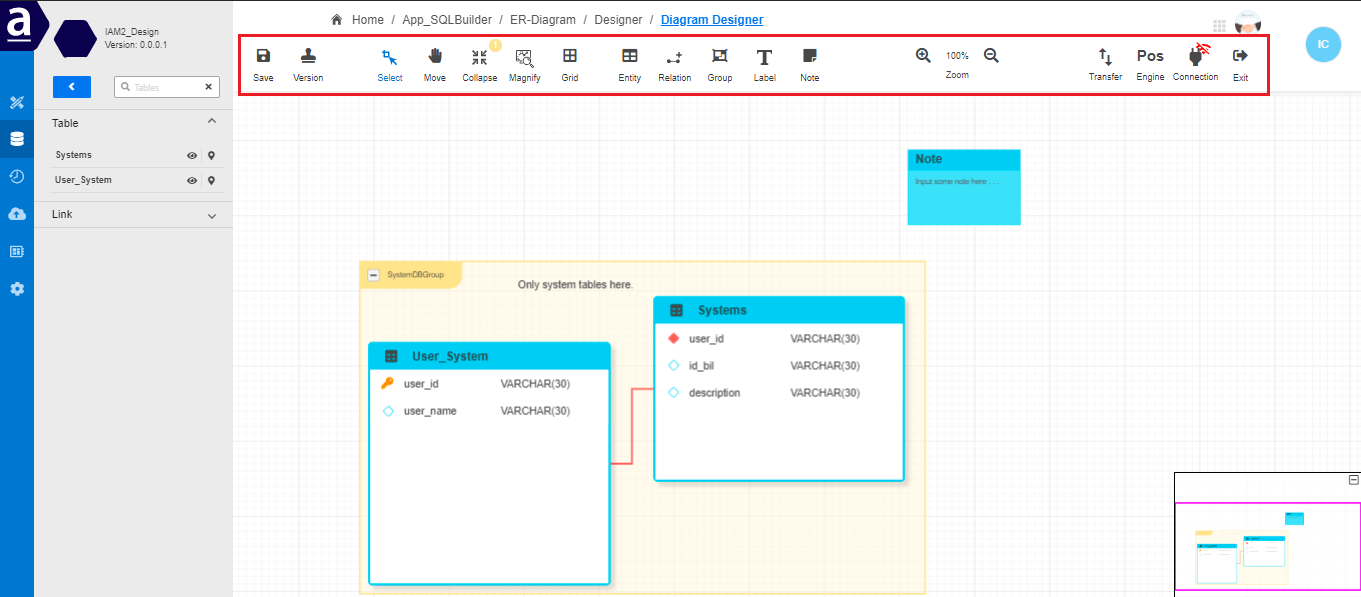
The **Toolbar**, located at the top of the Data Designer, provides quick access to commonly used design and management actions.
#### Key Toolbar Functions
* **Save** – Save the current state of the ER Diagram. Undo operations revert to the last saved version.
* **Version** – Create a version snapshot of the data model. Versions can later be compared using schema comparison tools.
* **Select / Move** – Switch between selecting elements and panning across the canvas.
* **Collapse** – Collapse tables to different levels:
* Full structure
* Table name with keys
* Table name only
* **Magnify** – Open a magnifier to zoom a specific area of the diagram.
* **Grid** – Toggle the grid layout and configure grid dimensions.
***
### Diagram Design Controls
#### Entity Tool
Add a new **Entity (Table)** to the diagram by selecting the Entity tool and clicking on the design canvas.\
Entity properties and columns can be configured through the properties panel.
***
#### Relation Tool
Create and manage **relationships** between entities using the Relation tool.
***
#### Group Tool
Organize related entities by grouping them together for better readability.
***
#### Label and Note Tools
* **Label** – Add descriptive labels to annotate the diagram.
* **Note** – Add sticky notes for documentation or design comments.
***
### Zoom Controls
Zoom controls help users adjust their view of the ER diagram:
* **Zoom In**
* **Zoom Out**
* **Zoom Percentage Indicator**
These tools are especially useful when working with large or detailed schemas.
***
### Transfer Controls
The **Transfer** feature allows users to import or export ER diagrams.
#### Import Options
* **From XML** – Import a schema exported from another Data Designer project.
* **From Database** – Import schema directly from a connected database.
* Supports **Merge** or **Replace** when entities already exist.
> Import from Database is enabled only when there is an active connection.
***
#### Export Options
Users can export the ER Diagram as:
* **PDF**
* **Image files**
* **SQL (DDL statements)**
* **XML**
***
### Column Type Mapping & POS Engine
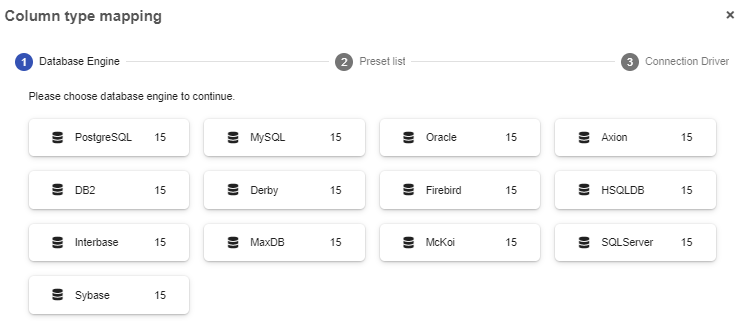
When generating SQL output, users may need to map ER Diagram column types to specific database data types.
* **Column Type Mapping** allows configuration of column mappings.
* **POS Engine** lets users select the database engine and version to be used as the default SQL generation target.
***
### Connection Control
The **Connection Control** allows users to:
* Connect to a database
* Configure new database connections
* View connection status
> For detailed guidance, refer to:\
> **SQL Builder – Connection Configuration**\
>
***
### Summary
**Data Designer Tools** provide powerful capabilities for designing, organizing, and managing application data models within AppSpace.
With these tools, users can:
* Navigate and manage complex ER diagrams efficiently
* Visually design entities and relationships
* Import and export schemas across environments
* Generate database‑specific SQL
* Maintain versioned and governed data models
Together, these features make Data Designer a central component of ONEWEB’s **low‑code database design workflow**.
---
# Agent Instructions: Querying This Documentation
If you need additional information that is not directly available in this page, you can query the documentation dynamically by asking a question.
Perform an HTTP GET request on the current page URL with the `ask` query parameter:
```
GET https://docs.onewebstack.com/building-apps/low-code-with-appspace/database-tools/data-designer/data-designer-tools.md?ask=
```
The question should be specific, self-contained, and written in natural language.
The response will contain a direct answer to the question and relevant excerpts and sources from the documentation.
Use this mechanism when the answer is not explicitly present in the current page, you need clarification or additional context, or you want to retrieve related documentation sections.