# Create Application in AppSpace
Creating an application in **AppSpace** is the first step in building a low‑code application with ONEWEB.\
AppSpace provides a guided process that allows users to set up an application and start creating its components from a single workspace.
***
### Step 1: Access AppSpace Home
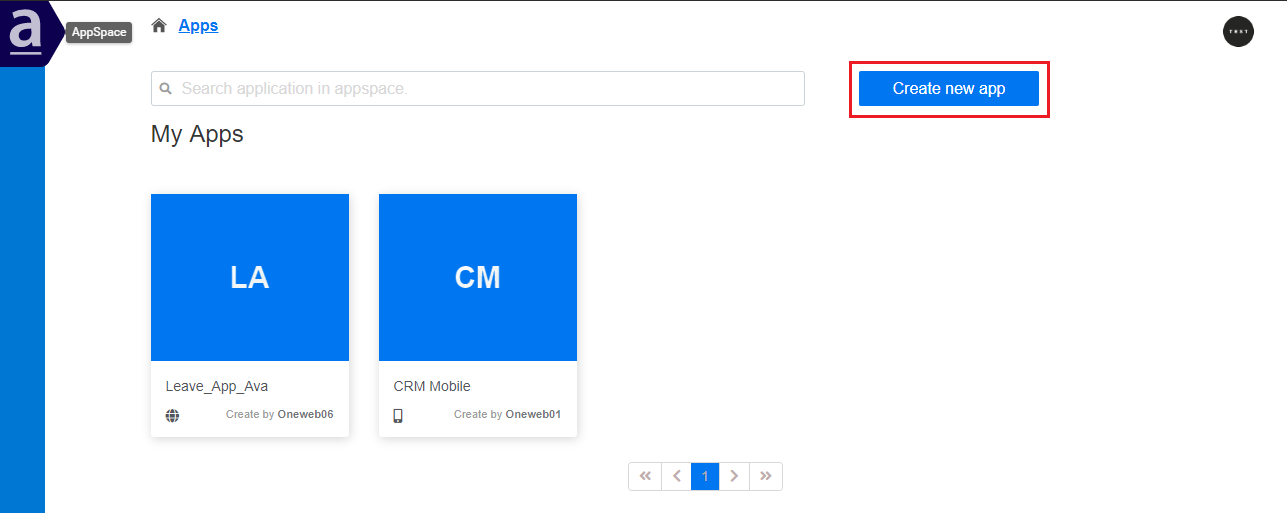
1. Log in to **AppSpace**
2. Navigate to the **AppSpace Home Page**
3. Click the **Create New App** button
***
### Step 2: Choose Application Type
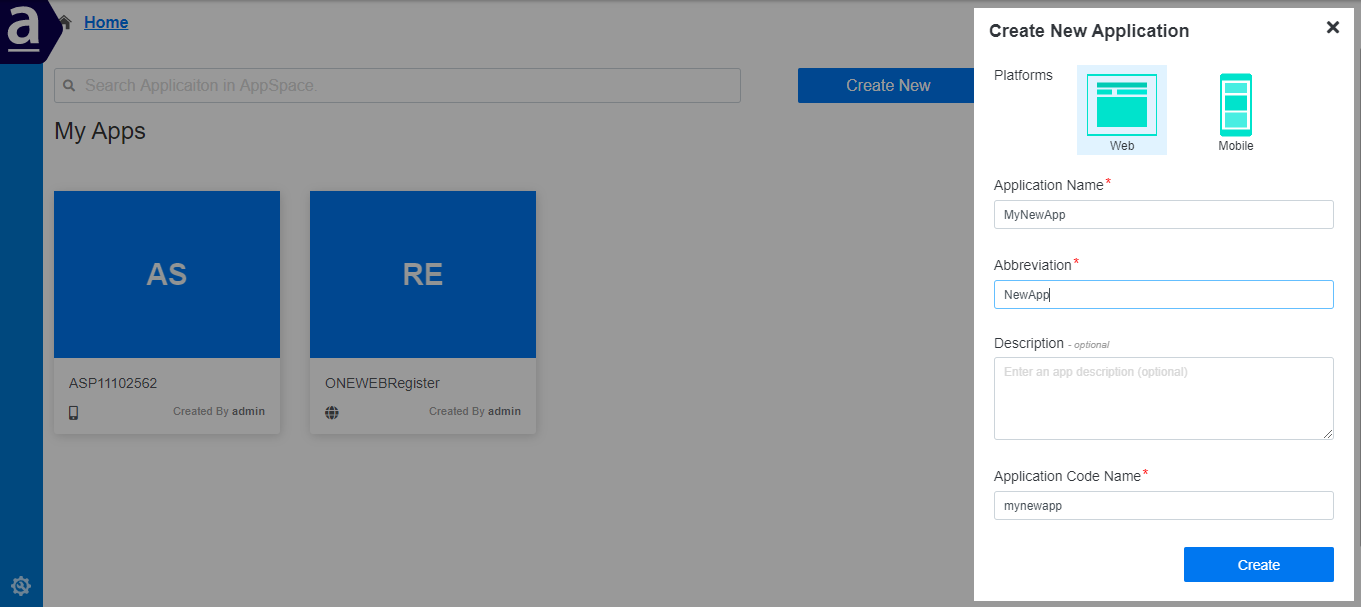
When creating a new application, AppSpace allows you to choose the target platform:
* **Web Application**
* **Mobile Application**
After selecting the appropriate platform, enter the required application details.
***
### Step 3: Create the Application
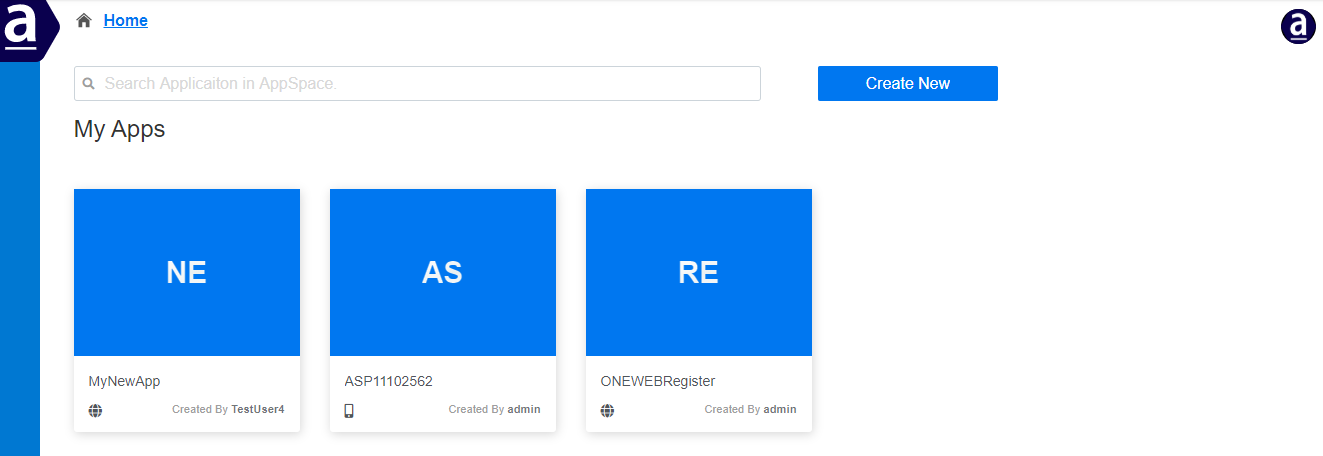
Click the **Create** button to finalize application creation.
The application is now successfully created in AppSpace.
***
### Step 4: Open Application Components
1. Click the newly created application
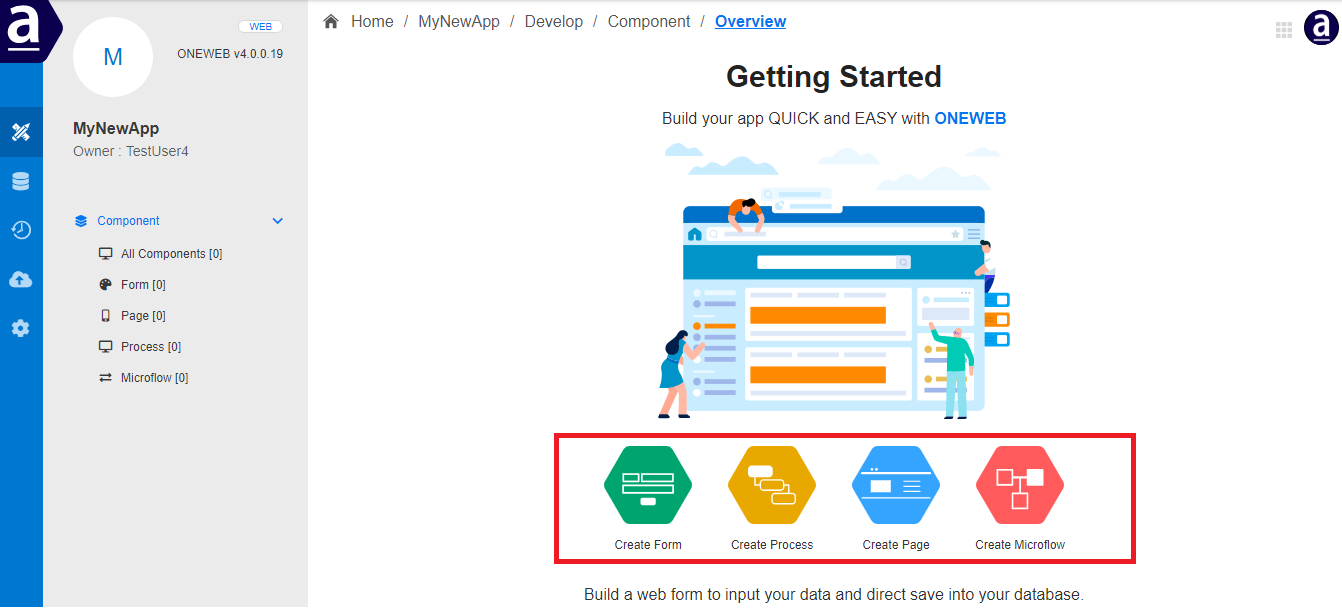
2. AppSpace redirects you to the **Components Page**
From this page, you can start creating all components that make up your application.
***
### Step 5: Create Application Components
Users can create components directly by clicking the corresponding icons.
Examples of components include:
* Smart Forms
* Pages (Web / Mobile)
* Processes
* Microflows
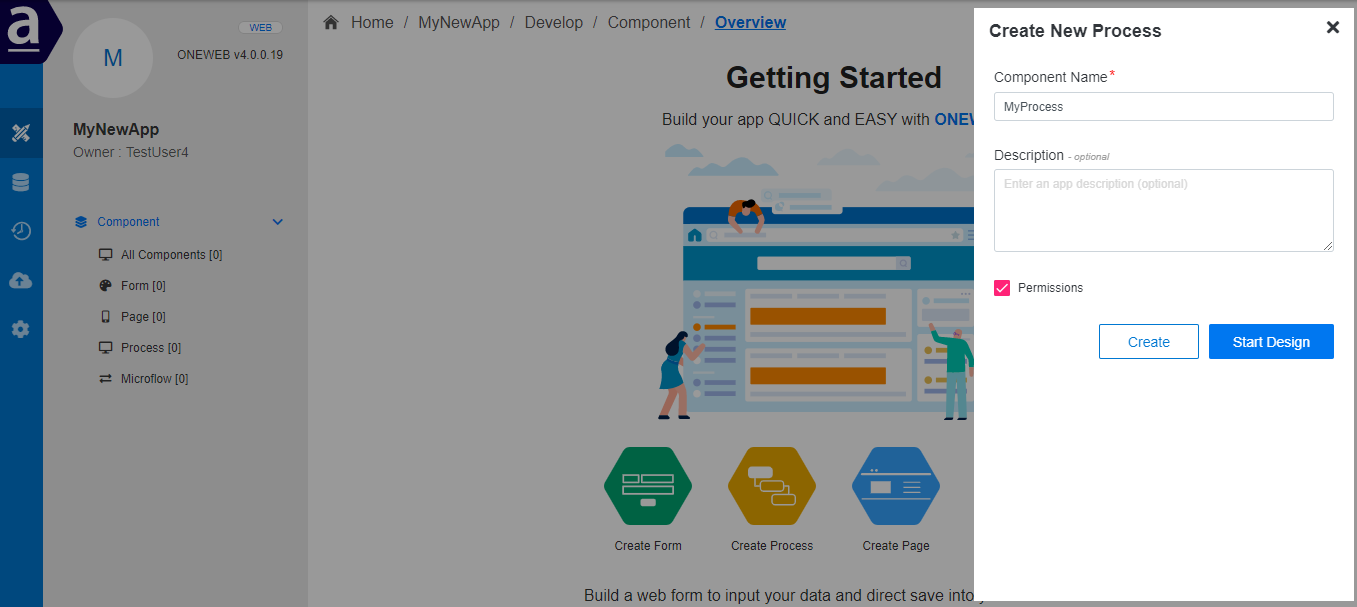
For example, to create a new process, click **Create Process**.
***
### Step 6: Configure and Create a Process
In the **Create Process** dialog:
* Enter the process details
* Choose one of the following options:
* **Create** – creates an empty process for later design
* **Start Design** – creates the process and opens Process Designer immediately
The **Permission** checkbox allows the application owner to selectively assign this component to members of the development team.
> For details on permission assignment, refer to:\
> **Development Team Management**\
>
***
#### Edit Existing Components
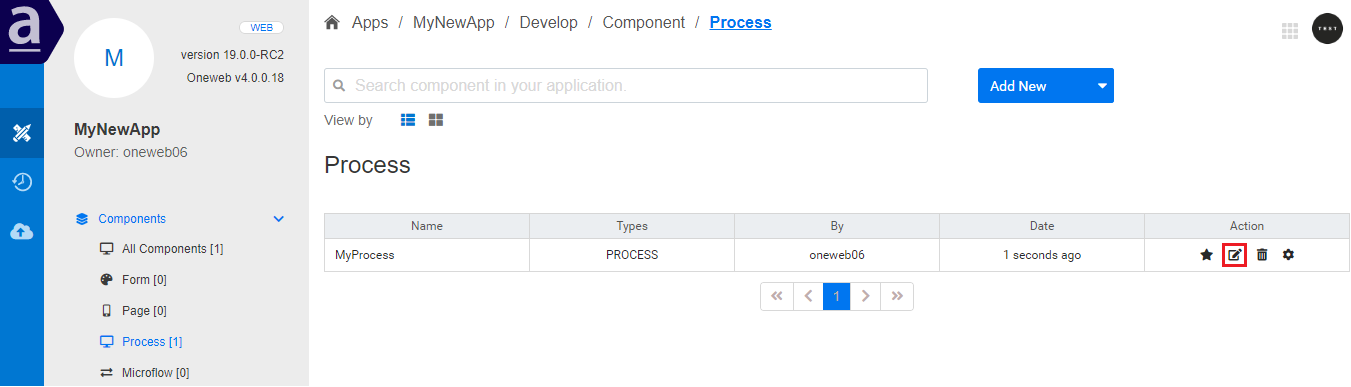
If the user selects **Create**, the component appears in the components list.\
Users can later click the **Edit** icon to start designing the component.
Selecting **Start Design** or clicking the Edit icon redirects the user directly to the corresponding designer (e.g., Process Designer).
***
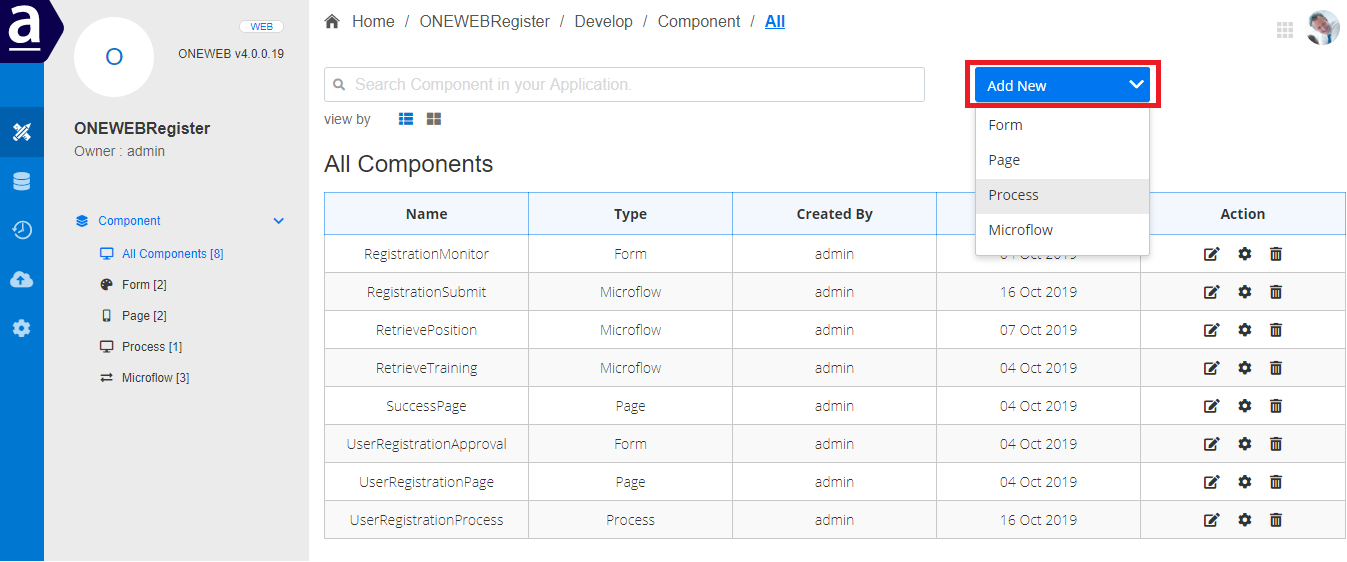
### Alternative: Add New Component
Users can also create components from the **Component List** screen by clicking the **Add New Component** button.
***
### Summary
Creating an application in **AppSpace** is a structured and intuitive process that serves as the foundation for low‑code development in ONEWEB.
Through AppSpace, users can:
* Create Web or Mobile applications
* Manage all application components in one place
* Design UI, processes, and services collaboratively
* Control permissions and component ownership
* Scale application development efficiently
This makes AppSpace the starting point for building and managing enterprise‑grade low‑code applications using ONEWEB.
---
# Agent Instructions: Querying This Documentation
If you need additional information that is not directly available in this page, you can query the documentation dynamically by asking a question.
Perform an HTTP GET request on the current page URL with the `ask` query parameter:
```
GET https://docs.onewebstack.com/building-apps/low-code-with-appspace/create-application-in-appspace.md?ask=
```
The question should be specific, self-contained, and written in natural language.
The response will contain a direct answer to the question and relevant excerpts and sources from the documentation.
Use this mechanism when the answer is not explicitly present in the current page, you need clarification or additional context, or you want to retrieve related documentation sections.