# Upload File
During Microflow or Process Flow development, users often need to reference **external files** such as:
* **JAR files** for **Java Tasks**
* **WSDL / XSD files** for **Web Service Tasks**
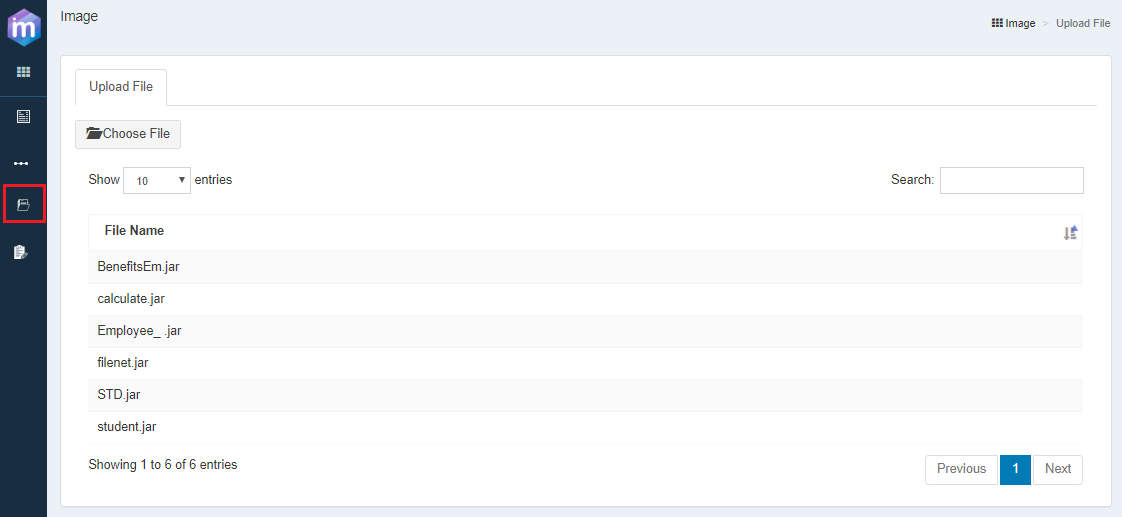
Instead of uploading these files individually at each node, ONEWEB provides an **Upload File facility** at the **application level**.\
Uploaded files can then be reused and referenced across multiple nodes and flows.
This approach simplifies **file management**, version control, and maintenance.
***
### Purpose of Upload File Facility
Using the Upload File feature allows users to:
* Centralize management of shared artifacts
* Reuse the same JAR or WSDL file across multiple flows
* Update files without modifying individual node configurations
* Reduce duplication and configuration errors
This is especially useful in enterprise‑scale integrations where multiple Microflows depend on the same libraries or service definitions.
***
### Upload Files to an Application
To upload files for use in Microflows or Process Flows:
1. Open the application in **AppSpace**
2. Navigate to the **Upload Files** menu
3. Upload the required files:
* Java JAR files
* WSDL / XSD files
* Other supported artifacts
Once uploaded, the files are stored at the **application level** and become available for selection in relevant node configurations.
***
### Using Uploaded Files in Node Tasks
After uploading files, users can reference them directly from node configuration panels.
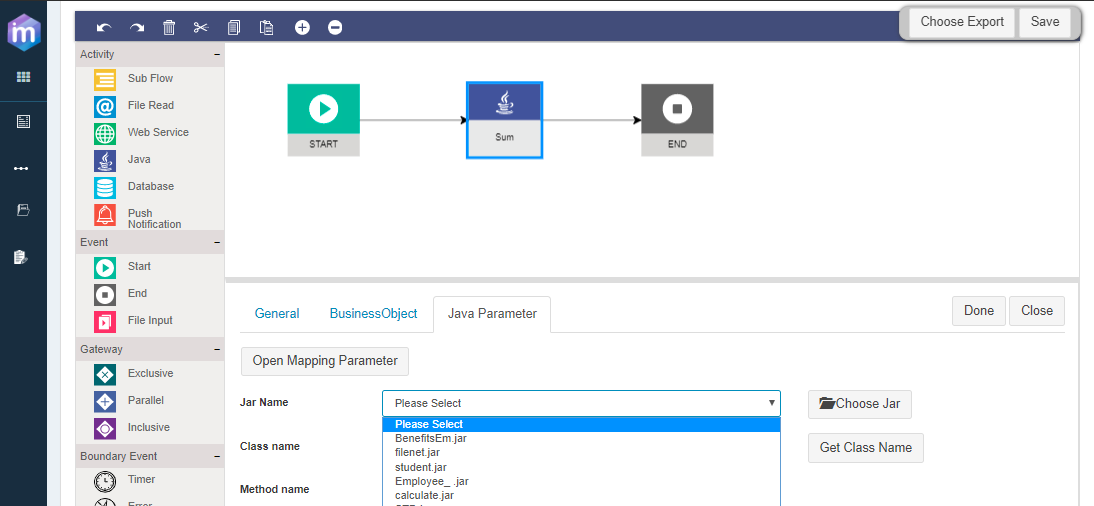
#### Java Task
* Open the **Java Task** configuration
* Select the required **JAR file** from the list of uploaded files
***
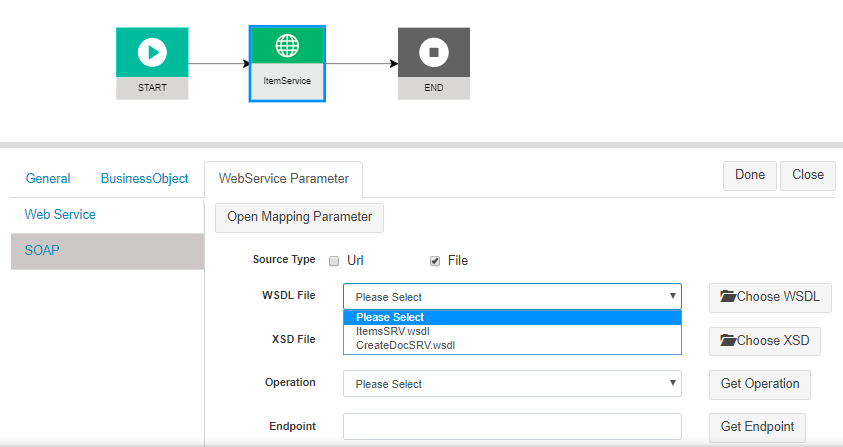
#### Web Service Task
* Open the **Web Service Task** configuration
* Choose the uploaded **WSDL / XSD file** from the dropdown or selection dialog
***
### Benefits of Centralized File Upload
Using the Upload File facility provides several benefits:
* **Ease of maintenance**\
Updating a file automatically affects all nodes referencing it.
* **Consistency**\
Ensures all flows use the same version of an artifact.
* **Reusability**\
One file can be reused across multiple Microflows or Processes.
* **Cleaner configuration**\
Node configurations remain simple and focused on logic, not file management.
***
### Best Practices
* Upload shared JAR and WSDL files at the application level
* Use meaningful file names and maintain versioning discipline
* Avoid embedding JAR files directly inside multiple Java Nodes
* Update uploaded files carefully to avoid unexpected runtime impact
* Validate flows after updating shared artifacts
***
### Summary
The **Upload File** feature in ONEWEB allows developers to manage external artifacts centrally and reuse them across Microflows and Process Flows.
With this capability, users can:
* Upload JAR and WSDL files once per application
* Reference them easily from Java and Web Service nodes
* Simplify maintenance and updates
* Build cleaner, more maintainable integration flows
This feature is an important support mechanism for building **scalable and enterprise‑grade integrations** using ONEWEB Microflow.
---
# Agent Instructions: Querying This Documentation
If you need additional information that is not directly available in this page, you can query the documentation dynamically by asking a question.
Perform an HTTP GET request on the current page URL with the `ask` query parameter:
```
GET https://docs.onewebstack.com/building-apps/integrations/develop-integration-with-oneweb-microflow/upload-file.md?ask=
```
The question should be specific, self-contained, and written in natural language.
The response will contain a direct answer to the question and relevant excerpts and sources from the documentation.
Use this mechanism when the answer is not explicitly present in the current page, you need clarification or additional context, or you want to retrieve related documentation sections.