# Create a Microflow
To create a **Microflow**, a user must first create a new application or open an existing application in **AppSpace**.\
Microflows are always created **within the context of an application** and are managed as part of the application components.
***
### Step 1: Create an Application in AppSpace
1. Log in to **AppSpace**
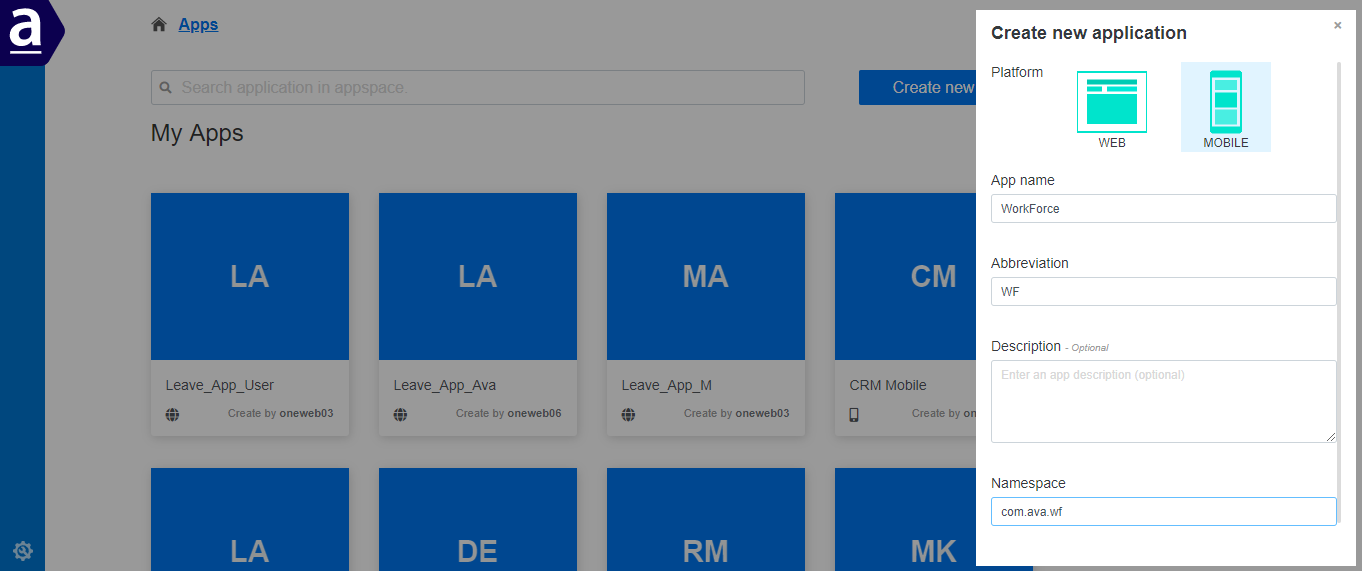
2. Click the **Create New App** button
***
#### Choose Application Type
When creating a new application, select the appropriate platform:
* **Web Application**
* **Mobile Application**
Enter the required application details and proceed.
***
#### Create and Open the Application
1. Click **Create**
2. The application is created successfully
3. Click the application card to open it
AppSpace redirects the user to the **Application Components** page.
***
### Step 2: Create a Microflow
From the application home page:
* Click the **Create Flows** icon\
**or**
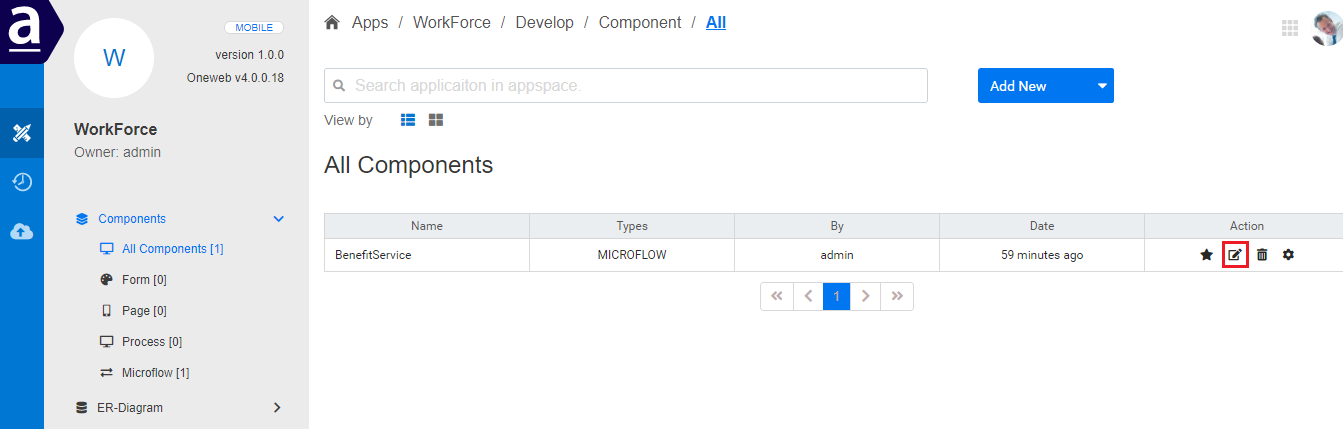
* Open the **Component List** screen and click **Add New**
***
#### Microflow Creation Options
In the **Create Microflow** dialog:
* Enter Microflow details (name, description)
* Choose one of the following options:
* **Create** – creates an empty Microflow
* **Start Design** – creates the Microflow and opens the designer immediately
***
#### Create vs Start Design
* **Create**
* Microflow is created
* User is returned to the component list
* Click the **Edit** icon later to start designing
* **Start Design**
* Microflow is created
* User is redirected directly to the **Microflow Designer**
***
### Step 3: Define Business Objects (BO)
If the user is creating a Microflow for the **first time**, the system redirects to the **Define Business Object** page.
Here, users define:
* **Input parameters**
* **Output parameters**
***
#### Add or Reuse Business Objects
Users have two options:
* **Add Existing Business Object**\
Click the existing BO icon to reuse a predefined BO
* **Create New Business Object**\
Click the **Add Parameter** icon and enter details
***
#### Add Parameters to Business Objects
After creating a Business Object, users can add individual parameters (fields) as required.
***
### Step 4: Design the Microflow
Once Business Objects are defined, the system displays the **Create Flow** page, where:
* The **Flow Diagram** canvas is available
* Users can start adding Activity Nodes
* Integration logic is visually modeled
This marks the beginning of **Microflow design and integration development**.
***
### Summary
Creating a Microflow in ONEWEB involves the following steps:
1. Create or open an application in AppSpace
2. Create a new Microflow within the application
3. Define input and output Business Objects
4. Add parameters to Business Objects
5. Start designing the Microflow using the Flow Diagram
This structured process ensures that Microflows are **well‑defined, reusable, and ready for integration**, forming the foundation for building service‑oriented logic in ONEWEB.
---
# Agent Instructions: Querying This Documentation
If you need additional information that is not directly available in this page, you can query the documentation dynamically by asking a question.
Perform an HTTP GET request on the current page URL with the `ask` query parameter:
```
GET https://docs.onewebstack.com/building-apps/integrations/develop-integration-with-oneweb-microflow/start-with-microflow-in-oneweb/create-a-microflow.md?ask=
```
The question should be specific, self-contained, and written in natural language.
The response will contain a direct answer to the question and relevant excerpts and sources from the documentation.
Use this mechanism when the answer is not explicitly present in the current page, you need clarification or additional context, or you want to retrieve related documentation sections.