# Import / Export Microflow
The **Microflow Designer (MFD)** allows Microflows to be **exported from one application** and **imported into another application or environment**.\
This capability enables teams to **reuse integration logic**, promote consistency across projects, and migrate Microflows between environments (such as Development, SIT, and Production).
Microflows can be:
* Shared across applications
* Migrated across environments
* Reused without redesigning logic from scratch
***
### Export Microflow
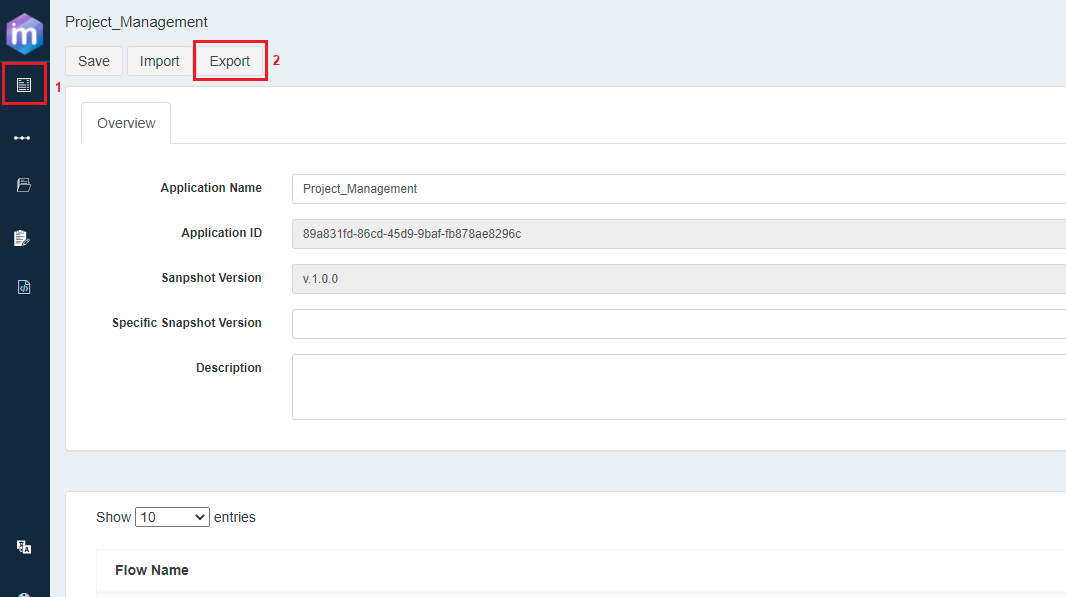
Microflows can be exported from an application via the **Project Overview** screen.
#### Access Export Option
1. Open **Microflow Designer**
2. Navigate to the **Project Overview** screen
3. Click the **Export** option
***
#### Export Options
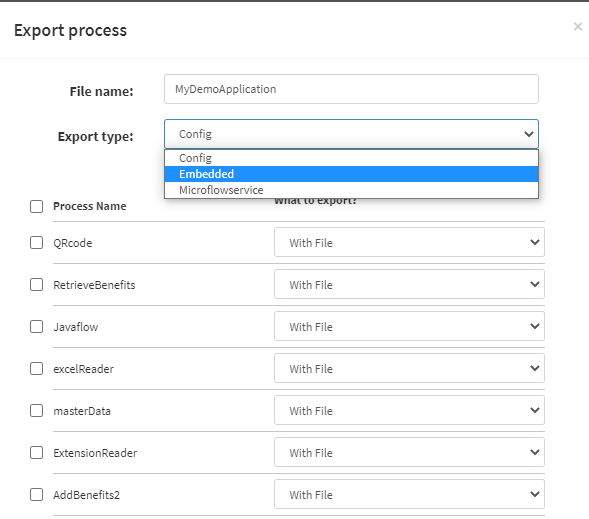
When exporting Microflows, users are presented with **three export modes**:
| Export Option | Purpose |
| ---------------- | --------------------------------------------------------------- |
| **Config** | Export Microflow configuration for reuse in another application |
| **Embedded** | Export Microflow as a JAR for runtime usage (Embedded Mode) |
| **MicroService** | Export Microflow as a service for Standalone Server mode |
Users can select **one or more Microflows** to export in a single operation.
***
#### Exporting Configuration (Config Option)
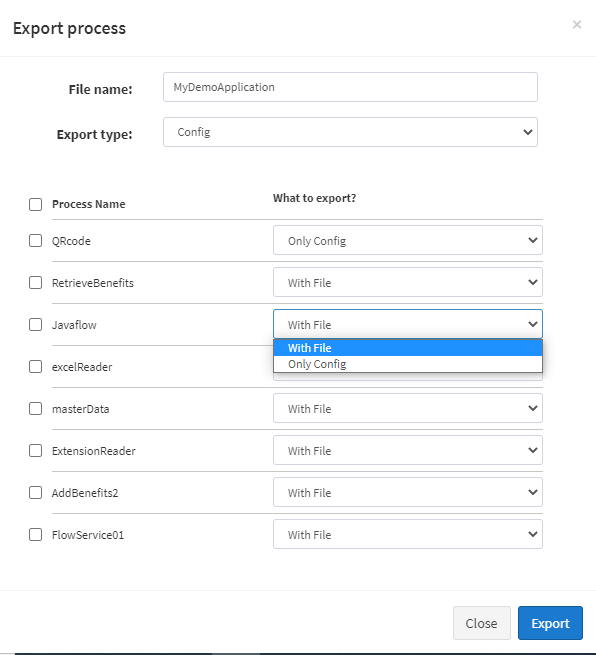
When **Config** is selected, two export variants are available:
1. **Export only configuration**
2. **Export configuration with attached artifacts**
**Export Variants Explained**
* **Only Config**
* Exports:
* Microflow definition
* Business Objects
* Does NOT include:
* Java JARs
* WSDL / XSD files
* **With File**
* Exports Microflow configuration
* Includes attached artifacts, such as:
* Java node JAR files
* Web Service WSDL/XSD files
The exported package is saved locally and contains:
* Microflow logic
* Business Object definitions (JSON format)
* Attached artifacts (if selected)
***
### Import Microflow
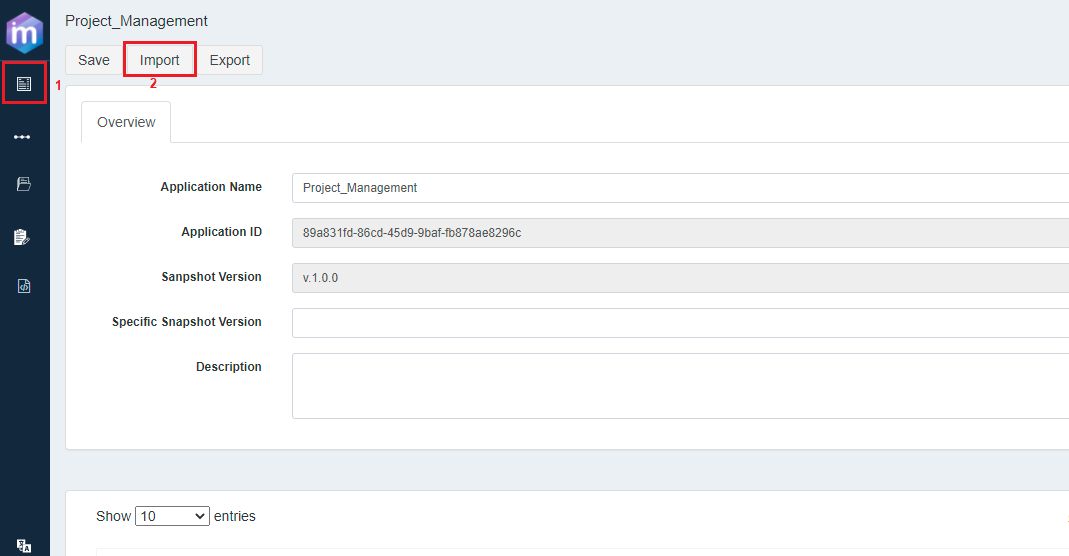
Microflows can be imported into another application using the **Import** option in the Project Information screen.
#### Access Import Option
1. Open **Microflow Designer**
2. Navigate to the **Project Information** screen
3. Click **Import**
***
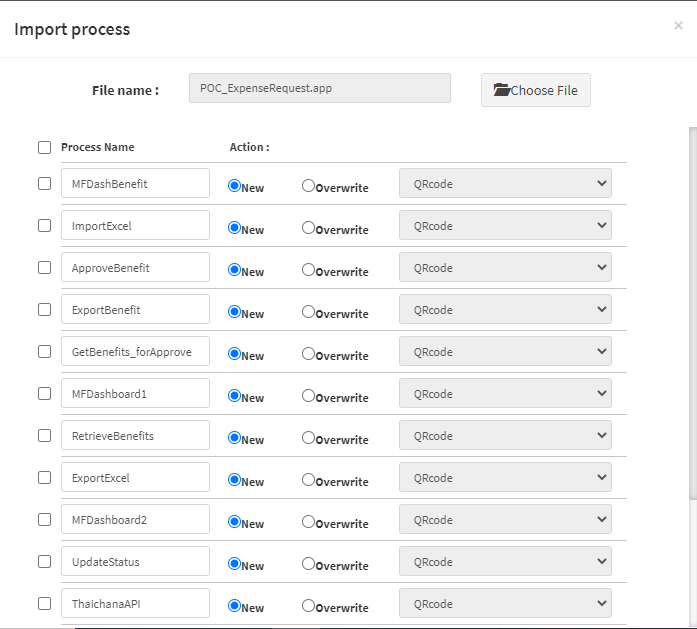
#### Import Process
1. Click **Choose File**
2. Select the exported Microflow configuration file
3. The system displays all Microflows available in the package
4. By default, all Microflows are selected for import
***
#### Import Mode Options
Users can choose how the Microflow should be imported:
* **Import as New**
* Creates a new Microflow
* Existing flows remain unchanged
* **Overwrite Existing**
* Replaces an existing Microflow
* User must select which flow to overwrite
***
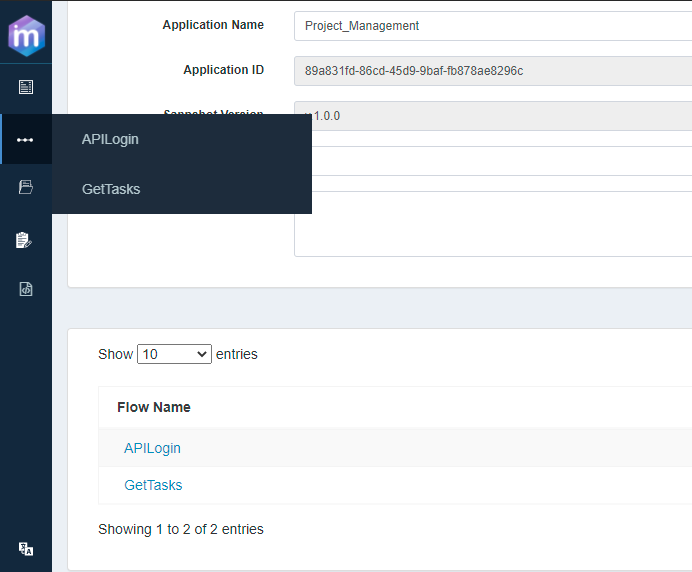
#### Complete Import
1. Click **Import**
2. The Microflow is imported into the application
3. Imported Microflows appear:
* Under the **Flow Name** section
* In the Microflow navigation menu
***
### Best Practices for Import / Export
* Use **Config + With File** when sharing flows with Java or Web Service dependencies
* Use **Only Config** for logic replication within the same environment
* Avoid overwriting flows unintentionally—verify before importing
* Keep exported files versioned for traceability
* Validate imported Microflows before deployment
***
### Summary
The **Import / Export Microflow** feature enables efficient reuse and portability of integration logic in ONEWEB.
With this capability, users can:
* Replicate Microflows across applications
* Migrate integrations across environments
* Share reusable integration logic
* Reduce duplication and development effort
This is a key feature for maintaining **consistent, scalable, and enterprise‑grade integrations** using ONEWEB Microflow.
---
# Agent Instructions: Querying This Documentation
If you need additional information that is not directly available in this page, you can query the documentation dynamically by asking a question.
Perform an HTTP GET request on the current page URL with the `ask` query parameter:
```
GET https://docs.onewebstack.com/building-apps/integrations/develop-integration-with-oneweb-microflow/import-export-microflow.md?ask=
```
The question should be specific, self-contained, and written in natural language.
The response will contain a direct answer to the question and relevant excerpts and sources from the documentation.
Use this mechanism when the answer is not explicitly present in the current page, you need clarification or additional context, or you want to retrieve related documentation sections.