# Custom Logic / Coding
Although ONEWEB provides a rich set of built‑in integration nodes, certain integration scenarios may require **custom logic** that goes beyond the default capabilities.\
To support such cases, **Microflow** provides a **Java Node**, allowing developers to execute **custom Java code** as part of an integration flow.
This approach ensures that advanced or highly specific logic can still be implemented, while keeping the overall integration model consistent and reusable.
***
### Purpose of Custom Logic in Microflow
Custom logic is typically used when:
* Specialized computation is required
* Proprietary algorithms must be implemented
* Third‑party Java libraries need to be leveraged
* Integration logic cannot be expressed using standard nodes
By encapsulating custom logic inside Java classes, Microflows can remain **clean, orchestrative, and low‑code**, while complex logic is handled externally.
***
### Java Node in Microflow
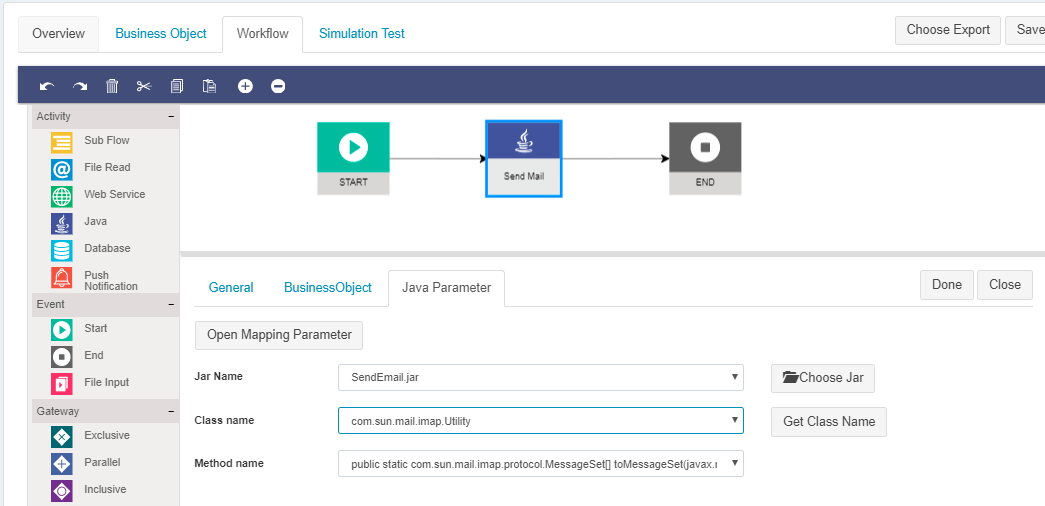
The **Java Node** allows a Microflow to invoke a Java method packaged as a **JAR file**.
Using the Java Node, developers can:
* Execute custom Java logic during Microflow execution
* Pass data from Microflow to Java methods
* Receive computed results back into the Microflow
* Combine low‑code integration with full‑code extensibility
The Java Node acts as a **bridge between low‑code and full‑code development**.
***
### How to Add Custom Logic Using Java Node
To add custom logic to a Microflow, follow these steps:
1. **Create a Java Class**
* Implement the required custom logic in Java
* Define clear input parameters and return values
2. **Export the Java Code as a JAR File**
* Compile and package the Java class into a JAR
3. **Upload the JAR File**
* Upload the JAR file using the Microflow Java Node interface
4. **Add Java Node to Microflow**
* Drag and drop the **Java Node activity** onto the Microflow diagram
5. **Configure the Java Node**
* Select the **JAR Name** (choose from uploaded JARs)
* Click **Get Class Name** and select the Java class
* Select the method to execute in **Method Name**
6. **Map Parameters**
* Open **Mapping Parameters**
* Map Microflow input parameters to Java method arguments
* Map Java method return values back to Microflow parameters
7. **Save Configuration**
* Click **Done** to save the Java Node settings
***
### Managing Dependent JAR Files
When custom Java logic depends on external libraries:
* **Do not bundle dependencies into the main Java Node JAR**
* Upload dependency JARs separately using the **Upload JAR utility**
* Allow administrators to manage and version shared libraries centrally
This practice:
* Avoids classpath conflicts
* Improves dependency governance
* Makes shared utilities easier to maintain
***
### Best Practices for Custom Logic
* Keep Java logic focused and reusable
* Follow the **single responsibility principle**
* Clearly define input/output contracts
* Prefer Microflow nodes over Java when possible
* Use Java Node only when necessary
This ensures that Microflows remain readable, maintainable, and aligned with low‑code design principles.
***
### Summary
**Custom Logic / Coding** in ONEWEB enables developers to extend Microflows with full‑fledged Java functionality when required.
By using the **Java Node**, applications can:
* Execute complex or proprietary logic
* Integrate with external Java libraries
* Maintain a clean separation between orchestration and computation
* Combine low‑code integration with full‑code flexibility
This hybrid approach ensures that ONEWEB remains both **developer‑friendly and enterprise‑capable**, even in advanced integration scenarios.
---
# Agent Instructions: Querying This Documentation
If you need additional information that is not directly available in this page, you can query the documentation dynamically by asking a question.
Perform an HTTP GET request on the current page URL with the `ask` query parameter:
```
GET https://docs.onewebstack.com/building-apps/integrations/develop-integration-with-oneweb-microflow/custom-logic-coding.md?ask=
```
The question should be specific, self-contained, and written in natural language.
The response will contain a direct answer to the question and relevant excerpts and sources from the documentation.
Use this mechanism when the answer is not explicitly present in the current page, you need clarification or additional context, or you want to retrieve related documentation sections.