# Create a Custom App to Call App Runtime REST API
This section demonstrates how a **Custom Application** can interact with ONEWEB through the **App Runtime REST API** to retrieve entity data.\
The example uses a **Work Order entity** and shows a complete flow from authentication to displaying results in a custom UI.
***
### Objective
By the end of this section, you will understand how to:
* Authenticate using App Runtime REST API
* Retrieve entity data using REST endpoints
* Pass key parameters through the request URL
* Use REST responses in a Custom Application
* Display returned JSON data in the UI
***
### Use Case Overview
**Use case:**\
A Custom Application needs to retrieve **Work Order** information from ONEWEB and display related customer contact data using REST APIs.
***
### Step‑by‑Step: Get Entity Data Using REST API
***
#### Step 1: Configure Entity for REST Access
Create an Entity in **App Designer** named **Work Order**.
In this example:
* The entity contains **3 Tabs**
* Includes **4 Modules**
* Is configured to expose data through App Runtime APIs
***
#### Step 2: Identify Key Field for Query
Determine the **key field** used to retrieve entity data via REST.
In this example:
* Key field: `SALE_ORDER_NO`
* Key value: `0000000010`
This value will be passed as a query parameter to the REST API.
***
#### Step 3: Login to Obtain Authentication Token
Before calling entity APIs, authenticate using the **Login REST API**.
**Request**
* **Method:** POST
* **URL:**
```
http://localhost:9084/eaf-rest/login
```
* **Headers:**
```
Content-Type: application/json
```
* **Body (JSON):**
```
JSON{
"username": "administrator",
"password": "P@55w0rd",
"clientId": "123456789"
}
```
**Response**
* The system returns an **id\_token**
* This token must be used for authorization in subsequent API calls
***
#### Step 4: Call Entity GET API
Construct the GET request to retrieve data from the entity.
**URL Format**
```
ServerName:Port/ContextRoot/entity/{entityID}/get
```
**Example**
```
http://localhost:9084/eaf-rest/entity/EN_431959963131500/get
?handleForm=Y
&SALE_ORDER_NO=0000000010
&cbMethod=callback
```
***
#### Step 5: Set Required HTTP Headers
Include the following headers in the request:
```
Content-Type: application/json
Authorization: Bearer
clientId: 123456789
```
***
#### Step 6: Execute Requests and Receive JSON Response
After successful authentication and API call, the App Runtime responds with **JSON data** representing the entity.
***
#### Understanding Response Structure
The response JSON typically includes:
* `ENTITY_ID` – Entity identifier
* `MODULE_ID` – Module identifier
* `UPDATE` – Operation mode
* `SALE_ORDER_ITEM` – Table or module name
* Field names such as:
* `PRODUCT_ID`
* `PRODUCT_NAME`
* `KEY` – Primary key for records
This structured response allows Custom Apps to navigate and extract relevant information programmatically.
***
### Test API from a Custom Application
Now let’s simulate a **real Custom App flow** that uses JavaScript and AJAX to consume the App Runtime API.
***
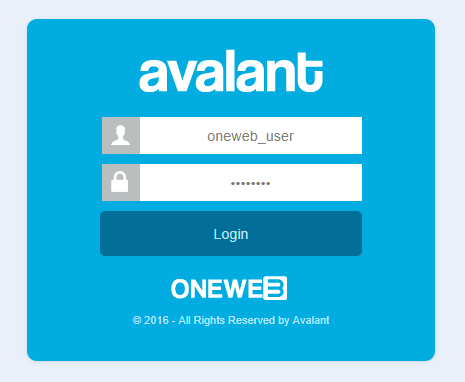
#### Step 1: Login Screen
The user enters credentials in the Custom App UI and triggers a login request.
***
#### Step 2: Store Token in Session
Use **AJAX** to:
* Call Login REST API
* Store `id_token` securely in session or memory for reuse
***
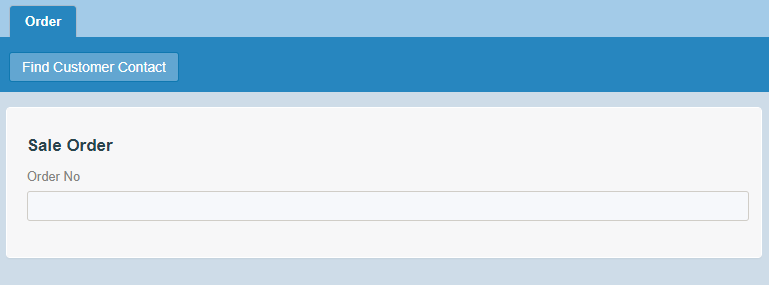
#### Step 3: Input Order Number in UI
Prepare a screen where users can input a **Sales Order Number**.
***
#### Step 4: Trigger Entity API Call
User enters an Order No and clicks **Find Customer Contact**.
***
#### Step 5: Call REST API via JavaScript
Use JavaScript / AJAX to:
* Call the entity GET API
* Pass `SALE_ORDER_NO`
* Include headers:
* Content-Type
* Authorization (Bearer token)
* clientId
***
#### Step 6: Extract Required Data from JSON
Navigate the JSON response to retrieve:
```
MODULE_ID → UPDATE → SALE_ORDER_DELIVERY → CUST_CONTACT
```
This value represents the **Customer Contact** associated with the work order.
***
#### Step 7: Display Result in UI
Use JavaScript or JQuery to render the retrieved data on the screen.
***
### Summary
This example demonstrates how a **Custom Application** can:
* Authenticate via App Runtime REST API
* Retrieve entity data using key‑based queries
* Consume REST responses in JSON format
* Display backend data dynamically in a custom UI
By using **App Runtime REST APIs**, ONEWEB applications can act as powerful backend services for:
* Web apps
* Mobile apps
* Third‑party systems
---
# Agent Instructions: Querying This Documentation
If you need additional information that is not directly available in this page, you can query the documentation dynamically by asking a question.
Perform an HTTP GET request on the current page URL with the `ask` query parameter:
```
GET https://docs.onewebstack.com/building-apps/integrations/app-runtime-rest-api/create-a-custom-app-to-call-app-runtime-rest-api.md?ask=
```
The question should be specific, self-contained, and written in natural language.
The response will contain a direct answer to the question and relevant excerpts and sources from the documentation.
Use this mechanism when the answer is not explicitly present in the current page, you need clarification or additional context, or you want to retrieve related documentation sections.